

Are you using Unreal?
You can do this with our Unreal Engine plugin!
Create a repository
1
Create a new repository
In the desktop app, click on the 
New repository button on the top right.2
Choose a folder for the repo
You can create a new folder or use an existing one. If you have a game-engine project, you probably want to choose its root folder.
For this example I’ll create a new folder, but the other steps work the same either way.
I’ll select 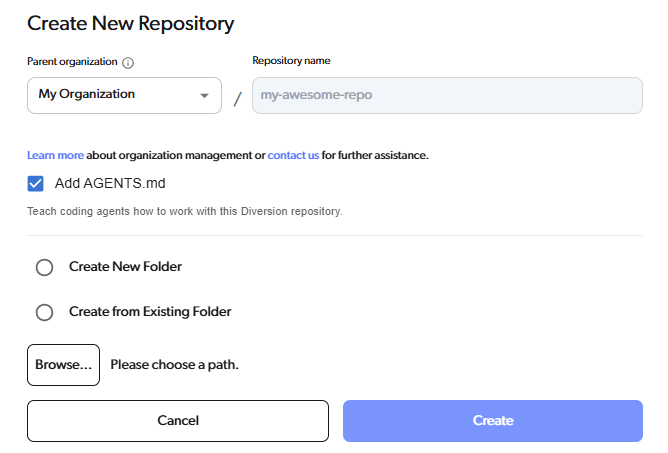
Create New Folderand call it CreatingNewRepo.3
Click Create
4
Syncing
A new repo is created in the folder you specified! The workspace’s Sync toggle shows it’s syncing, and its status reads Syncing… while it uploads the folder’s content to our cloud.
In this example it’s an empty folder so it should only take a moment. If you create a new repo for an existing project, it might take a bit longer.
5
Good to go!
Once the upload finishes, the workspace row’s status changes to Synced. Open the repo and the workspace header names the commit your machine actually has — Synced to 
dv.commit.<id>. See Sync status for what each status means.AGENTS.md and CLAUDE.md
The Add AGENTS.md option in the Create New Repository dialog is on by default. It adds two files to the new repo’s first commit:AGENTS.mdhas short instructions for coding agents: the maindvcommands and safe habits.CLAUDE.mdis one line that tells Claude Code to readAGENTS.md.
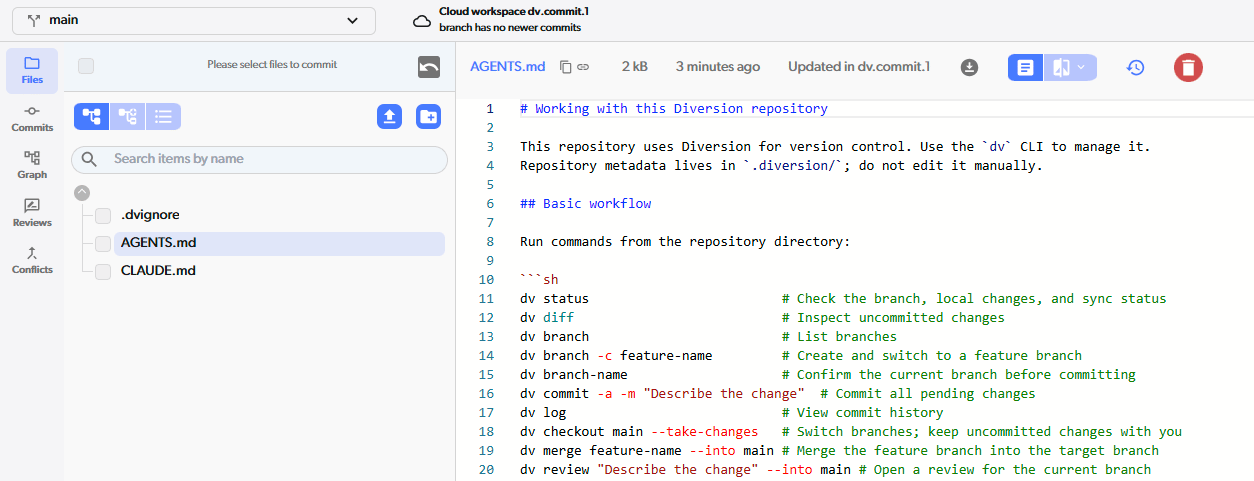
- To leave them out, uncheck Add AGENTS.md before you click Create.
- Diversion never replaces an
AGENTS.mdorCLAUDE.mdthat is already in the folder. dv initdoes not add them.
What’s next?
- Manage project access — invite collaborators to your repo
- Quick access — press Ctrl+K (Cmd+K on Mac) to jump to a repo, branch, commit, or setting