

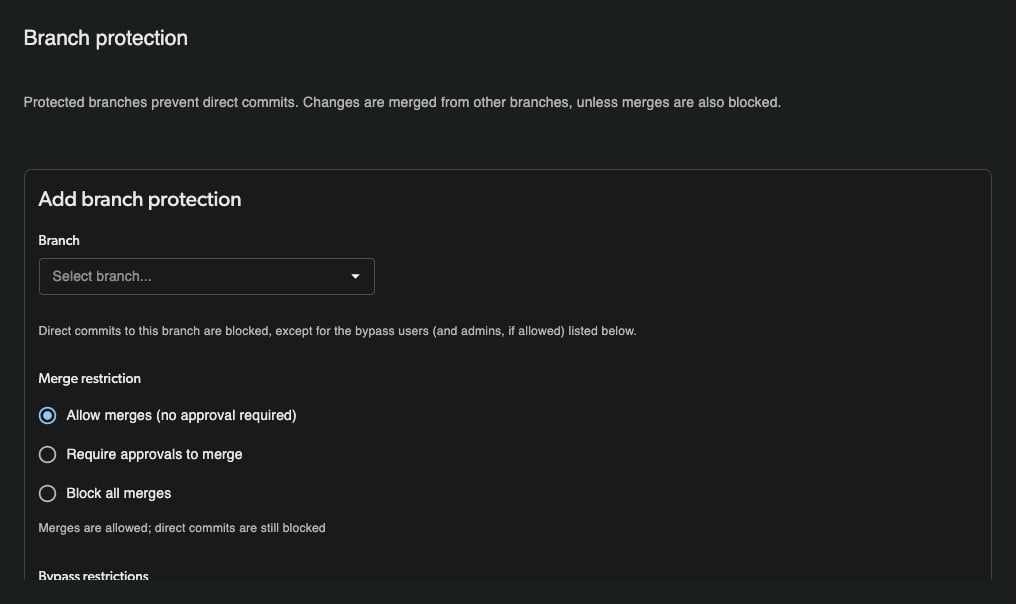
What Protection Does
When a branch is protected:- Direct commits are blocked. Users cannot commit changes straight to the protected branch.
- Changes must be merged in. To update a protected branch, make your changes on a separate branch and merge that branch into the protected one.
- Admins can optionally bypass. You can allow administrators—or a specific list of users—to commit directly, bypassing the protection.
Adding a Protection Rule
1
Open Branch Protection settings
Click your profile avatar in the top navigation and select Organization settings. In the settings sidebar, select Repositories, then select Branch protection in the repository column.
2
Confirm the repository
Check the repository picker at the top of the repository column and make sure the correct repository is selected before continuing.
3
Open the form
Click Add protection rule.
4
Select the branch
Under Add branch protection, open the Branch dropdown and choose the branch you want to protect.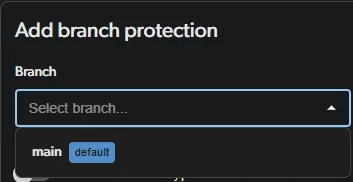
5
Configure bypass (optional)
Under Merge restriction, choose how changes reach the branch: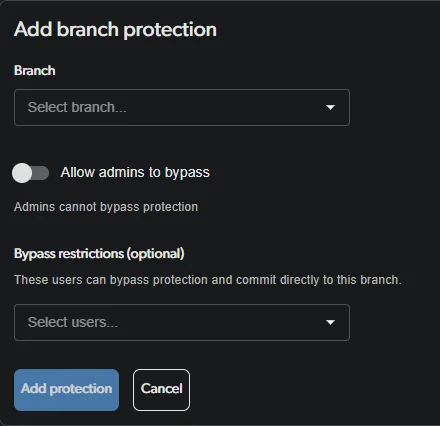
- Allow merges — merges need no approval.
- Require approvals to merge — a merge needs the number of review approvals you pick (1 to 5). The review author cannot approve or request changes on their own review. Tick Count only approvals given on the latest commit to ignore approvals given before the newest commit on the branch being merged. After new commits land, reviewers must approve again before the branch can merge.
- Block all merges — only bypass users (and admins, if allowed) can merge.
- Allow admins to bypass — toggle this on to let repository administrators commit directly. When off, the helper text reads “Admins cannot bypass protection.”
- Bypass restrictions (optional) — use the Select users… dropdown to add specific users who can bypass protection and commit directly to this branch.
6
Add protection
Click Add protection. The branch is now protected.
Managing Existing Rules
Each existing rule lists the protected branch, its bypass status (for example, “No bypass allowed”), its merge restriction (for example, “Requires 2 approval(s) on the latest commit”), and any Allowed users who can commit directly. Use the pencil icon to edit a rule or the trash icon to delete it.Removing a Protection Rule
To stop protecting a branch, go back to Branch protection (profile avatar → Organization settings → Repositories → Branch protection) and make sure the correct repository is selected in the repository picker. Find the rule for that branch and click the trash icon to delete it. Direct commits to the branch are allowed again immediately.