

Switching login methods
If your real goal is to switch sign-in methods (e.g., from email/password to Google), see the FAQ: I can’t log in with Google / I can’t log in with my password. Switching currently requires deleting your account and signing up again with the new method, so back up or transfer any owned repositories first.What gets deleted
When your account is deleted, Diversion:- Permanently deletes every repository you own (including history, branches, workspaces, and stored files).
- Cancels any active subscription tied to your account and removes you from Stripe.
- Removes you from every organization and shared repository you collaborate on — the resources themselves stay, but you lose access.
- Disables your login credentials (email/password or Google).
- Revokes any pending invitations sent from your account.
Open the delete account dialog
1
Open your profile page
Click your avatar in the top navigation and select Your profile.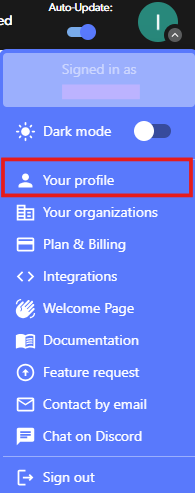
2
Scroll to the Danger zone
The Danger zone section is at the bottom of the Profile page.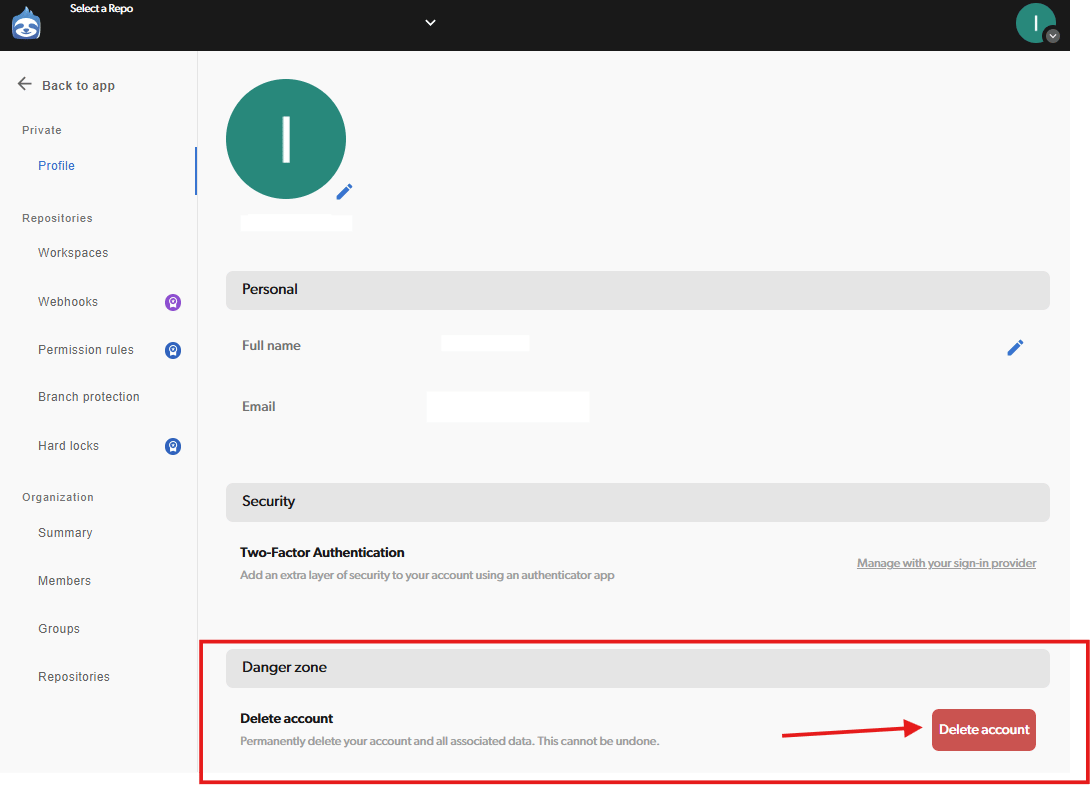
3
Click 'Delete account'
This opens the deletion wizard. Diversion immediately checks whether your account can be deleted.
Resolve blockers (if any)
Some account states block deletion until you fix them. If Diversion finds a blocker, the dialog lists what to resolve — you cannot proceed until each item is cleared.”Repositories you own in other organizations”
You own one or more repositories outside the blocking organization that have other collaborators. Either:- Delete the repository (if it’s no longer needed), or
- Remove every other collaborator from the repository — see Manage project access.
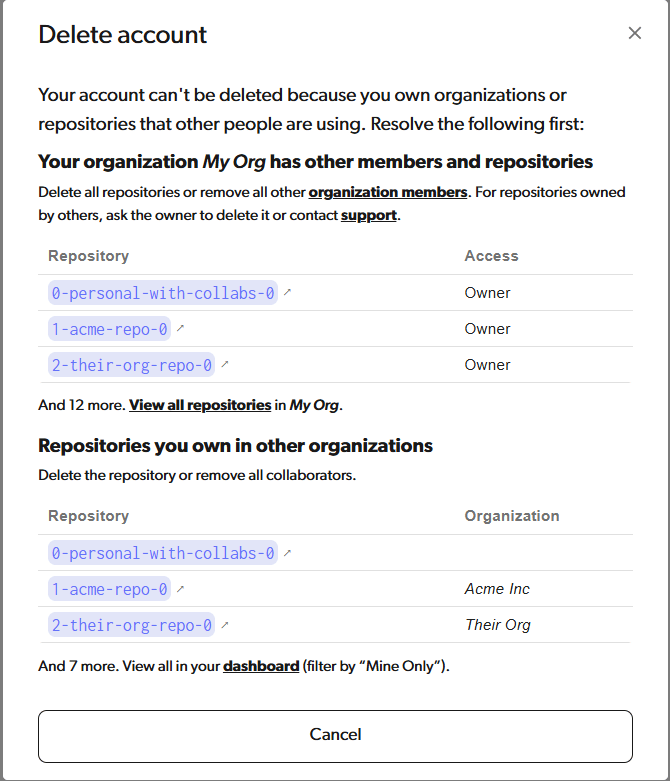
”Your organization has other members and repositories”
You own an organization that has both repositories and other members. Resolve it by clearing one side: either remove every repository from the organization, or remove every other member. To clear the repositories, for each one:- Delete the repository (if it’s no longer needed), or
- Transfer the repository to another organization.
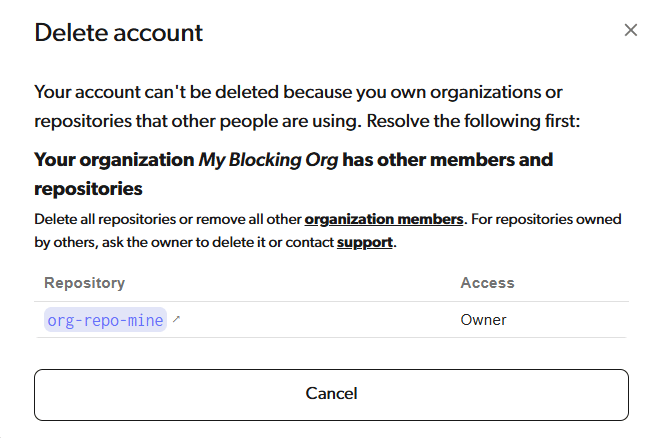
Review what you’ll lose
If your account has no blockers but you still own or belong to repositories or organizations, the dialog shows a step 1 of 2 review screen listing everything affected by deletion: repositories and organizations you own (which will be deleted) and ones you’re a member of (which you’ll lose access to).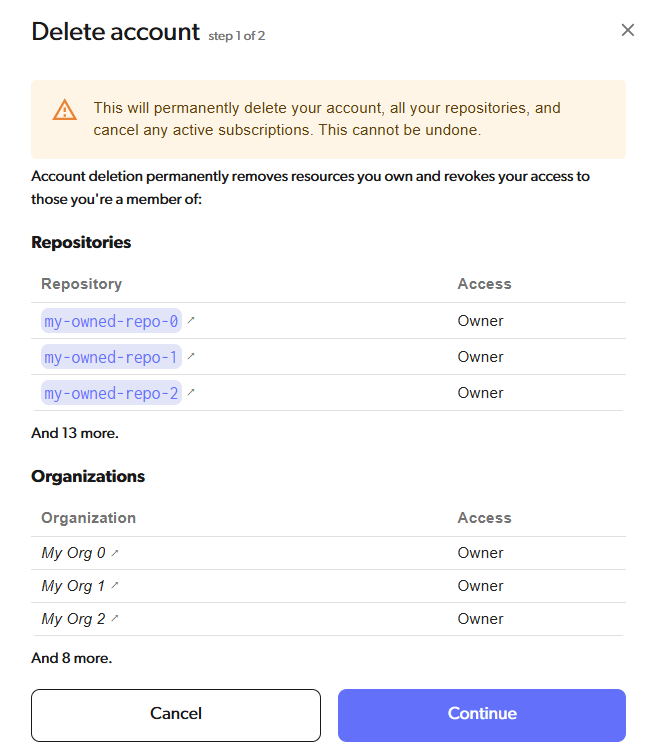
- Clone repositories you own to a local folder if you want to keep a copy of the files.
- Use Transfer ownership to hand a repository to a collaborator instead of deleting it — see Transferring repository ownership.
Confirm and delete
The final step asks you to pick a reason for leaving, optionally leave feedback, and type your email to confirm.1
Fill in the form
Pick a reason and optionally add feedback (up to 255 characters; for longer notes, email support@diversion.dev).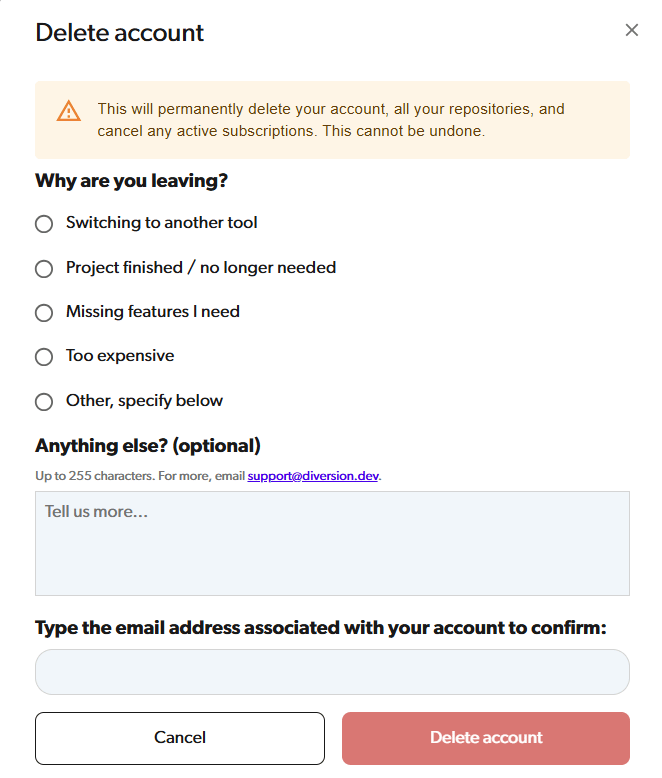
2
Type your email
Type the email address associated with your Diversion account exactly. The Delete account button stays disabled until the email matches.
3
Click 'Delete account'
Diversion deletes your repositories, cancels your subscription, removes your login, and signs you out. You’re redirected to the sign-in page.
After deletion
- Logging in with the deleted email no longer works on the web or desktop apps.
- Any local workspace folders on your machine remain on disk as plain files but no longer sync with Diversion. Delete them manually if you no longer need them.
- The deleted email address can be used to register a new account later. The new account starts fresh; previously deleted data is not recoverable.