

- Invite it to a repository. Everyone in the group becomes a collaborator in one step. This copies the current members once. People you add to the group later do not get access.
- Use it in granular permission rules. A rule always applies to the group’s current members. When you add or remove someone, the rule changes for them too.
Who can do what
Opening the Groups page
-
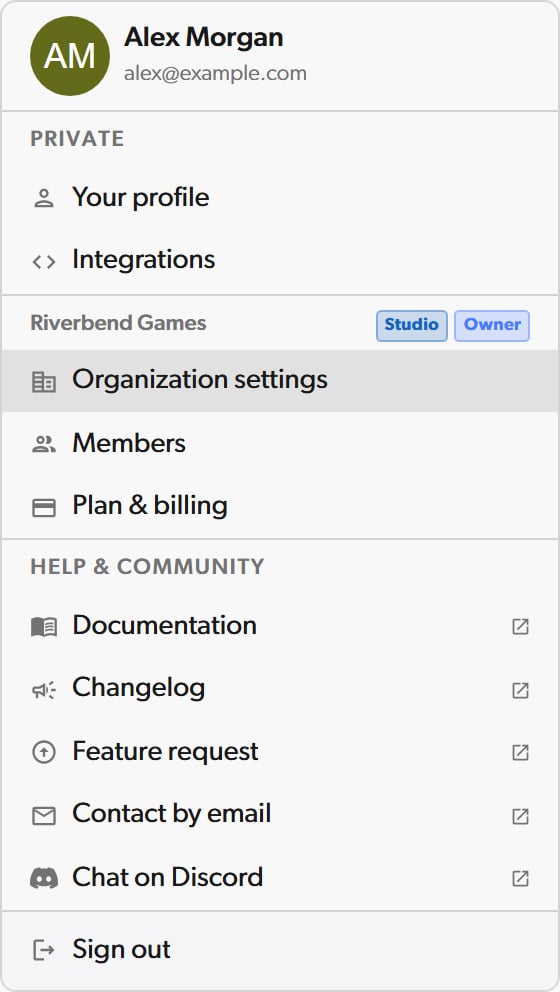
Click your profile avatar in the top navigation and select Organization settings.
-
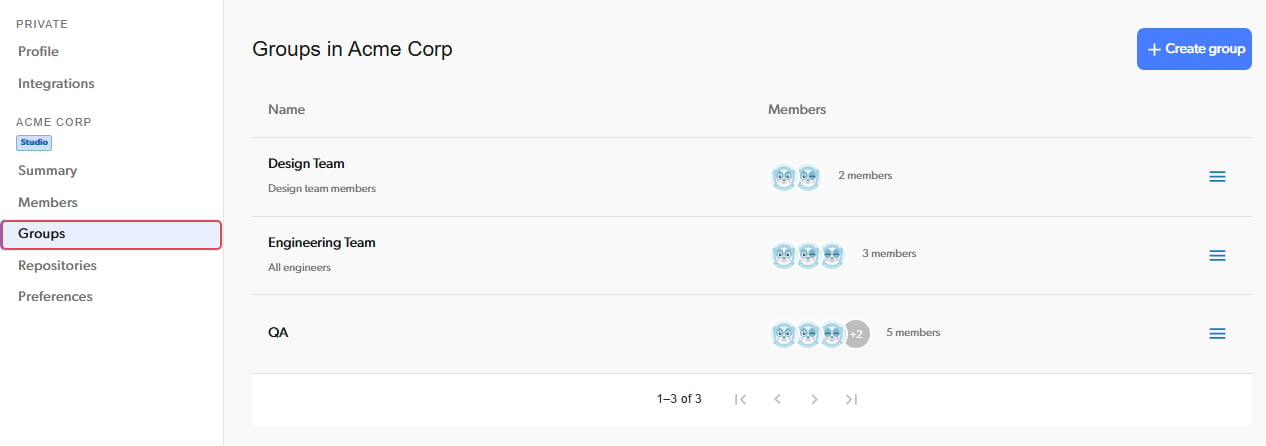
In the settings sidebar, select Groups.
Creating a group
-
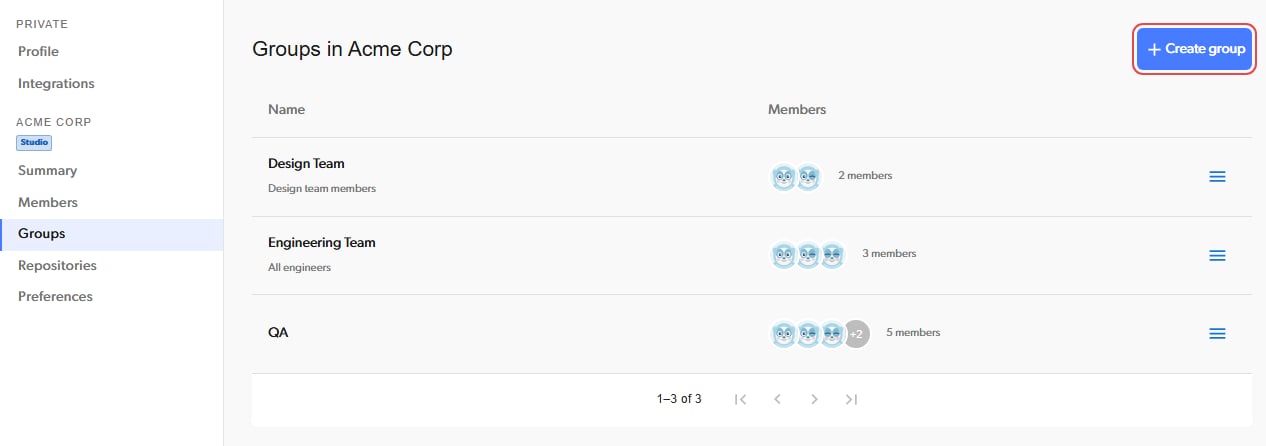
Open the Groups page and click Create group.
-
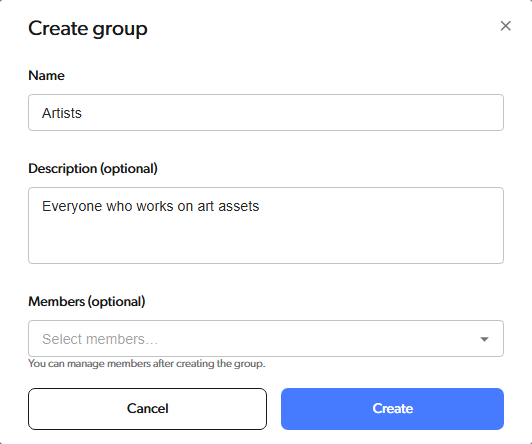
Enter a name. You can also add a description and pick members under Members (optional). Then click Create.
- Each group name must be unique in the organization.
- Creating a group does not add you to it. To include yourself, pick yourself under Members (optional).
- You can only add people who are already members of the organization. To add someone who is not a member yet, invite them to the organization first.
Adding members
-
Open the Groups page and click the group’s name.
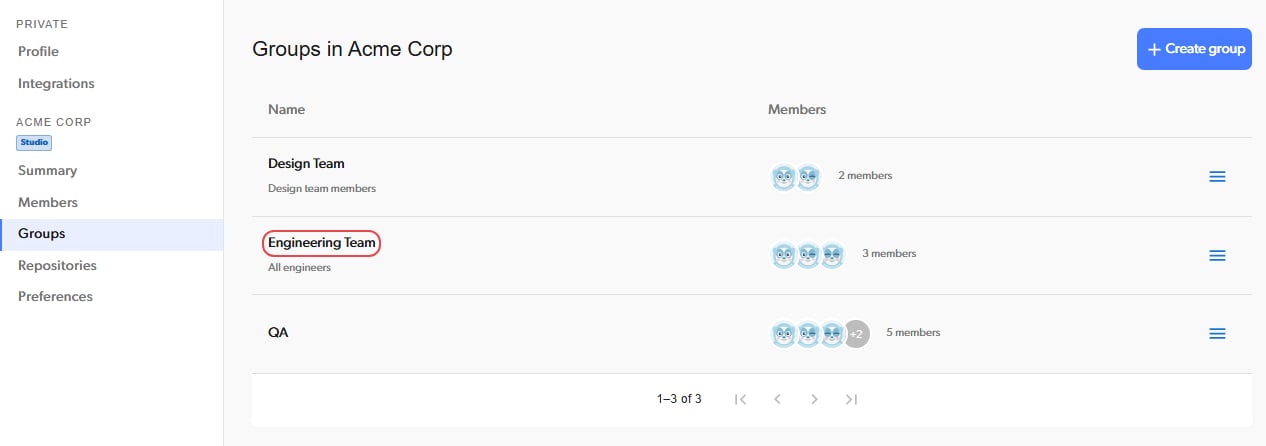
-
Under Select a member to add…, pick the person. They are added right away.
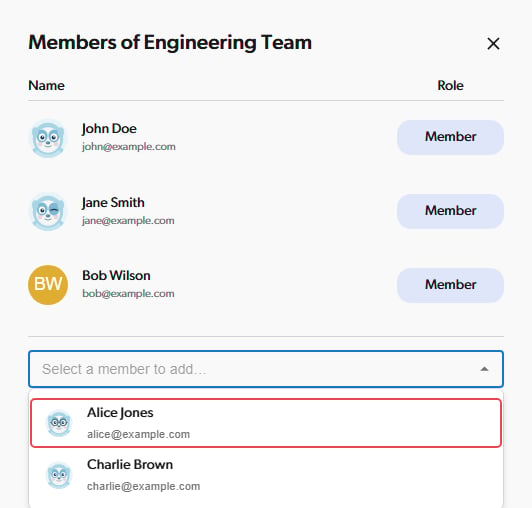
- Permission rules that target the group now apply to them.
- They do not get access to repositories the group was invited to before. Invite them to those repositories, or invite the group again.
Removing members
-
Open the Groups page and click the group’s name.
-
Click Member next to the person and select Remove.
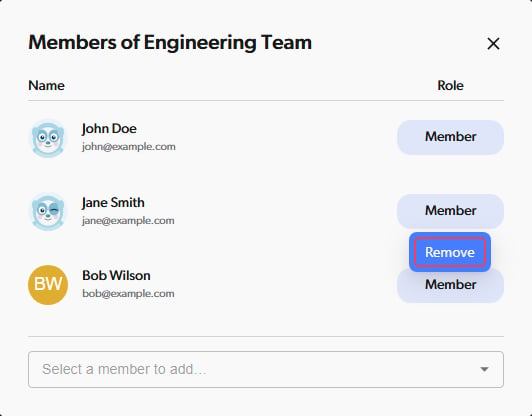
- Click Remove to confirm.
- Permission rules that target the group no longer apply to them.
- They keep access to repositories the group was invited to. To remove that access, remove them from each repository’s collaborators. See Managing repository collaborators.
Editing a group
- Open the Groups page and click the menu icon at the end of the group’s row.
-
Select Edit group.
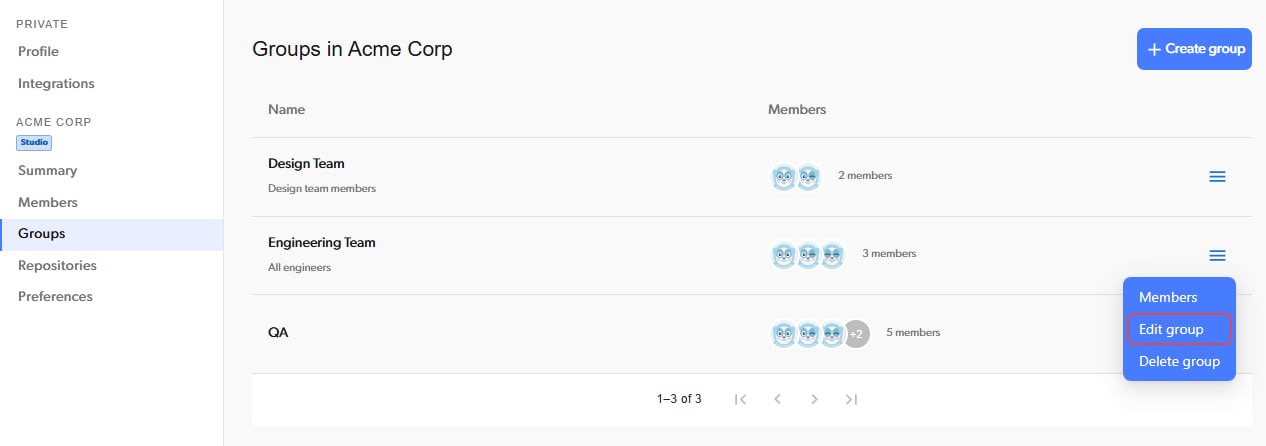
- Change the name or description, then click Save.
Deleting a group
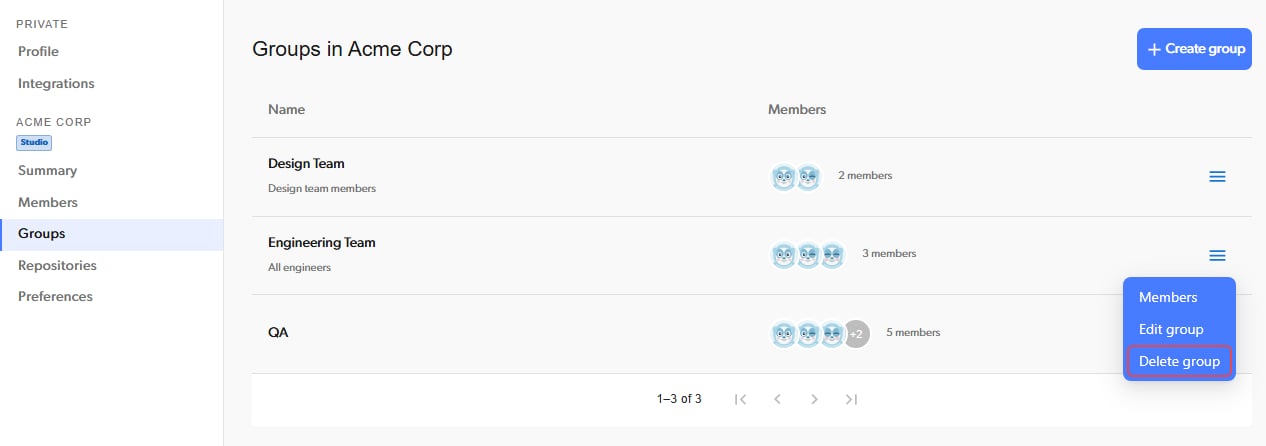
- Open the Groups page and click the menu icon at the end of the group’s row.
-
Select Delete group, then click Delete to confirm.
- Nobody loses repository access. People the group added stay collaborators.
- Permission rules that target the group stop working. They no longer grant or deny access, but they stay in the rules list until you delete them. If the group has rules, the confirmation dialog lists the repositories that have them.
Giving a group access to a repository
- Open the repository’s collaborators dialog. See Managing repository collaborators.
-
Type the group name in the Email, user, or group… field.
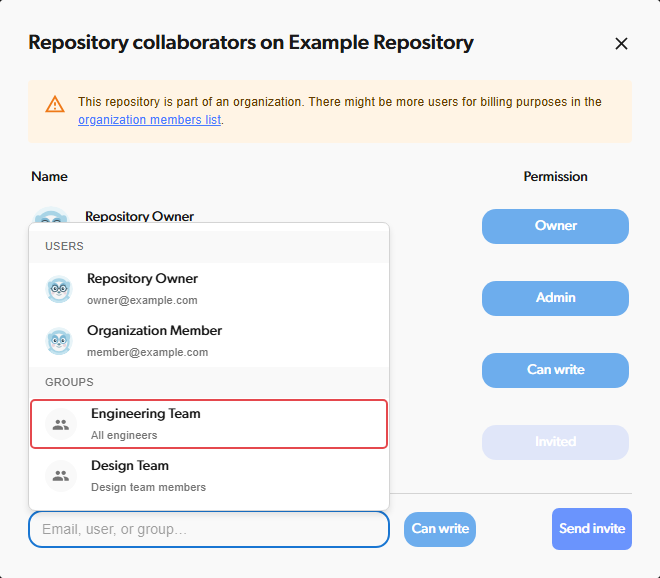
- Choose an access level and click Send invite.
Inviting a group is a one-time action. People you add to the group later do not get access to repositories the group was invited to before. Invite them to those repositories, or invite the group again.
- If a member already has access to the repository at a lower level, inviting the group at a higher level raises their access to that level. It never lowers anyone’s access.
- If you remove someone from the repository and later invite the group again, they are added back.
Using a group in permission rules
When you add a granular permission rule, choose the group in the User or Group field. Each rule targets either one user or one group.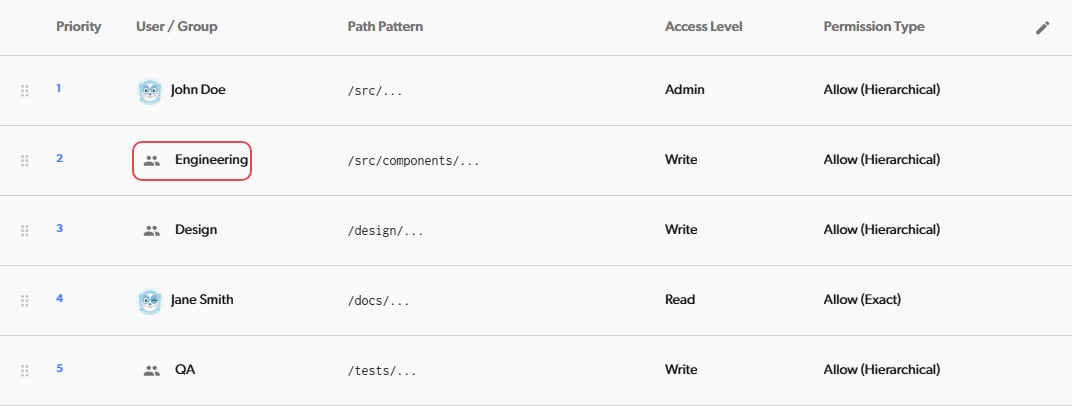
Limitations
- A group cannot contain other groups.
- Branch protection, reviewers, and notifications work with individual users, not groups.