

Resolving conflicts with AI is available on Professional, Studio, and Enterprise plans, and during a trial.
Resolve conflicts in the Diversion app
1
Open the merge
Start the merge as usual (see Working in parallel). If there are conflicts, the conflict screen opens.
2
Ask AI to resolve
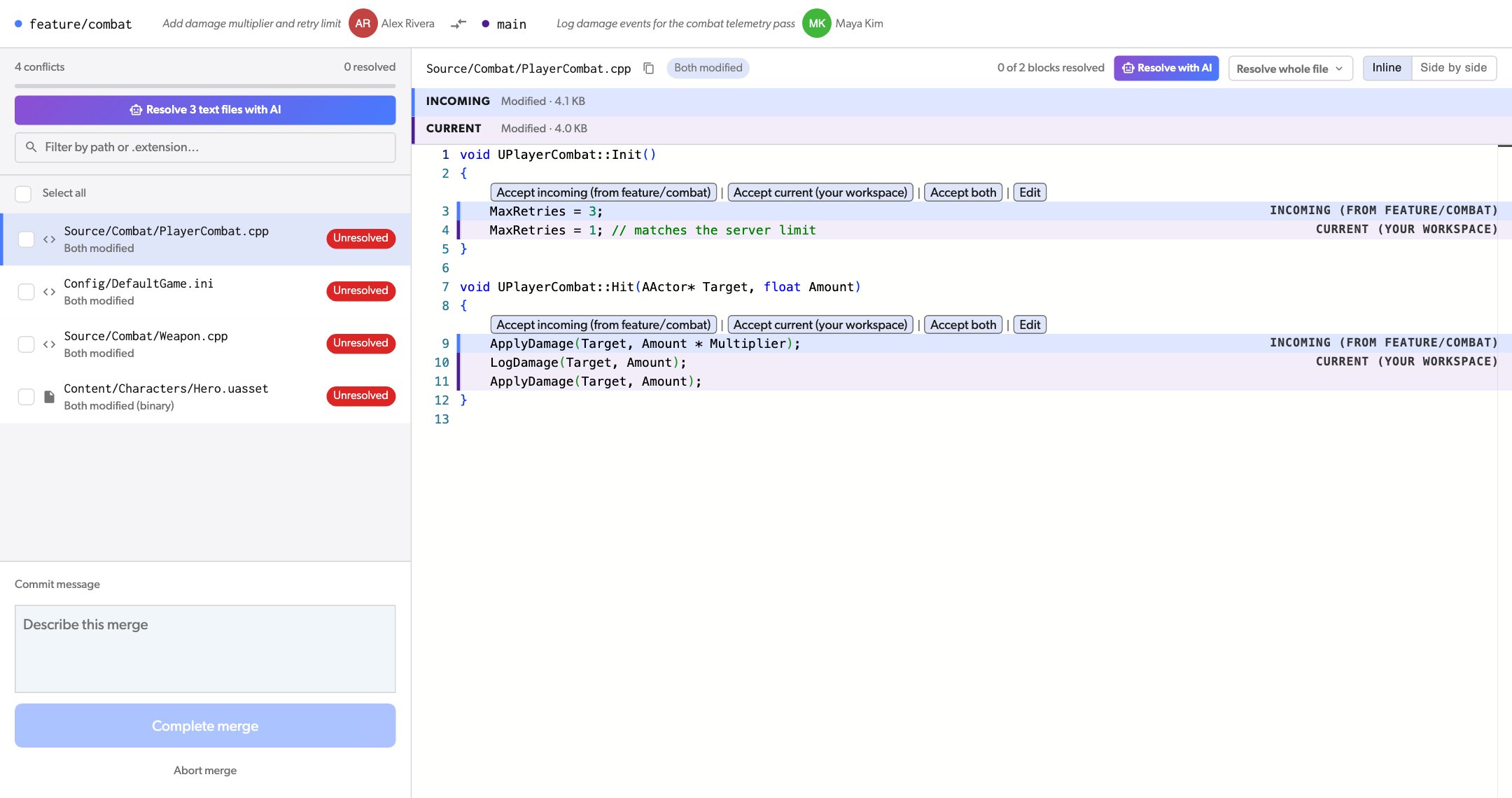
- To resolve one file, select it and click Resolve with AI above the file.
- To resolve many files, click Resolve N text files with AI above the file list. To pick only some files, tick their checkboxes first.
3
Wait for AI
Each file shows AI queued or AI working. A file is read-only while AI works on it. You can keep resolving other files in the meantime.To stop, click Stop above the file list, or Stop AI and resolve manually above the file.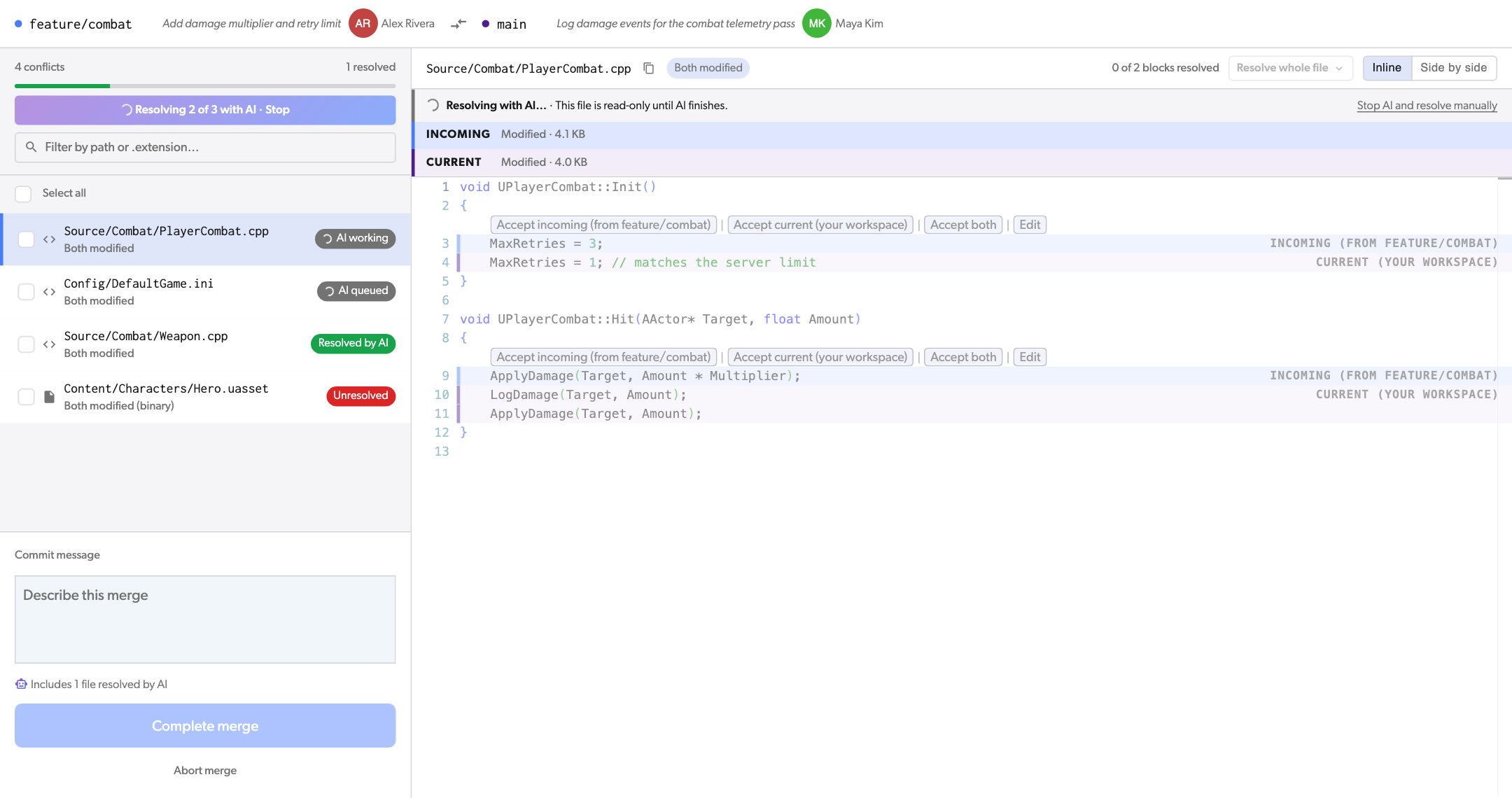
4
Review the result
A resolved file shows Resolved by AI and a short reason for the result. Read the merged file.If you do not agree with the result, open Resolved by AI · Change to choose a side or go back to the conflict, or edit the file.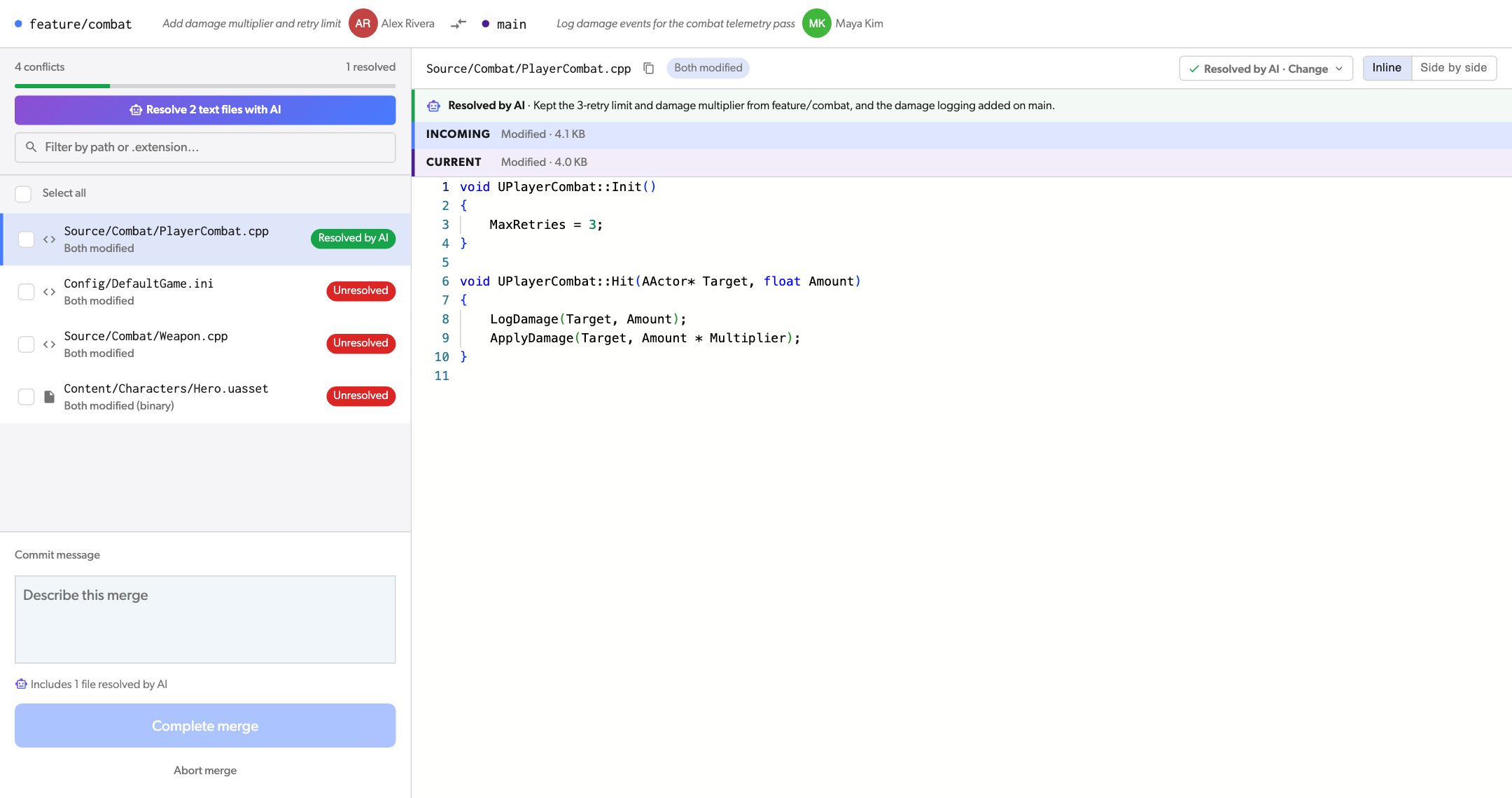
5
Complete the merge
Resolve any files that are left, type a commit message, and click Complete merge. The footer shows how many files AI resolved.
When AI cannot resolve a file
Sometimes the two changes cannot be combined safely, for example when both branches changed the same function in different ways. Then the file shows AI couldn’t resolve this file and the reason. The file stays unresolved, and you resolve it yourself.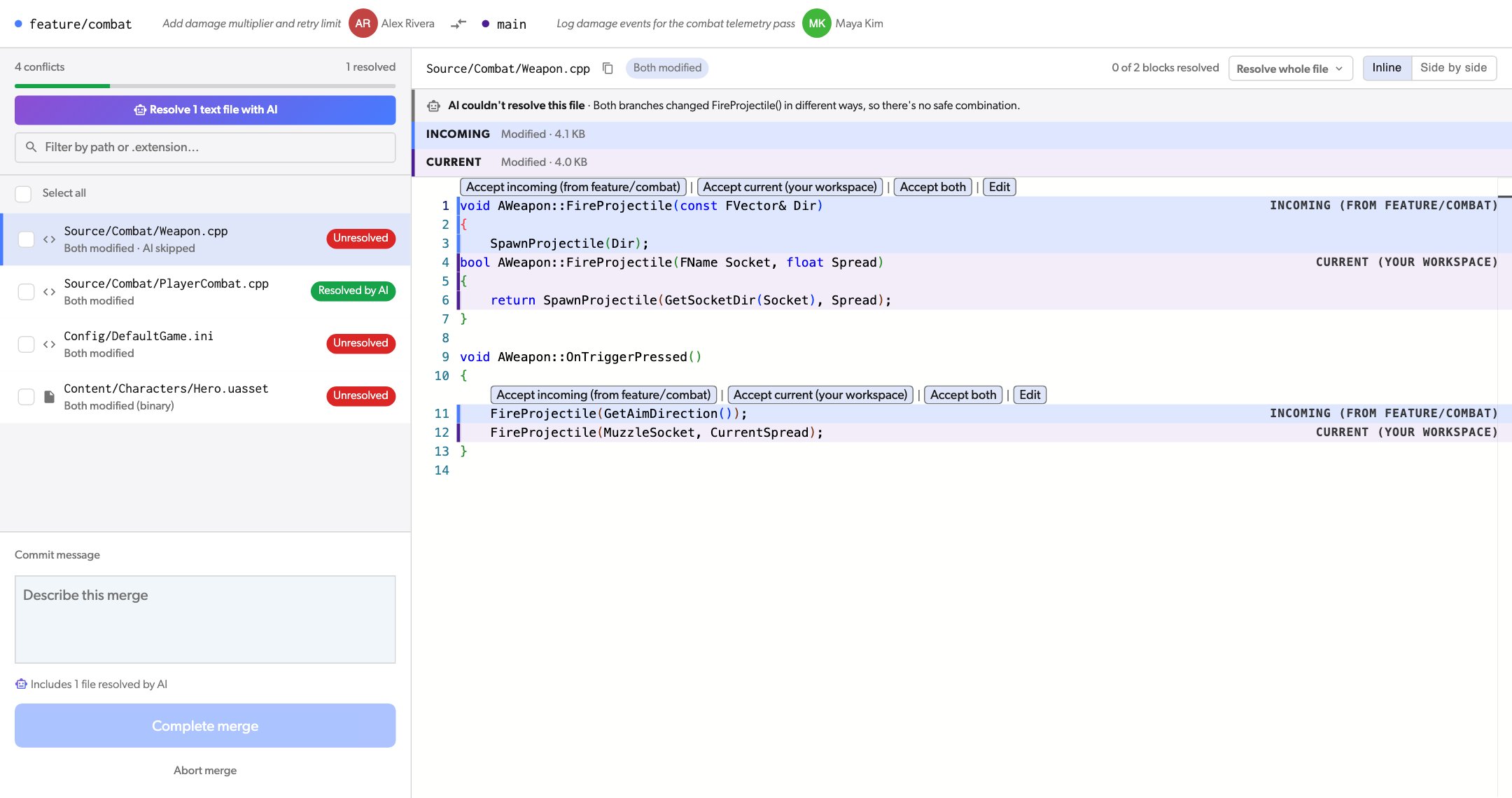
Resolve conflicts from the CLI
Add--conflict_resolution ai to merge, update, or revert:
- Diversion first merges what it can on the server.
- AI resolves the text files that still have conflicts, and the CLI shows its progress.
- If AI resolves every conflict, Diversion completes the merge and creates the commit.
- If some conflicts are left, the merge stays open. The CLI lists them and prints a link to finish the merge in the Diversion app. The files AI resolved stay resolved.
Ctrl+C. AI keeps working on the server, and you can finish the merge in the app.
Plans and limits
- Plans: Professional, Studio, and Enterprise, and during a trial.
- Text files only: AI skips binary files, such as images, models, and
.uassetfiles, and Unity YAML files, such as scenes and prefabs. For these, choose a side or use an external merge tool. - Both sides need the file: if one side deleted the file, or two different files were moved to the same path, you choose which version to keep.
- File size: 256 KB or less on both sides. For a larger file, AI shows that the file is too large, and you resolve it yourself.
- Files at a time: up to 50. For a merge with more files, click the button again after the first files are done. The CLI does this for you.
- Usage limit: each organization has a usage limit for AI. If your organization reaches it, AI shows “The AI token budget is used up for now. Try again later.” The limit resets after a few hours.