

.uasset, .umap, or .fbx) that cannot be merged and require exclusive editing.
Hard locks are available on Studio and Enterprise plans.
How Hard Locks Work
- A lock is per-repository and per-path — each lock applies to a specific path in a specific repo.
- A lock is tied to the user who created it.
- Once a path is locked, only the locking user can commit changes to that path.
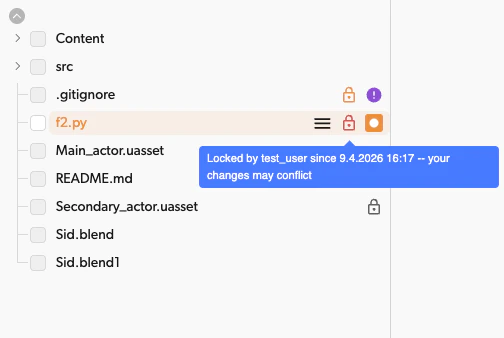
- If another user edits a locked file locally, a warning is displayed but the edit is saved. However, committing those changes will be blocked.
- Only the locking user or a repository admin/owner can release the lock.
Locking and Releasing Paths
Using the Desktop or Web App
To lock a path, right-click the file or folder in the tree view and select Lock from the context menu.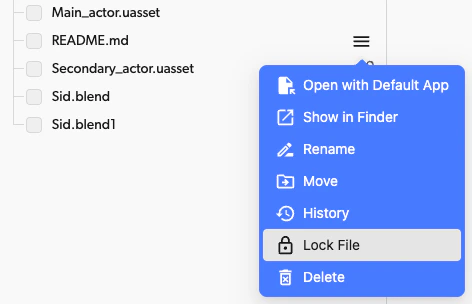
Using the CLI
Lock a path:Auto-Lock
Repository admins can configure file patterns (by extension) so that matching files are automatically locked when a user begins editing them. This removes the need for manual locking on common binary or unmergeable file types.How Auto-Lock Works
- When a user’s saved changes to a matching file sync to their workspace, Diversion automatically locks the file for that user. In Unreal Engine, saving a matching asset locks it for you a few seconds later. No dialog opens; the lock icon on the asset in the Content Browser shows the lock is yours — see Hard Locks in Unreal Engine.
- If the file is already locked by another user, auto-lock does not apply — the existing lock is preserved.
Auto-lock is particularly useful for binary files like
.uasset, .umap, or .fbx that cannot be merged and always require exclusive editing.Configuring Auto-Lock Patterns
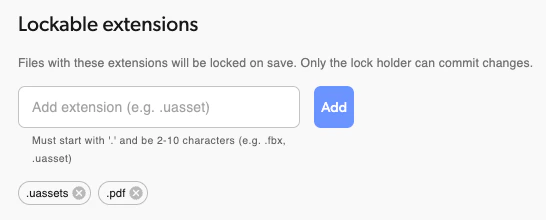
Auto-lock is a per-repository setting configured by a repo admin or owner.- Click your profile avatar, select Organization settings, then select Repositories in the sidebar and Hard locks in the repository column
- Use the repository picker at the top of the repository column to select the repository
- Add file extension patterns (e.g.,
.uasset,.umap,.fbx) - Save changes
Auto-Release
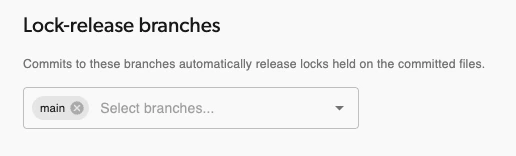
Locks can be automatically released when the locking user commits changes on specific branches. This is configured alongside the auto-lock settings.How Auto-Release Works
- A repository admin defines which branches trigger auto-release (e.g.,
main,develop). - When a user commits or merges to one of these branches, their locked files included in the commit are automatically released.
Viewing Locked Paths
- Desktop or Web App: Lock icons appear in the tree view next to locked paths. Hover over the icon to see who holds the lock.
- CLI: Run
dv lockwith no arguments to list all locks in the repository. - Unreal Engine: Lock icons appear on assets in the Content Browser; the tooltip names the holder.

Hard Locks in Unreal Engine
The Unreal Engine plugin works with hard locks directly from the editor. Everything below requires a plan with hard locks; on other plans the lock actions and prompts do not appear.Locking from the Content Browser
Right-click one or more assets, open the Revision Control submenu, and use the Diversion Locks section:- Lock — lock the selected assets so only you can commit changes to them. Others can still save locally.
- Unlock — release your own locks.
- Force Unlock — release another user’s lock. Shown only when a selected asset is locked by someone else, asks for confirmation, and requires repository admin permissions (the server rejects the request otherwise).

Opening a locked asset
Opening an asset that another user has locked shows a dialog naming the holder. You can open it read-only, open it normally, or close it. Opening is never blocked — the lock is enforced when you commit.
The save dialog
When you save, the plugin checks every file in the save and asks about the ones that need a decision — one dialog per save, with the files grouped by situation:
- Files that need no decision — already locked by you, or covered by an auto-lock pattern — are listed for completeness and simply save.
- A file matching an auto-lock pattern saves without asking and is locked for you moments later; choosing “no lock” for such a file would be meaningless, so the dialog never offers it.
- Skip leaves the file unsaved in the editor. Cancel skips the entire save.
- Saving a file locked by someone else is allowed — the save only syncs to your own workspace — but committing it stays blocked until the lock is released.
- Automated saves never prompt: autosaves, scripted saves (Python/Blueprint), commandlets, and saves during merges or Play In Editor go through without questions. The commit check still protects locked files.