

dv status.
Workspace header
The header reports two separate facts, one per line:
When both lines name the same commit, the files on this machine match your cloud workspace. These are the same two commits
dv status prints. A status stays on screen until the state changes, and a button appears next to it only when there’s something for you to do. If the header is too narrow for the whole second line, hover over the status to read it.
Synced

dv.commit.<id> means there’s nothing left to transfer, and the files on this machine match that commit. Hover over it to see the most recent change synced in each direction.
The cloud icon turns green only when the files on this machine, your cloud workspace and the branch are all on the same commit. Otherwise it stays grey — when the branch has newer commits, or for a few seconds after your workspace moves to a new commit, until the two lines catch up.

Syncing
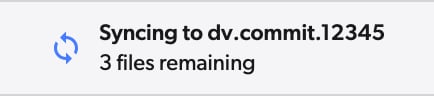
dv.commit.<id> means files are still moving between this machine and the cloud. The second line counts the files remaining. When there’s no commit to name, it reads Syncing… instead. Hover over it to see how many files and how much data have transferred so far.
If the branch also has newer commits, the file count is followed by a note about the branch.
What to do: Keep editing — your changes are picked up as you save. Wait to commit: while sync is running the Commit button is disabled, along with switching branches, merging, reverting, cherry-picking and shelving. They become available again when sync finishes.
Newer commits on the branch
When someone commits to your branch, the second line says so. What it says depends on your workspace’s automatic update setting. Automatic update on
updating to dv.commit.<id> means your cloud workspace is moving to the branch’s newest commit by itself, and the files on this machine follow.
What to do: Nothing.
Automatic update off

automatic update is off means the branch has newer commits, and your workspace waits until you update.
What to do: Click Update to dv.commit.<id>, or run dv update. The button reads Updating workspace… while the update runs.


branch is at dv.commit.<id> with a Resolve conflicts to update button means the automatic update stopped because the newer commits conflict with changes in your workspace.
What to do: Click Resolve conflicts to update to open the merge, then resolve the conflicts. See Merge conflicts.
Sync paused

dv.commit.<id> means no files move in either direction, because you turned sync off. The commit is the last one this machine synced. The agent can also stop sync by itself after a failure — that reads differently, see Paused by error.
While sync is paused, has an error, or the agent isn’t running, the header offers only the fix. Update stays hidden, because updating moves your cloud workspace while no files reach this machine.
What to do: Click Resume. Committing is disabled while sync is paused, along with switching branches, merging, reverting, cherry-picking and shelving — they come back once sync is running. See Pause/Resume sync.
Paused by error

dv.commit.<id> means the agent stopped sync after a failure. The status is red rather than the grey of a pause you switched on, and a View error button appears next to Resume. The error takes the second line, and the cloud workspace commit moves into the tooltip — hover the status to read it.
What to do: Click View error, fix what it reports, then click Resume — resuming without fixing the cause stops sync again. The same actions are unavailable as for a pause you switched on.
Sync error

dv.commit.<id> means the agent hit a problem syncing this workspace. The commit is the last one this machine synced.
What to do: Click View error to read the full message.
Agent not running

dv in a terminal.
Agent starting or updating

Agent outdated

Cloud workspace

dv.commit.<id> is the web app’s view. The web app can’t see the files on your machine, so it shows only the commit your cloud workspace is on, and never Synced. The desktop app shows the same for a workspace that isn’t cloned to this machine.
A note about the branch can follow on the second line, with an Update to button when automatic update is off. The status reads Syncing… while changes upload to the workspace.
What to do: Nothing. To check a machine’s files, open the workspace in the desktop app on that machine.
Notes on the second line
Dashboard workspace row
To open the dashboard, click the Diversion logo at the top left. Its Local Workspaces tab shows a shorter status on each workspace’s row. It doesn’t name a commit — open the workspace to see which commit its files are on. Synced


<error>



dv in a terminal.