

AI reviews are available on Studio and Enterprise plans, and during an active trial or grace period. Your organization must have SlothBot enabled.
Request a review in the app
- Create a review between two branches, or open an existing one.
- Add a title and description that explain the intent of the changes. SlothBot uses them as context.
- Click Review with SlothBot on the review page.
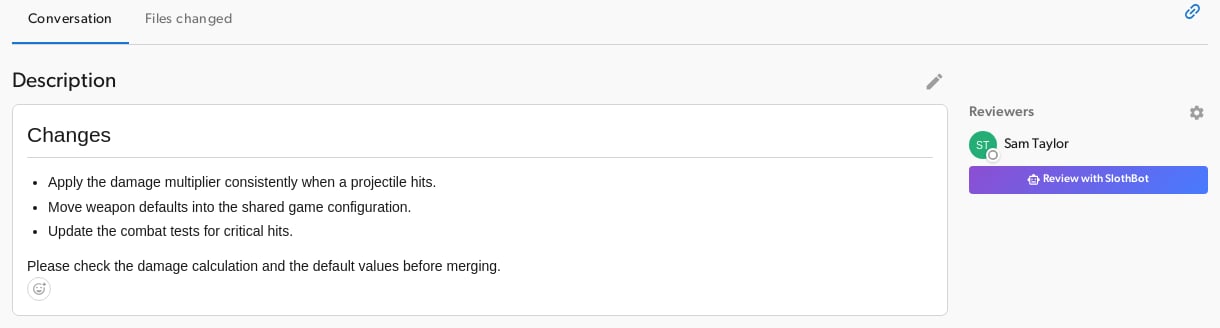
- Wait for the queued and reviewing states to finish. You can leave the page; SlothBot runs on the server.
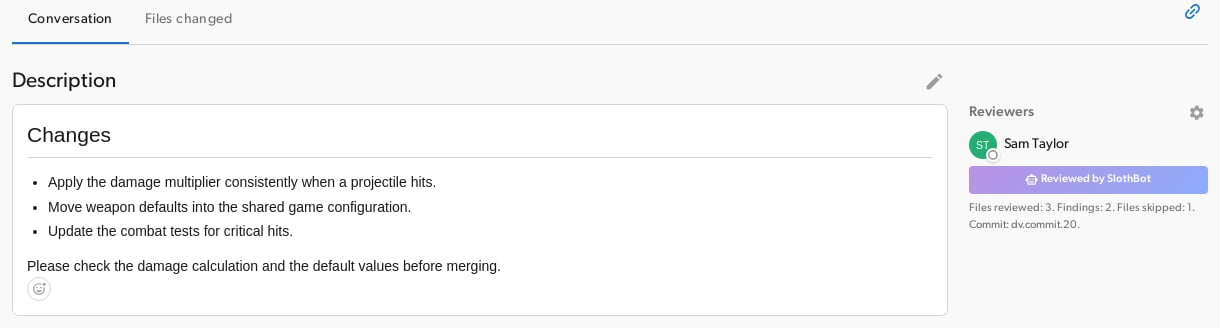
- Read the findings in Conversation and Files changed. The status shows the reviewed commit, files reviewed, findings, and files skipped.
Request a review from the CLI
From your feature branch, create a review and request SlothBot:review edit to retry. See the review command reference for other options.
Review new changes
After committing more changes to the review branch, request SlothBot again. Reviews do not rerun automatically. Each result identifies the commit it checked. A completed result is reused when the compared changes are unchanged. Editing only the review title or description does not start a new AI review. Earlier comments remain in the conversation after new commits; their inline locations may no longer appear.Limits and failures
- Text files: binary files, including images, models, and Unreal assets, are skipped. Files larger than 512 KB on either side are also skipped.
- Large changes: file and input-size limits can leave some files unreviewed. Check the skipped-file count and use smaller reviews when possible.
- Repository context: SlothBot can read related files, but does not run the code or tests and does not search the contents of the entire repository.
- Usage: AI reviews share your organization’s AI token budget. If it is exhausted, wait and try again later.
- Failed runs: the review page shows an error. Retry with Review with SlothBot after addressing it. If the branch changed while SlothBot was working, request a review of the latest changes.