> ## Documentation Index
> Fetch the complete documentation index at: https://docs.diversion.dev/llms.txt
> Use this file to discover all available pages before exploring further.
# Unreal Engine Plugin
> Use Diversion without leaving the Unreal Engine editor
If you want to use Source Control but don't want the hassle of installing and using multiple software, and you're using Unreal Engine, then this is for you.
## Installation
### Prerequisites
Before installing the plugin, you'll need to have the Diversion installed and signed in to. If you haven't done that yet, check out the [Quickstart](/quickstart) guide.
### Installing the plugin
[//]: #
[//]: # ""
[//]: # " "
[//]: # " Download the plugin for your Unreal Engine version:"
[//]: # " - Unreal Engine 5.3: [https://get.diversion.dev/ue-plugin/Diversion-v0.1.4-ue5.3.zip](https://get.diversion.dev/ue-plugin/Diversion-v0.1.4-ue5.3.zip)."
[//]: # " - Unreal Engine 5.4: [https://get.diversion.dev/ue-plugin/Diversion-v0.1.4-ue5.4.zip](https://get.diversion.dev/ue-plugin/Diversion-v0.1.4-ue5.4.zip)."
[//]: # " "
[//]: # " "
[//]: # " Unzip it, and copy the `Diversion` folder (the folder and all of its contents, not just the folder) into the `Marketplace` folder inside Unreal Engine's `Plugins` folder. Depending on your engine's version and where you installed it, it should look something like this: `C:\Program Files\Epic Games\UE_5.3\Engine\Plugins\Marketplace`."
[//]: # " Create the `Marketplace` folder in case it doesn't exist."
[//]: # " "
[//]: # ""
[//]: # "The plugin will also be available in the Unreal Engine Marketplace in the near future."
Search for `Diversion` in the Fab Marketplace,
then click on the `Add to My Library` button to add the plugin to your account.
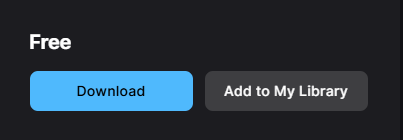 Then, click on the `Download` button and click on the `Epic Games Launcher` link to go to your engine assets library.
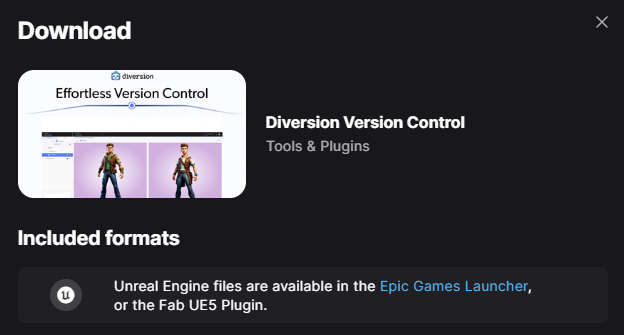 Alternatively, you can simply click here to open the Epic Games Launcher.
The plugin is downloaded via FAB but must be **installed from the Epic Games Launcher**. After adding it to your library on FAB, you need to switch to the Launcher to complete the installation (next step).
Open the Epic Games Launcher and navigate to your engine assets library (under `Library` > `Fab Library`). At the bottom, locate the Diversion plugin and click `Install to Engine`.
Alternatively, you can simply click here to open the Epic Games Launcher.
The plugin is downloaded via FAB but must be **installed from the Epic Games Launcher**. After adding it to your library on FAB, you need to switch to the Launcher to complete the installation (next step).
Open the Epic Games Launcher and navigate to your engine assets library (under `Library` > `Fab Library`). At the bottom, locate the Diversion plugin and click `Install to Engine`.
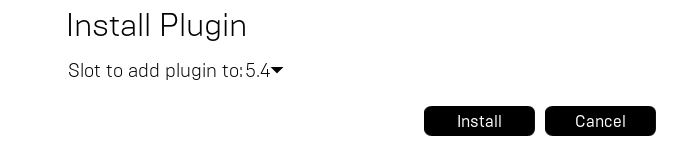
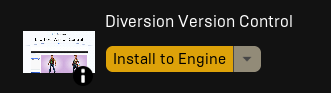 Choose the correct version of the Unreal Engine you want to install the plugin to and click `Install`.
 In case you would like to manually add the plugin to your UE project, instead of downloading it from the marketplace,
you can get the source code from the following links:
* Unreal Engine 5.3: [Diversion-v2.0.17-ue5.3.0.zip](https://get.diversion.dev/ue-plugin/Diversion-v2.0.17-ue5.3.0-nobin.zip)
* Unreal Engine 5.4: [Diversion-v2.0.17-ue5.4.0.zip](https://get.diversion.dev/ue-plugin/Diversion-v2.0.17-ue5.4.0-nobin.zip)
* Unreal Engine 5.5: [Diversion-v2.0.17-ue5.5.0.zip](https://get.diversion.dev/ue-plugin/Diversion-v2.0.17-ue5.5.0-nobin.zip)
* Unreal Engine 5.6: [Diversion-v2.0.17-ue5.6.0.zip](https://get.diversion.dev/ue-plugin/Diversion-v2.0.17-ue5.6.0-nobin.zip)
* Unreal Engine 5.7: [Diversion-v2.0.17-ue5.7.0.zip](https://get.diversion.dev/ue-plugin/Diversion-v2.0.17-ue5.7.0-nobin.zip)
Choosing this options will require you to build the plugin from source and maintain the versions manually
in order to keep up with the latest features and improvements.
## Configuration
After installing the plugin, you'll need to configure it for each project to use Diversion as your source control provider.
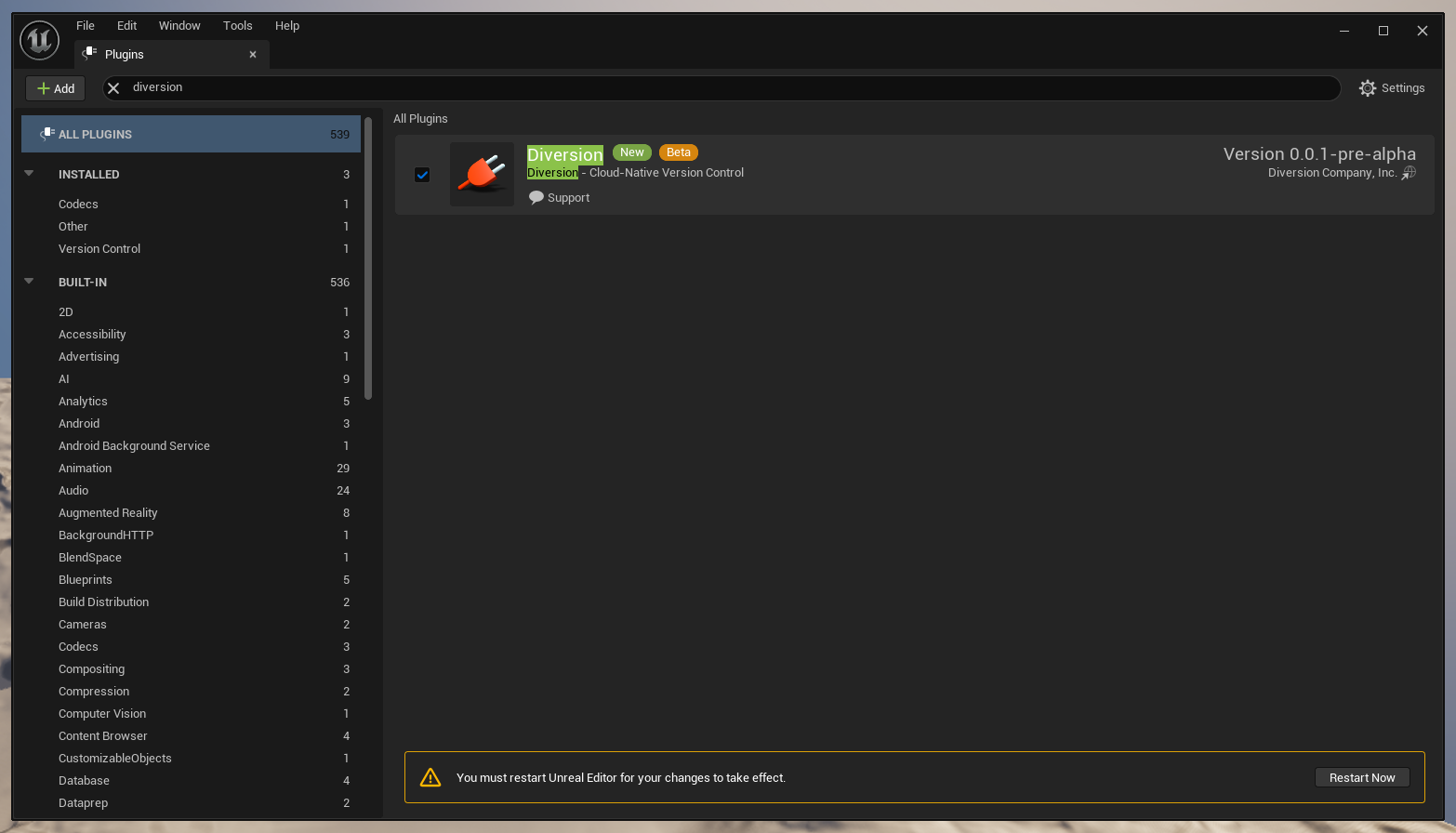
In the editor, go to `Edit` > `Plugins`. Search for `Diversion` and click on the checkbox to activate the plugin. If you're prompted to restart the editor, please do.
In case you would like to manually add the plugin to your UE project, instead of downloading it from the marketplace,
you can get the source code from the following links:
* Unreal Engine 5.3: [Diversion-v2.0.17-ue5.3.0.zip](https://get.diversion.dev/ue-plugin/Diversion-v2.0.17-ue5.3.0-nobin.zip)
* Unreal Engine 5.4: [Diversion-v2.0.17-ue5.4.0.zip](https://get.diversion.dev/ue-plugin/Diversion-v2.0.17-ue5.4.0-nobin.zip)
* Unreal Engine 5.5: [Diversion-v2.0.17-ue5.5.0.zip](https://get.diversion.dev/ue-plugin/Diversion-v2.0.17-ue5.5.0-nobin.zip)
* Unreal Engine 5.6: [Diversion-v2.0.17-ue5.6.0.zip](https://get.diversion.dev/ue-plugin/Diversion-v2.0.17-ue5.6.0-nobin.zip)
* Unreal Engine 5.7: [Diversion-v2.0.17-ue5.7.0.zip](https://get.diversion.dev/ue-plugin/Diversion-v2.0.17-ue5.7.0-nobin.zip)
Choosing this options will require you to build the plugin from source and maintain the versions manually
in order to keep up with the latest features and improvements.
## Configuration
After installing the plugin, you'll need to configure it for each project to use Diversion as your source control provider.
In the editor, go to `Edit` > `Plugins`. Search for `Diversion` and click on the checkbox to activate the plugin. If you're prompted to restart the editor, please do.
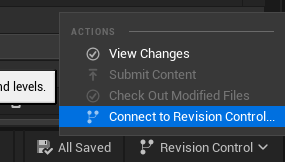
 With the plugin enabled, click on `Revision Control -> Connect to Revision Control` on the bottom-right.
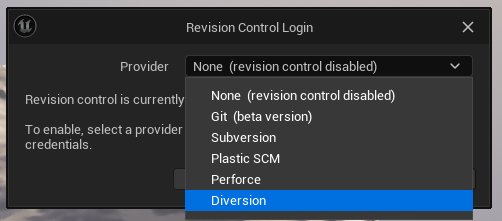
 In the window that appears, choose `Diversion` from the provider drop-down list.
 The next step won't work if you're not. Check out [Quickstart](/quickstart) if you're not sure how to do that.
If your project's folder is not a Diversion repository, you'll be prompted to initialize it.
Click on `Initialize project with Diversion` and the plugin will do the rest. If it looks like nothing happened, make sure you're logged in and try re-selecting Diversion from the provider drop-down list.
The plugin will recognize the root of the repository and your Diversion installation.
The next step won't work if you're not. Check out [Quickstart](/quickstart) if you're not sure how to do that.
If your project's folder is not a Diversion repository, you'll be prompted to initialize it.
Click on `Initialize project with Diversion` and the plugin will do the rest. If it looks like nothing happened, make sure you're logged in and try re-selecting Diversion from the provider drop-down list.
The plugin will recognize the root of the repository and your Diversion installation.
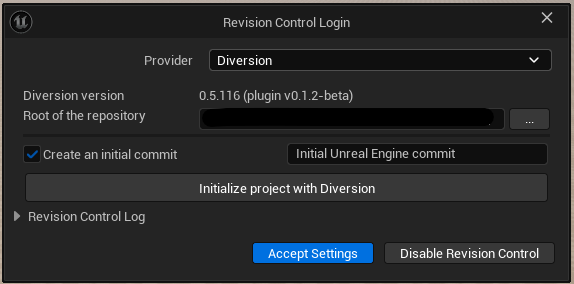 After initialization, you'll see this screen,
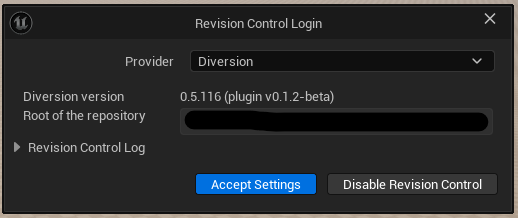 click on `Accept Settings` and you're good to go!
If your project is already a Diversion repository, like in the case of cloning a repo, just click on `Accept Settings` and you're good to go!
## Usage
Let's go over a common workflow using the plugin.
For this, we'll be using a clean Unreal project with the plugin already installed and configured.
### Make a change
This project will one day be our Multiplayer Open World Survival RPG With Crafting and Building Mechanics™.
For that, we'll need a character. Let's create one. In your `Content Browser`, right-click and choose `Blueprint Class`.
In the window that appears, choose `Character` and name it `MyCharacter`.
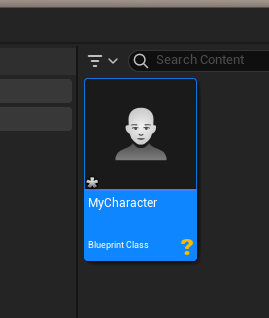
You'll notice that the new file might not be what you're used to - it now has a yellow question mark on it. This is because Unreal Engine just created the file in-memory, and hasn't saved it to the disk yet, so Diversion doesn't know about it.
click on `Accept Settings` and you're good to go!
If your project is already a Diversion repository, like in the case of cloning a repo, just click on `Accept Settings` and you're good to go!
## Usage
Let's go over a common workflow using the plugin.
For this, we'll be using a clean Unreal project with the plugin already installed and configured.
### Make a change
This project will one day be our Multiplayer Open World Survival RPG With Crafting and Building Mechanics™.
For that, we'll need a character. Let's create one. In your `Content Browser`, right-click and choose `Blueprint Class`.
In the window that appears, choose `Character` and name it `MyCharacter`.
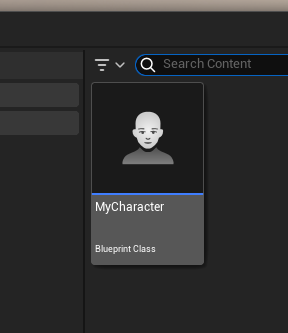
You'll notice that the new file might not be what you're used to - it now has a yellow question mark on it. This is because Unreal Engine just created the file in-memory, and hasn't saved it to the disk yet, so Diversion doesn't know about it.
 Let's fix that - double-click on the file to open it, and then click on the `Save` button on the top-left. Alternatively, you can press `Ctrl + S` while the file is selected in the Content Browser to save the file.
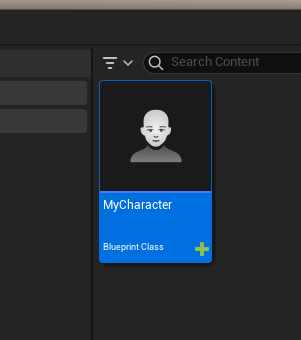
The question mark will now be gone, and instead we have a green plus sign. This means that the file is now being tracked by Diversion, and it recognizes that this is a newly added file.
Let's fix that - double-click on the file to open it, and then click on the `Save` button on the top-left. Alternatively, you can press `Ctrl + S` while the file is selected in the Content Browser to save the file.
The question mark will now be gone, and instead we have a green plus sign. This means that the file is now being tracked by Diversion, and it recognizes that this is a newly added file.
 ### Commit the change
We want to save this change to our repository, to have it backed up and to be able to share it with our team.
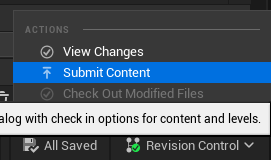
Click again on the `Revision Control` button on the bottom-right, and then click on `Submit Content`.
### Commit the change
We want to save this change to our repository, to have it backed up and to be able to share it with our team.
Click again on the `Revision Control` button on the bottom-right, and then click on `Submit Content`.
 In the window that appears, you'll see a list of all the files that have changed since the last commit. In this case, you'll see `MyCharacter` with a green plus sign next to it. You will also see your `.uproject` file, since Diversion recognizes this as a new file as well.
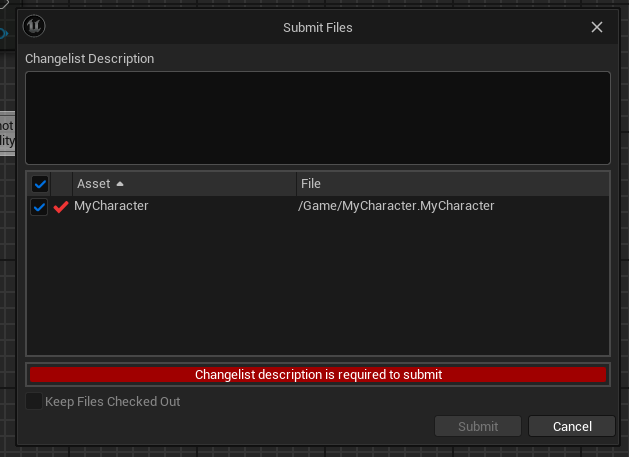
In the text box labeled `Changelist Description`, write a brief description of the changes you're committing. In this case, you could write `Added MyCharacter`.
In the window that appears, you'll see a list of all the files that have changed since the last commit. In this case, you'll see `MyCharacter` with a green plus sign next to it. You will also see your `.uproject` file, since Diversion recognizes this as a new file as well.
In the text box labeled `Changelist Description`, write a brief description of the changes you're committing. In this case, you could write `Added MyCharacter`.
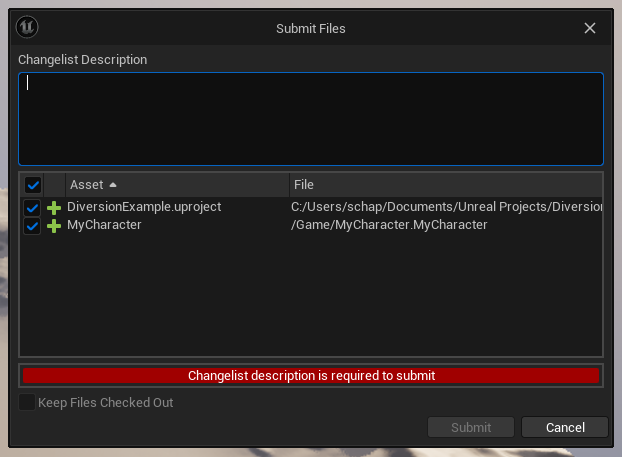 Diversion does not endorse or encourage the use of vague, ambiguous, or laconic commit messages. This is for demonstration purposes only. Please write meaningful commit messages.
Click on the `Submit` button, and the green plus on `MyCharacter` will disappear, meaning that Diversion has committed the file.
Diversion does not endorse or encourage the use of vague, ambiguous, or laconic commit messages. This is for demonstration purposes only. Please write meaningful commit messages.
Click on the `Submit` button, and the green plus on `MyCharacter` will disappear, meaning that Diversion has committed the file.
 ### Let's see this in the Web UI
Open your browser and go to [your dashboard](https://app.diversion.dev). Select your repository (via the All Repositories card's `View Repo`, or the top-left repo selector). It should have the same name as your project's folder.
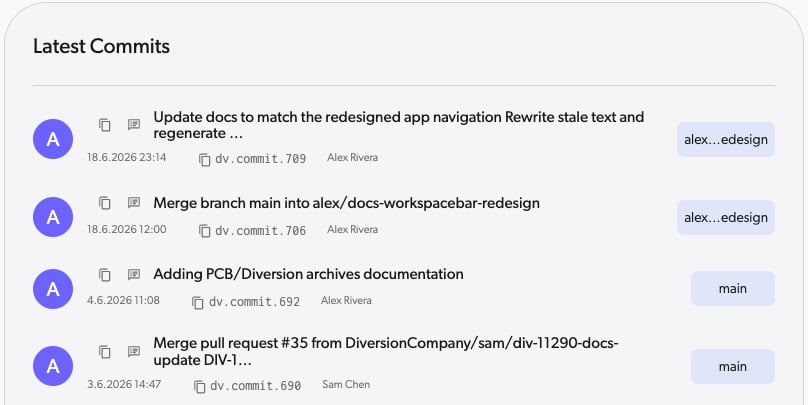
You'll see the commit you just made, with the description you wrote, and the file you added. Open the **Commits** view from the left navigation rail to see your commit.
### Let's see this in the Web UI
Open your browser and go to [your dashboard](https://app.diversion.dev). Select your repository (via the All Repositories card's `View Repo`, or the top-left repo selector). It should have the same name as your project's folder.
You'll see the commit you just made, with the description you wrote, and the file you added. Open the **Commits** view from the left navigation rail to see your commit.
 ### Make another change
Our character is just an empty collider right now, so let's add a placeholder mesh so that we can see it.
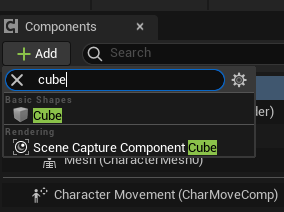
In the `MyCharacter` blueprint, click on the `Add Component` button on the top-left, and then search for `Cube` and add it. Now we can see our character.
### Make another change
Our character is just an empty collider right now, so let's add a placeholder mesh so that we can see it.
In the `MyCharacter` blueprint, click on the `Add Component` button on the top-left, and then search for `Cube` and add it. Now we can see our character.
 But our character doesn't do anything. In your character's `Event Graph`, add a `Print String` node and connect it to the `Event Begin Play` node. Now our character has some basic functionality.
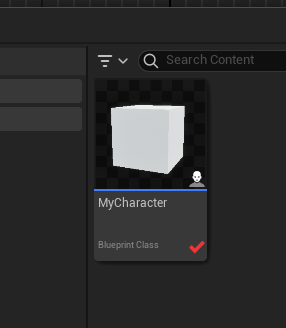
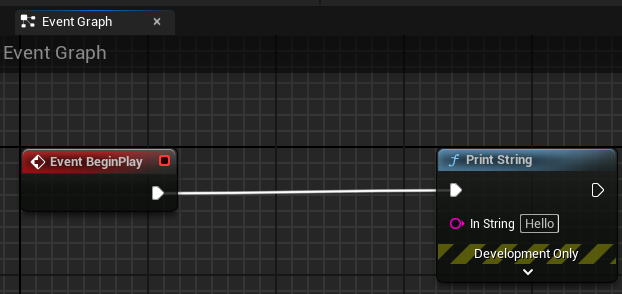 Compile and save the file. Open your `Content Browser` and you'll see that `MyCharacter` now has a red checkmark next to it. This means that Diversion recognizes that the file has changed.
 ### Make another commit
Just like before, click on the `Revision Control` button on the bottom-right, and then click on `Submit Content`.
You'll see the `MyCharacter` file with a red checkmark next to it.
### Make another commit
Just like before, click on the `Revision Control` button on the bottom-right, and then click on `Submit Content`.
You'll see the `MyCharacter` file with a red checkmark next to it.
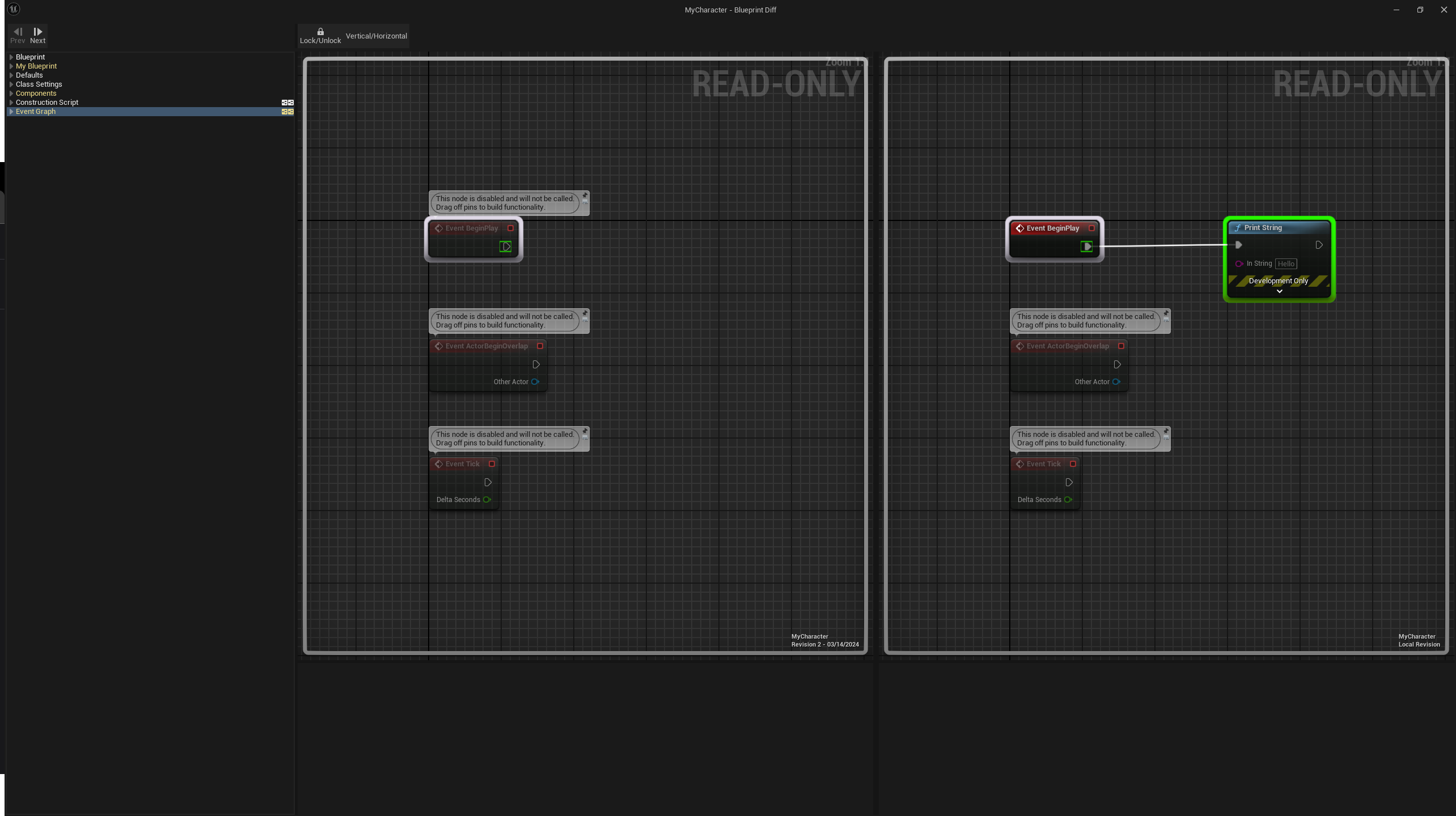
 Double click the file to see the changes you've made in Unreal's diff tool.
In this window, you can see the difference between your revision on the right, and the last committed revision on the left. You should see an entry called `Event Graph` in the list on the left.
Clicking it will show you the changes you've made to the blueprint, and you you should see the `Print String` node you added.
Double click the file to see the changes you've made in Unreal's diff tool.
In this window, you can see the difference between your revision on the right, and the last committed revision on the left. You should see an entry called `Event Graph` in the list on the left.
Clicking it will show you the changes you've made to the blueprint, and you you should see the `Print String` node you added.
 After reviewing your hard work, again, write a description of the changes you're committing. In this case, you could write `Adding placeholder mesh and basic functionality to MyCharacter`.
Click on the `Submit` button and the red checkmark will disappear, meaning that Diversion has committed the file.
### Disable soft lock warnings
Diversion's soft lock feature warns you when files are being edited by other team members, helping you avoid potential merge conflicts. When you attempt to open a file that's being worked on by others, you'll see a warning message.
If you'd like to disable these warnings, follow these steps:
Click on `Edit` in the top menu bar and select `Project Settings`.
After reviewing your hard work, again, write a description of the changes you're committing. In this case, you could write `Adding placeholder mesh and basic functionality to MyCharacter`.
Click on the `Submit` button and the red checkmark will disappear, meaning that Diversion has committed the file.
### Disable soft lock warnings
Diversion's soft lock feature warns you when files are being edited by other team members, helping you avoid potential merge conflicts. When you attempt to open a file that's being worked on by others, you'll see a warning message.
If you'd like to disable these warnings, follow these steps:
Click on `Edit` in the top menu bar and select `Project Settings`.
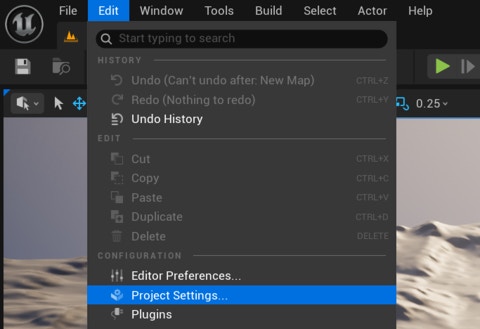 Search for "soft lock" and **uncheck** the field `Enable Diversion Auto Soft Lock Confirmations`.
 Close the settings window and restart the editor for the changes to take effect.
**Important:** Disabling soft lock warnings modifies your project's configuration file. If you commit this change to your repository, it will affect the entire team. Consider either avoiding committing this configuration file or adding it to your [ignore list](/basic/dvignore) if you want this to be a personal preference rather than a team-wide setting.
Close the settings window and restart the editor for the changes to take effect.
**Important:** Disabling soft lock warnings modifies your project's configuration file. If you commit this change to your repository, it will affect the entire team. Consider either avoiding committing this configuration file or adding it to your [ignore list](/basic/dvignore) if you want this to be a personal preference rather than a team-wide setting.