> ## Documentation Index
> Fetch the complete documentation index at: https://docs.diversion.dev/llms.txt
> Use this file to discover all available pages before exploring further.
# UE Plugin - Solving Merge Conflicts With Diversion
export const Image = ({src, alt}) =>  ;
When working with a team on a project, it is common to run into merge conflicts. This can happen when two or more people make changes to the same file and try to merge their changes together.
Diversion's `merge warnings` help avoid conflicts, but if you run into one anyway, this guide will help you resolve it using our Unreal Engine Plugin.
## Step 1: Create a Merge Conflict
To create a merge conflict, you will need to make changes to the same file in two different branches.
Here I have `BP_ThirdPersonCharacter` from Unreal's Third Person Template project, which I have initialized as a Diversion repository using the plugin.
;
When working with a team on a project, it is common to run into merge conflicts. This can happen when two or more people make changes to the same file and try to merge their changes together.
Diversion's `merge warnings` help avoid conflicts, but if you run into one anyway, this guide will help you resolve it using our Unreal Engine Plugin.
## Step 1: Create a Merge Conflict
To create a merge conflict, you will need to make changes to the same file in two different branches.
Here I have `BP_ThirdPersonCharacter` from Unreal's Third Person Template project, which I have initialized as a Diversion repository using the plugin.
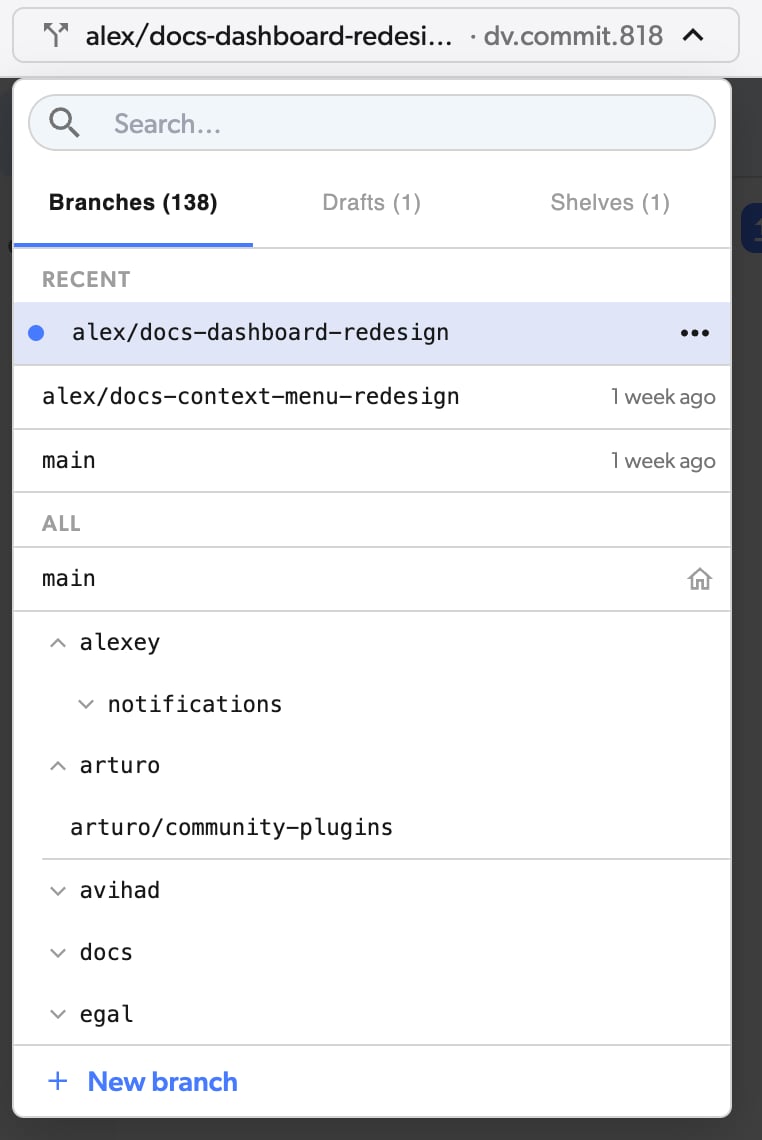
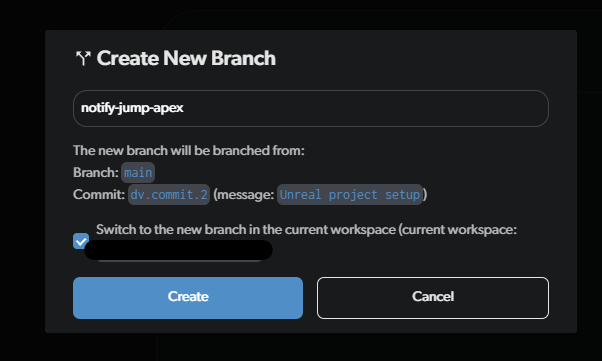
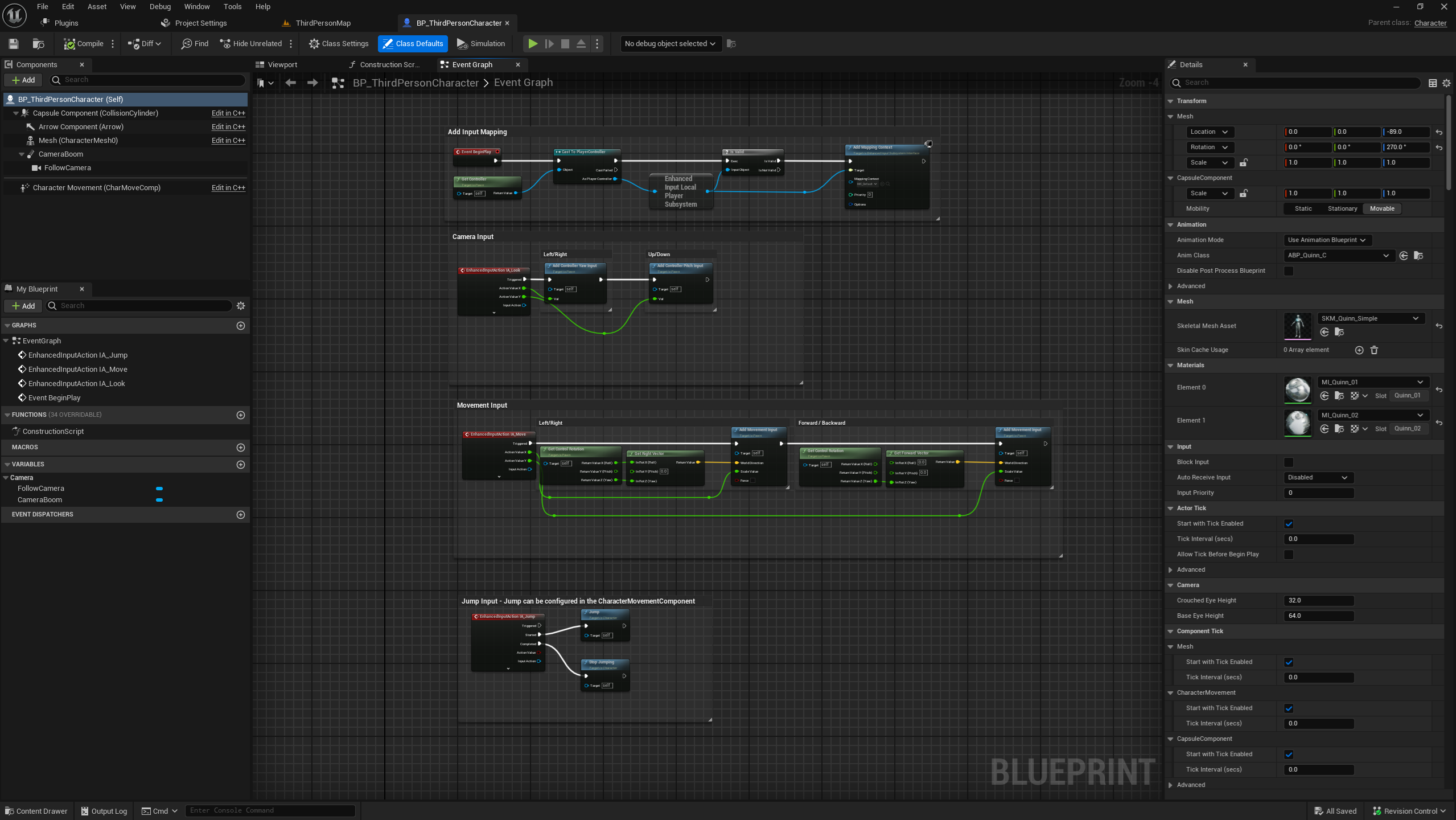 In the Diversion desktop app, I'll create a new branch and call it `notify-jump-apex`.
 Let's have our character fire an event when it reaches the apex of a jump. We have to set it in the `BP_ThirdPersonCharacter` blueprint like this:
(Yes, this is just a simplified example for the purpose of this guide.)
Let's have our character fire an event when it reaches the apex of a jump. We have to set it in the `BP_ThirdPersonCharacter` blueprint like this:
(Yes, this is just a simplified example for the purpose of this guide.)
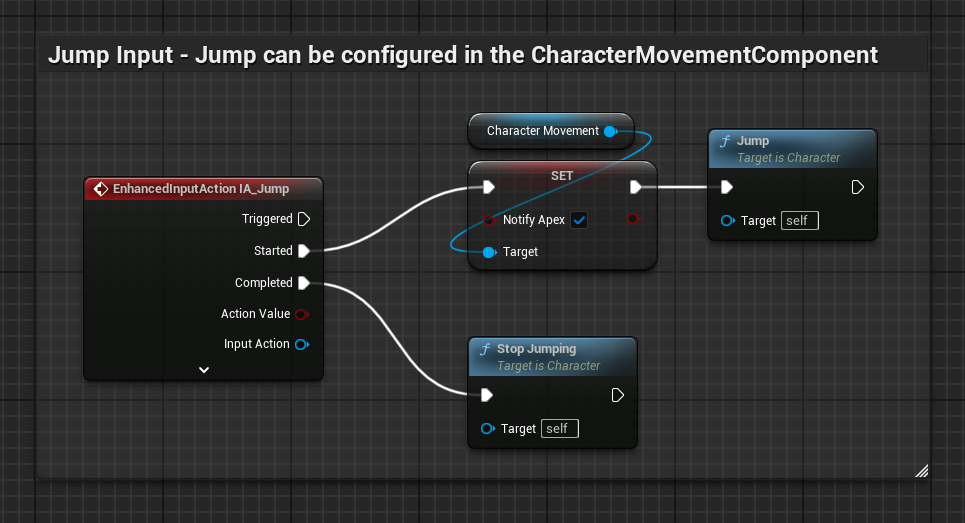 Great! Let's commit our changes to the `notify-jump-apex` branch.
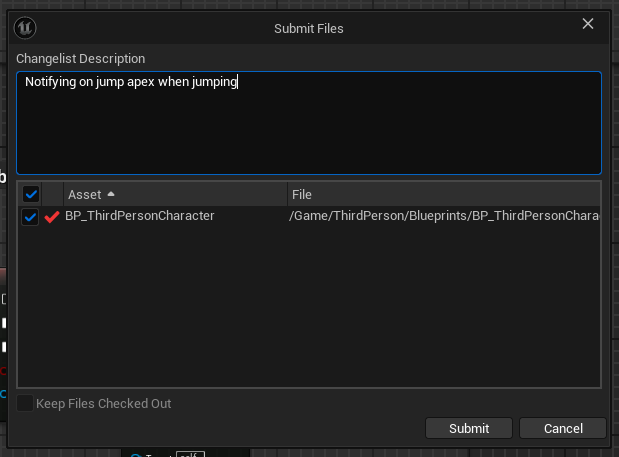 Another "feature" we want is to have the character attack. We'll switch back to the `main` branch, create a new branch called `attack` like before, and restart the editor to get the correct version of our blueprint.
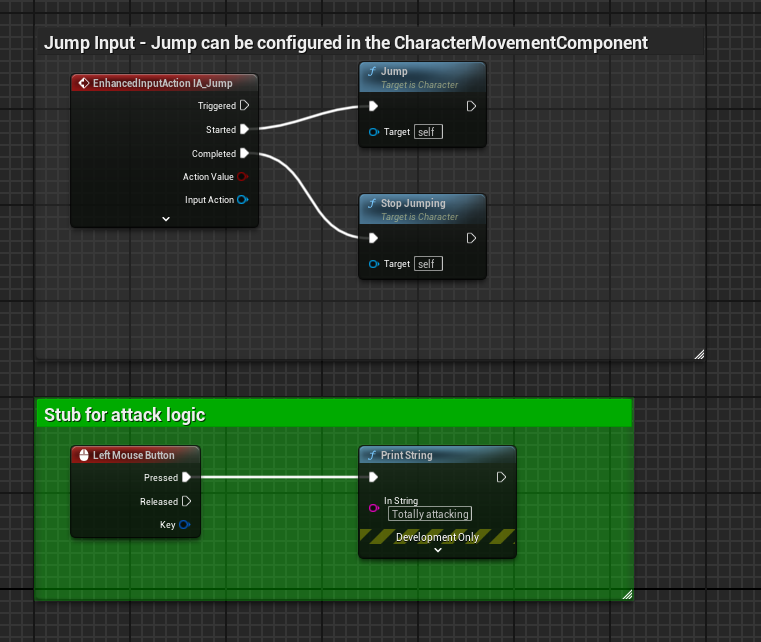
Let's implement our attack logic, and commit it to the `attack` branch.
Another "feature" we want is to have the character attack. We'll switch back to the `main` branch, create a new branch called `attack` like before, and restart the editor to get the correct version of our blueprint.
Let's implement our attack logic, and commit it to the `attack` branch.
 Now, let's merge! Close the editor, switch back to the `main` branch, and merge the `notify-jump-apex` branch into it.
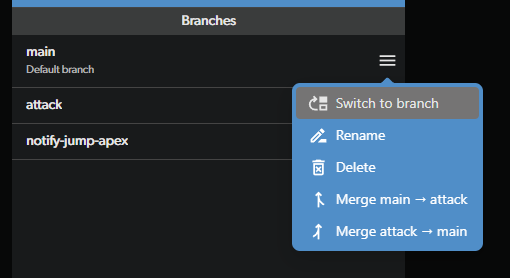
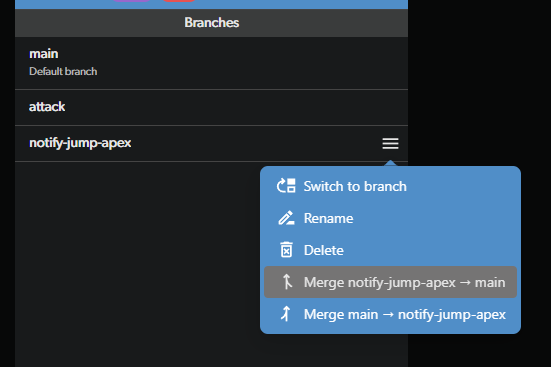 That went smoothly since there were no conflicting changes. That won't be the case when we merge the `attack` branch into the `main` branch:
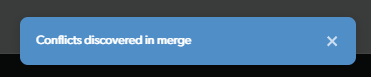 Whoopsie! We have a merge conflict. Since this is a binary file, a `.uasset`, it's not human-readable and we can't resolve it manually just like that, without any special tools. Luckily for us, Unreal has a special tool! Let's use it.
## Step 2: Resolve the Merge Conflict
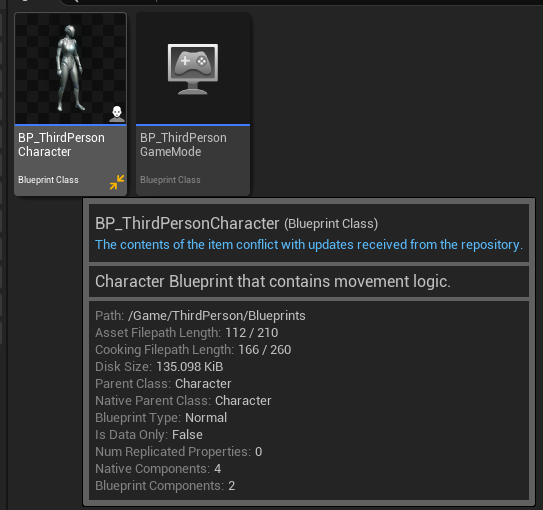
Open the Unreal editor and open our `BP_ThirdPersonCharacter` blueprint. Notice the icon? It tells us there's a conflict in the file.
Whoopsie! We have a merge conflict. Since this is a binary file, a `.uasset`, it's not human-readable and we can't resolve it manually just like that, without any special tools. Luckily for us, Unreal has a special tool! Let's use it.
## Step 2: Resolve the Merge Conflict
Open the Unreal editor and open our `BP_ThirdPersonCharacter` blueprint. Notice the icon? It tells us there's a conflict in the file.
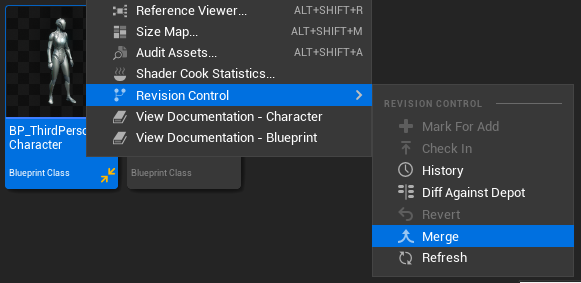
 Right-click on the file and go to `Revision Control -> Merge`. This will open the merge resolution tool.
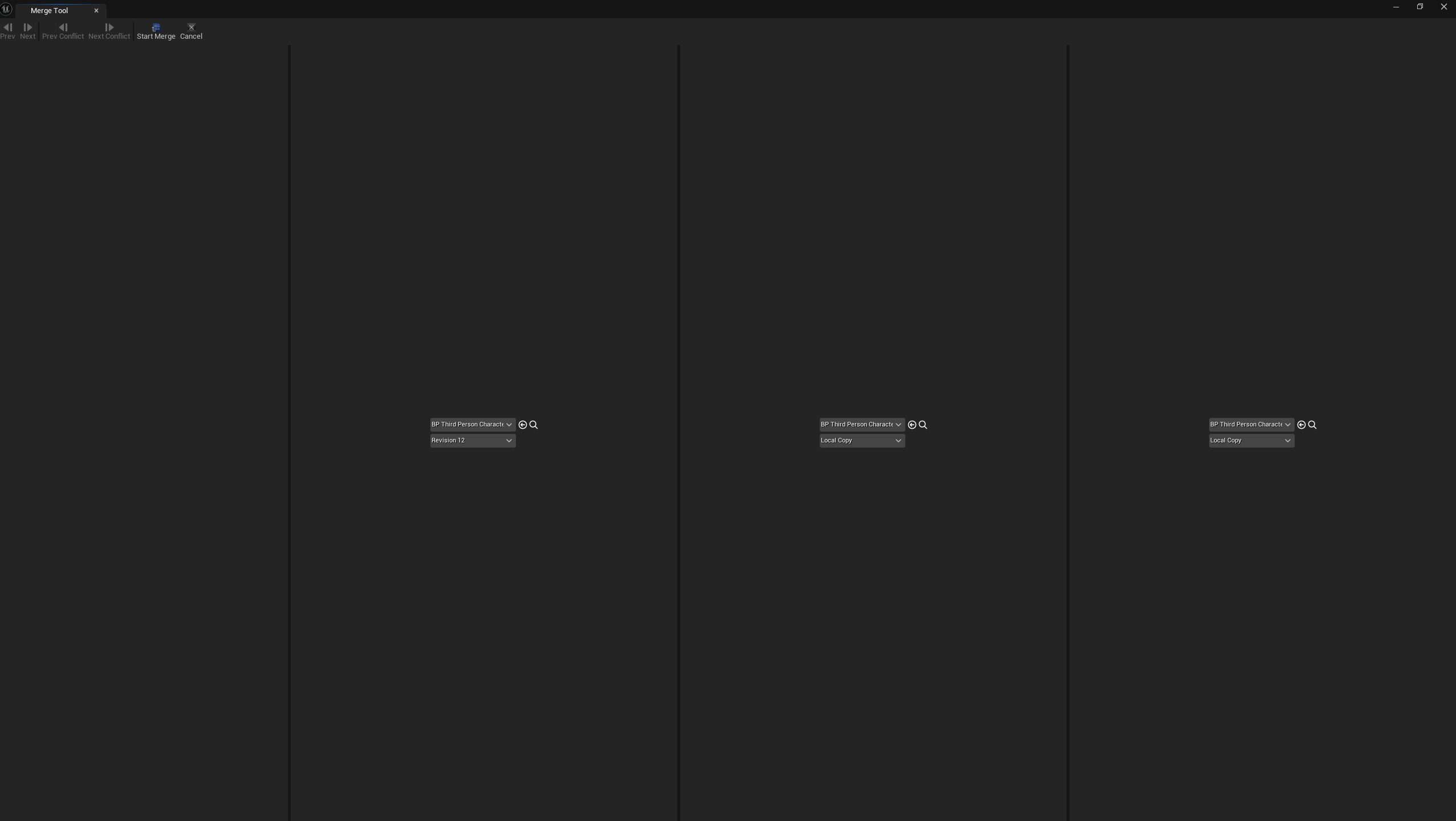 The three columns represent the remote, local, and base versions of the file. The remote version is on the left, and it's the incoming change.
In our case, that's the change from the `attack` branch. Notice in the screenshot above the left column says `Revision 12`?
Your left column might have a different number, since I messed up when taking the screenshots for this guide and had to do it again. I think yours should say `4`. Let us know in the Discord!
The middle column is the local version, which is what you have in your current branch. In our example this is the current state of the `main` branch and should include the changes from the `notify-jump-apex` branch.
It's important to have the middle column show your local changes, as it will help us manage the merge conflict better. This seems to be an issue with Unreal's merge tool.
The right colum is the base version, which is the common ancestor of the two branches, and is optional. In our case, it's the second commit from the `main` branch, with the original blueprint from the template.
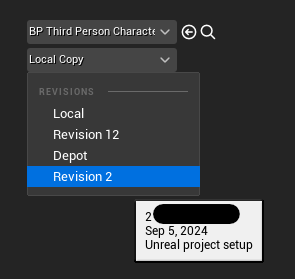
To see the base version, open the drop down and select the correct commit to see in that column. If you mouse-over the commit, you'll see the commit message so you can identify the correct one. You can also leave it as it is and the rest of the process should look the same.
The three columns represent the remote, local, and base versions of the file. The remote version is on the left, and it's the incoming change.
In our case, that's the change from the `attack` branch. Notice in the screenshot above the left column says `Revision 12`?
Your left column might have a different number, since I messed up when taking the screenshots for this guide and had to do it again. I think yours should say `4`. Let us know in the Discord!
The middle column is the local version, which is what you have in your current branch. In our example this is the current state of the `main` branch and should include the changes from the `notify-jump-apex` branch.
It's important to have the middle column show your local changes, as it will help us manage the merge conflict better. This seems to be an issue with Unreal's merge tool.
The right colum is the base version, which is the common ancestor of the two branches, and is optional. In our case, it's the second commit from the `main` branch, with the original blueprint from the template.
To see the base version, open the drop down and select the correct commit to see in that column. If you mouse-over the commit, you'll see the commit message so you can identify the correct one. You can also leave it as it is and the rest of the process should look the same.
 Click on `Start Merge` and then on `Event Graph`. You can navigate your changes using the graphs as you normally would, or using the `Next` and `Previous` buttons.
Notice that our blueprint opened in the background, and any changes we make to it will be reflected in the middle column.
At the top, we have 3 important buttons: `Accept Source`, `Accept Target`, and `Finish Merge`. `Accept Source` will take the changes from the left column, `Accept Target` will take the changes from the middle column, and `Finish Merge` will save the changes and close the window.
In our case, neither is what we want! We want to combine the changes from both branches. To do that, we'll have to manually copy the changes from the left column to our blueprint that's open in the background.
So just copy-paste as you normally would, and when you're done, click `Finish Merge`.
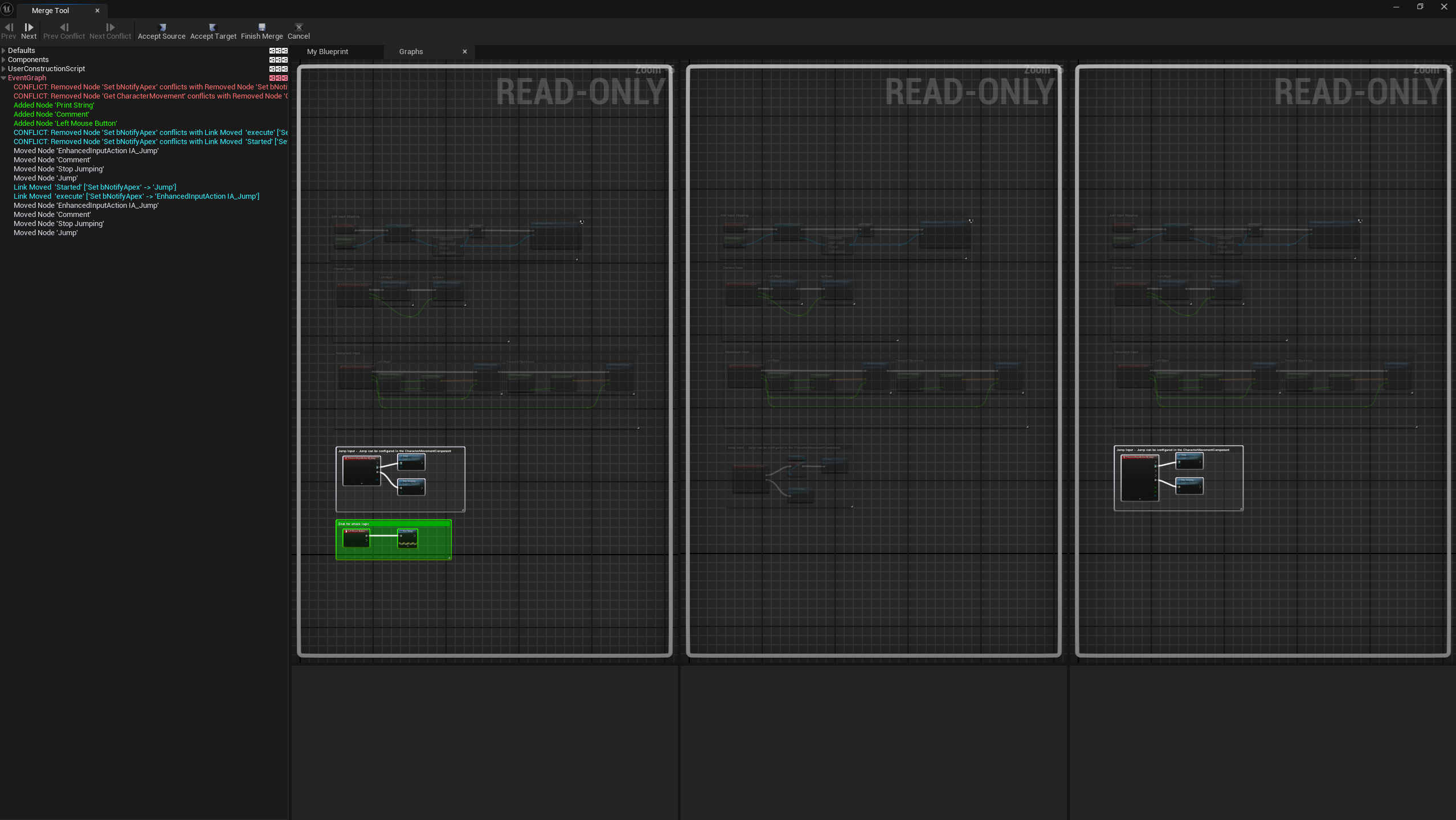
Before:
Click on `Start Merge` and then on `Event Graph`. You can navigate your changes using the graphs as you normally would, or using the `Next` and `Previous` buttons.
Notice that our blueprint opened in the background, and any changes we make to it will be reflected in the middle column.
At the top, we have 3 important buttons: `Accept Source`, `Accept Target`, and `Finish Merge`. `Accept Source` will take the changes from the left column, `Accept Target` will take the changes from the middle column, and `Finish Merge` will save the changes and close the window.
In our case, neither is what we want! We want to combine the changes from both branches. To do that, we'll have to manually copy the changes from the left column to our blueprint that's open in the background.
So just copy-paste as you normally would, and when you're done, click `Finish Merge`.
Before:
 After:
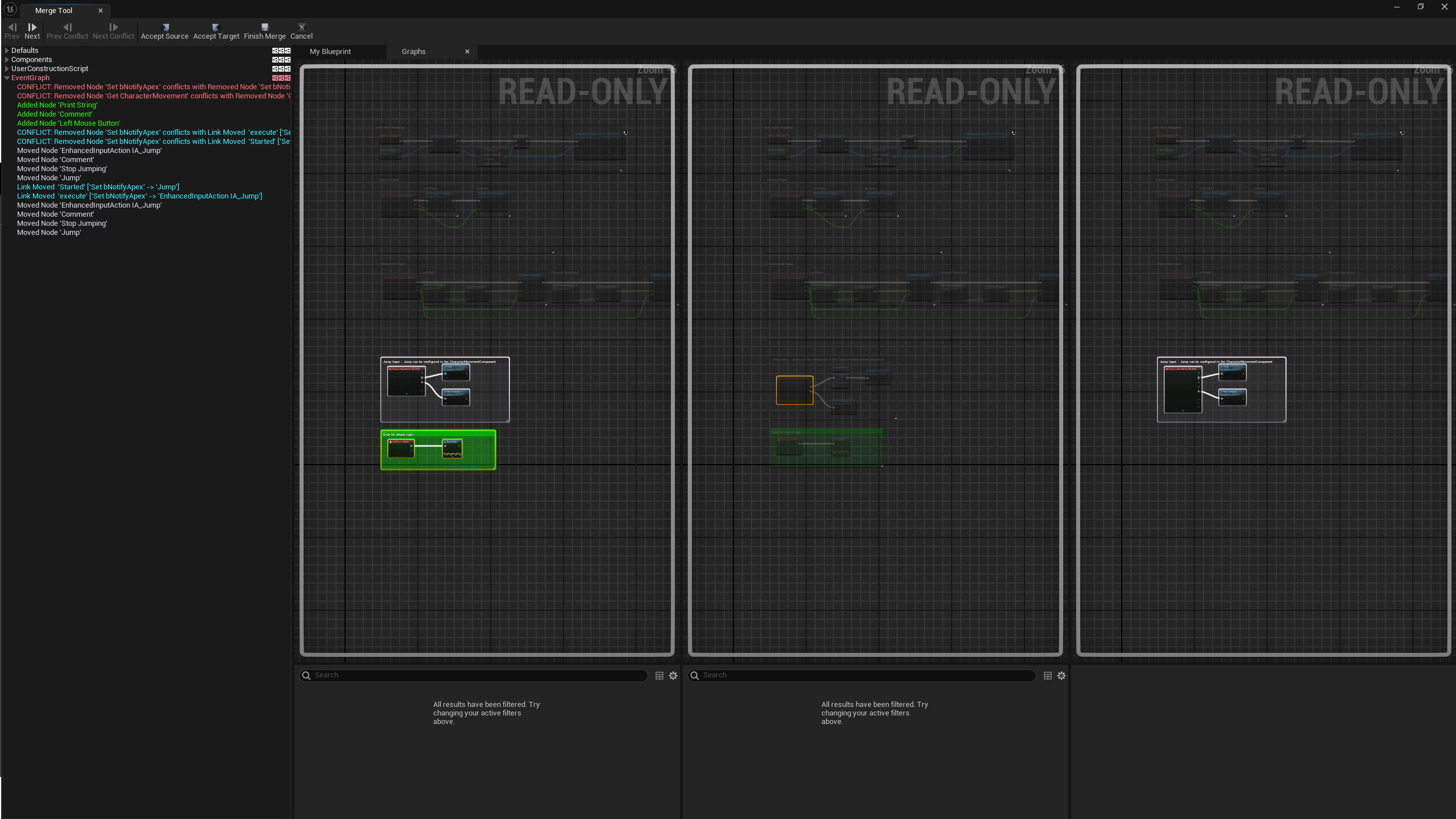 And that's it! You've resolved the merge conflict using Unreal's merge tool. Recompile your blueprint and you're good to go.