> ## Documentation Index
> Fetch the complete documentation index at: https://docs.diversion.dev/llms.txt
> Use this file to discover all available pages before exploring further.
# Unity Best Practices with Diversion
> Learn how to use Diversion effectively with Unity for seamless version control
Unity works seamlessly with Diversion, providing powerful version control for your game projects without the complexity of traditional VCS systems. You can use the [Diversion Unity Plugin](/unity/unity-plugin) for an integrated experience, or work with the desktop app and CLI.
## Getting Started
### Prerequisites
Before setting up Diversion with Unity, ensure you have:
* Diversion installed and signed in (see [Quickstart](/quickstart))
* Unity Hub and Unity Editor installed
* Your Unity project created or ready to import
### Initial Setup
Open your Unity project and navigate to `Edit > Project Settings`:
* Set **Version Control Mode** to `Visible Meta Files`
* Set **Asset Serialization Mode** to `Force Text`
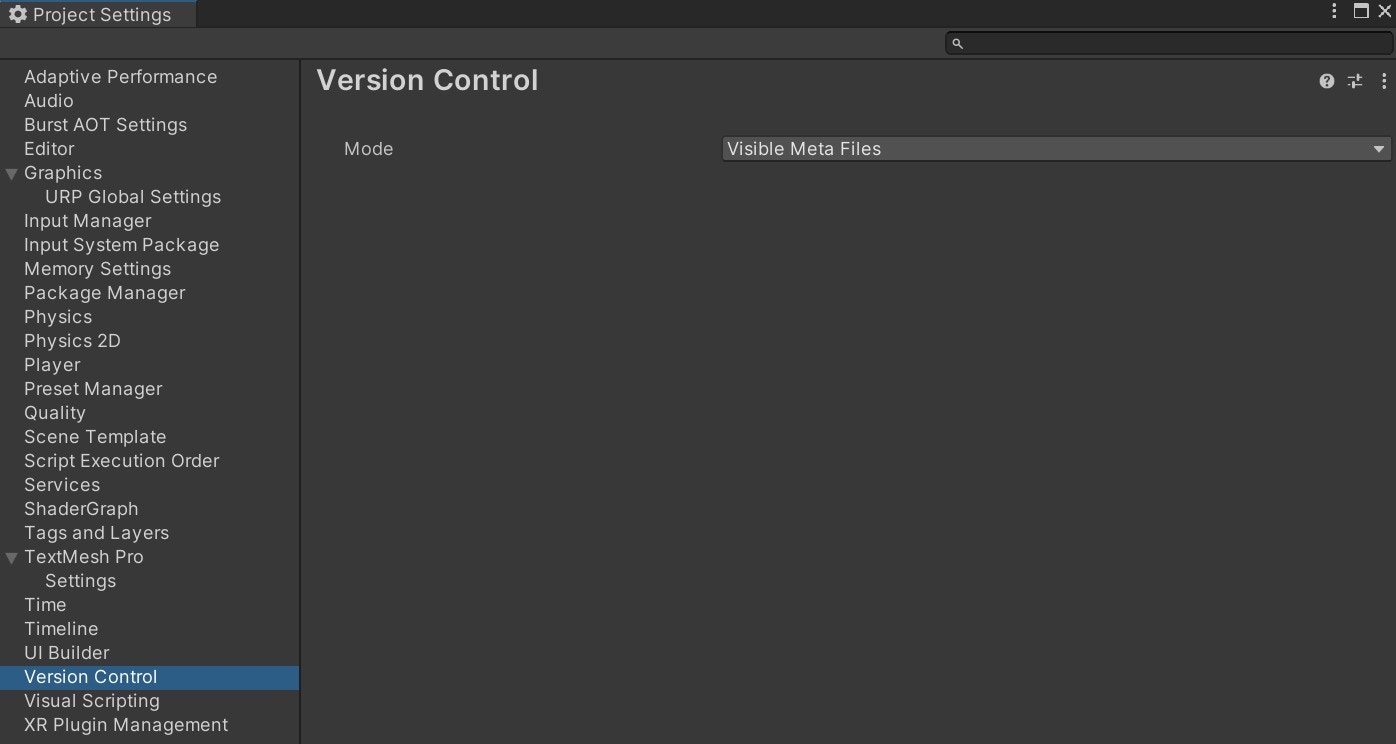
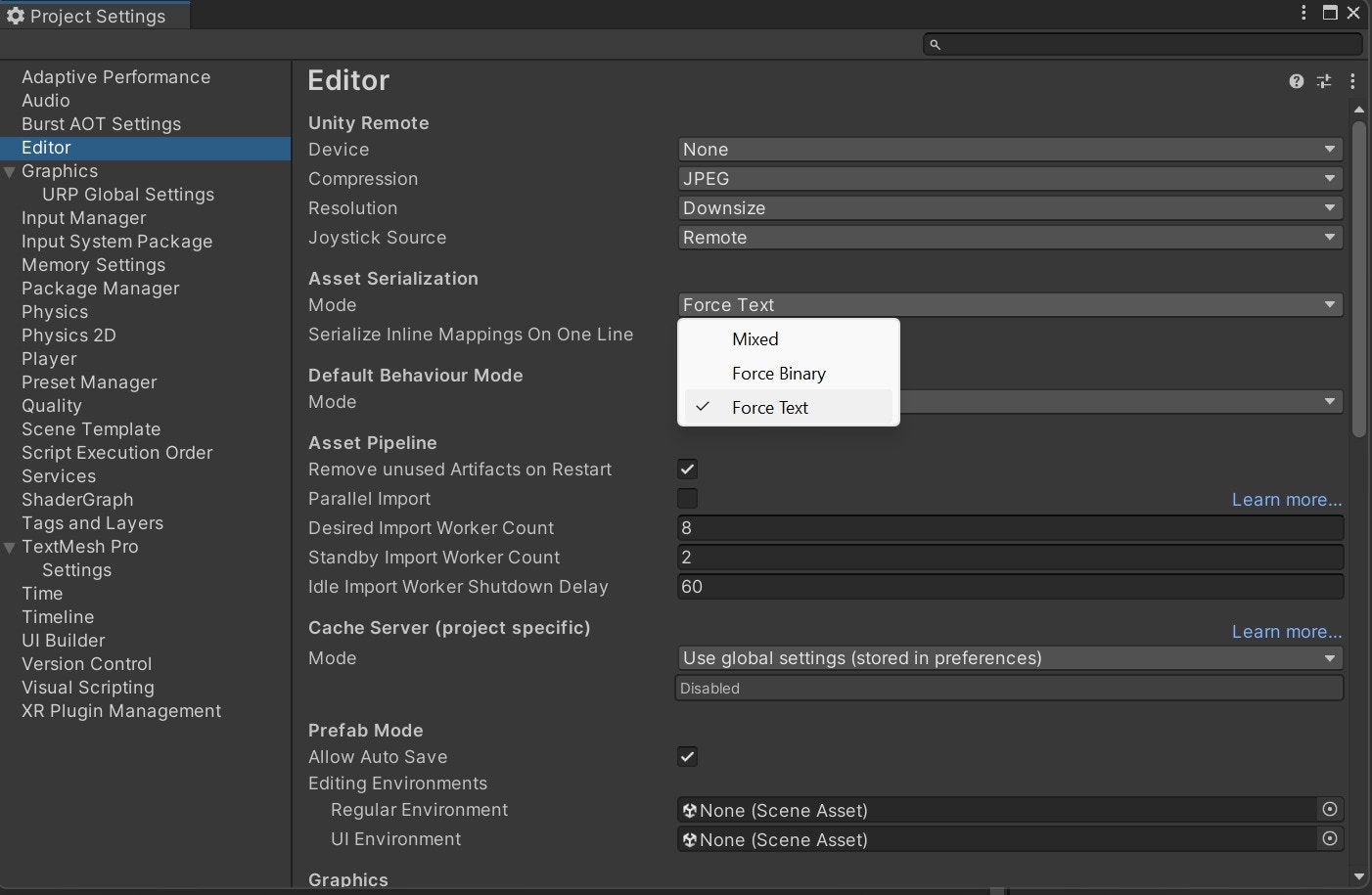 These settings ensure Unity's meta files are visible to Diversion and that assets are stored in a text-based format for better conflict resolution.
Diversion automatically creates a `.dvignore` file with Unity-specific patterns when initializing a Unity project. You typically don't need to modify it.
The default `.dvignore` for Unity projects includes common patterns like:
```ini theme={null}
# Unity generated folders
.utmp/
/[Ll]ibrary/
/[Tt]emp/
/[Oo]bj/
/[Bb]uild/
/[Bb]uilds/
/[Ll]ogs/
/[Uu]ser[Ss]ettings/
/[Mm]emoryCaptures/
/[Rr]ecordings/
# Autogenerated Jetbrains Rider plugin
/[Aa]ssets/Plugins/Editor/JetBrains*
*.DotSettings.user
# Visual Studio cache
.vs/
# Gradle cache directory
.gradle/
# Autogenerated VS/MD/Consulo solution and project files
ExportedObj/
.consulo/
*.csproj
*.unityproj
*.sln
*.suo
*.tmp
*.user
*.userprefs
*.pidb
*.booproj
*.svd
*.pdb
*.mdb
*.opendb
*.VC.db
# Unity3D generated meta files
*.pidb.meta
*.pdb.meta
*.mdb.meta
# Unity3D crash reports
sysinfo.txt
mono_crash.*
# Builds
*.apk
*.aab
*.unitypackage
*.unitypackage.meta
*.app
# Crashlytics generated
crashlytics-build.properties
# Addressables
/ServerData/
/[Aa]ssets/[Aa]ddressable[Aa]ssets[Dd]ata/*/*.bin*
/[Aa]ssets/AddressableAssetsData/link.xml*
/[Aa]ssets/Addressables_Temp*
/[Aa]ssets/[Ss]treamingAssets/aa.meta
/[Aa]ssets/[Ss]treamingAssets/aa/*
# Visual Scripting generated files
/[Aa]ssets/Unity.VisualScripting.Generated/
# Test scenes (Unity Test Framework)
/[Aa]ssets/[Ii]nit[Tt]est[Ss]cene*.unity*
```
You can add project-specific patterns if needed, but the defaults cover most Unity use cases.
Open the Diversion desktop app and create a new repository from your Unity project folder, or initialize via CLI:
```bash theme={null}
cd /path/to/your/unity/project
dv init
```
Diversion will automatically recognize your Unity project structure and begin tracking the appropriate files, including the appropriate `.dvignore` patterns.
For detailed instructions on creating repositories, see the [Quickstart guide](/quickstart) or [Start using Diversion](/basic/start-using-diversion).
After initialization, commit your Unity project:
```bash theme={null}
dv commit -m "Initial Unity project setup"
```
Remember: with Diversion, this single command handles everything - no need for separate add, commit, and push commands!
Learn more about commits and Diversion's auto-sync workflow in the [What to do with your changes](/basic/what-to-do-with-your-changes).
## Essential Unity-Diversion Workflow
### Meta Files Management
Always commit meta files together with their corresponding assets. Missing meta files will break asset references and cause errors for your team.
Unity generates `.meta` files for every asset containing crucial information like:
* **GUID** (Globally Unique Identifier) for asset references
* Import settings and configurations
* Platform-specific settings
**Best Practices:**
* When adding new assets, ensure both the asset AND its `.meta` file are committed together
* If you see missing script references or broken prefabs, check if meta files were properly synced
* Never manually edit or delete meta files outside Unity
### File Operations
Always perform file system operations (move, rename, duplicate, delete) through the Unity Editor, never through your OS file explorer.
When Unity moves or renames files, it:
* Updates all internal references automatically
* Maintains GUID connections in meta files
* Ensures project integrity
**Correct workflow:**
1. Open Unity Editor
2. Use the Project window to rename/move/delete assets
3. Save the project (`Ctrl+S` or `Cmd+S`)
4. Commit changes with Diversion
## Scene Management & Conflict Prevention
### Leverage Diversion's Conflict Prevention
Unlike Git, Diversion proactively prevents conflicts before they happen:
Before editing a scene, open the Diversion desktop app and look for the **exclamation mark icon** (!) in the file tree. This warns you when someone else is currently editing the same files.
These settings ensure Unity's meta files are visible to Diversion and that assets are stored in a text-based format for better conflict resolution.
Diversion automatically creates a `.dvignore` file with Unity-specific patterns when initializing a Unity project. You typically don't need to modify it.
The default `.dvignore` for Unity projects includes common patterns like:
```ini theme={null}
# Unity generated folders
.utmp/
/[Ll]ibrary/
/[Tt]emp/
/[Oo]bj/
/[Bb]uild/
/[Bb]uilds/
/[Ll]ogs/
/[Uu]ser[Ss]ettings/
/[Mm]emoryCaptures/
/[Rr]ecordings/
# Autogenerated Jetbrains Rider plugin
/[Aa]ssets/Plugins/Editor/JetBrains*
*.DotSettings.user
# Visual Studio cache
.vs/
# Gradle cache directory
.gradle/
# Autogenerated VS/MD/Consulo solution and project files
ExportedObj/
.consulo/
*.csproj
*.unityproj
*.sln
*.suo
*.tmp
*.user
*.userprefs
*.pidb
*.booproj
*.svd
*.pdb
*.mdb
*.opendb
*.VC.db
# Unity3D generated meta files
*.pidb.meta
*.pdb.meta
*.mdb.meta
# Unity3D crash reports
sysinfo.txt
mono_crash.*
# Builds
*.apk
*.aab
*.unitypackage
*.unitypackage.meta
*.app
# Crashlytics generated
crashlytics-build.properties
# Addressables
/ServerData/
/[Aa]ssets/[Aa]ddressable[Aa]ssets[Dd]ata/*/*.bin*
/[Aa]ssets/AddressableAssetsData/link.xml*
/[Aa]ssets/Addressables_Temp*
/[Aa]ssets/[Ss]treamingAssets/aa.meta
/[Aa]ssets/[Ss]treamingAssets/aa/*
# Visual Scripting generated files
/[Aa]ssets/Unity.VisualScripting.Generated/
# Test scenes (Unity Test Framework)
/[Aa]ssets/[Ii]nit[Tt]est[Ss]cene*.unity*
```
You can add project-specific patterns if needed, but the defaults cover most Unity use cases.
Open the Diversion desktop app and create a new repository from your Unity project folder, or initialize via CLI:
```bash theme={null}
cd /path/to/your/unity/project
dv init
```
Diversion will automatically recognize your Unity project structure and begin tracking the appropriate files, including the appropriate `.dvignore` patterns.
For detailed instructions on creating repositories, see the [Quickstart guide](/quickstart) or [Start using Diversion](/basic/start-using-diversion).
After initialization, commit your Unity project:
```bash theme={null}
dv commit -m "Initial Unity project setup"
```
Remember: with Diversion, this single command handles everything - no need for separate add, commit, and push commands!
Learn more about commits and Diversion's auto-sync workflow in the [What to do with your changes](/basic/what-to-do-with-your-changes).
## Essential Unity-Diversion Workflow
### Meta Files Management
Always commit meta files together with their corresponding assets. Missing meta files will break asset references and cause errors for your team.
Unity generates `.meta` files for every asset containing crucial information like:
* **GUID** (Globally Unique Identifier) for asset references
* Import settings and configurations
* Platform-specific settings
**Best Practices:**
* When adding new assets, ensure both the asset AND its `.meta` file are committed together
* If you see missing script references or broken prefabs, check if meta files were properly synced
* Never manually edit or delete meta files outside Unity
### File Operations
Always perform file system operations (move, rename, duplicate, delete) through the Unity Editor, never through your OS file explorer.
When Unity moves or renames files, it:
* Updates all internal references automatically
* Maintains GUID connections in meta files
* Ensures project integrity
**Correct workflow:**
1. Open Unity Editor
2. Use the Project window to rename/move/delete assets
3. Save the project (`Ctrl+S` or `Cmd+S`)
4. Commit changes with Diversion
## Scene Management & Conflict Prevention
### Leverage Diversion's Conflict Prevention
Unlike Git, Diversion proactively prevents conflicts before they happen:
Before editing a scene, open the Diversion desktop app and look for the **exclamation mark icon** (!) in the file tree. This warns you when someone else is currently editing the same files.
 If you see a potential conflict warning, coordinate with your teammate before making changes. Diversion's real-time notifications help you avoid stepping on each other's toes.
### Scene Organization Best Practices
Break large levels into multiple smaller scenes that load additively:
```csharp theme={null}
// Load scenes additively at runtime
SceneManager.LoadSceneAsync("Environment", LoadSceneMode.Additive);
SceneManager.LoadSceneAsync("Lighting", LoadSceneMode.Additive);
SceneManager.LoadSceneAsync("Gameplay", LoadSceneMode.Additive);
```
Benefits:
* Multiple team members can work on different aspects simultaneously
* Smaller scenes = fewer conflicts
* Better performance through selective loading
Convert reusable game objects into prefabs:
* Use **Prefab Variants** for different configurations of the same object
* Leverage **Nested Prefabs** for complex hierarchies
* Edit prefabs in isolation using Prefab Mode
This reduces scene file changes and makes conflicts easier to resolve when they do occur.
## Daily Workflow Best Practices
### 1. Start Your Day Right
Open the Diversion desktop app to:
* Check for any uncommitted changes from your previous session
* Look for exclamation marks (!) on files you plan to edit (potential conflicts)
* See recent commits from your team in the commit history
```bash theme={null}
# Or use CLI to check your workspace status
dv status
```
### 2. Commit Frequently
With Diversion's instant sync, frequent commits benefit everyone:
* **After creating new features**: New scripts, prefabs, or materials
* **After scene changes**: Level design updates or lighting adjustments
* **Before switching tasks**: Keep work organized and traceable
* **End of day**: Never leave uncommitted changes overnight
### 3. Write Meaningful Commit Messages
Good examples:
* "Add player jump mechanic with double-jump support"
* "Update level 3 lighting and post-processing"
* "Fix enemy AI pathfinding in narrow corridors"
Avoid:
* "Updated stuff"
* "Bug fix"
* "WIP"
### 4. Handle Large Assets
Diversion excels at large files, so you can:
* **Use higher quality assets**: Keep uncompressed source files alongside compressed versions
* **Store multiple texture resolutions**: Maintain 4K/8K textures without worrying about file size
* **Include uncompressed audio**: Store both WAV/FLAC masters and compressed formats for different platforms
* **Create comprehensive atlases**: Build larger, more efficient texture atlases without VCS limitations
* **Version binary files freely**: PSDs, FBX files, and other large assets are handled as efficiently as code
## Team Collaboration
### Branch Strategy
Create branches for significant features or experiments:
```bash theme={null}
dv branch create feature/new-inventory-system
```
Branches in Diversion are instant and lightweight, regardless of project size.
Make your changes without affecting the main branch. Diversion's auto-sync keeps your branch updated.
Once your feature is complete and tested, use Diversion's built-in review feature to get feedback from teammates before merging.
Open the Diversion desktop app to create a review and merge your branch when approved.
Learn more about code reviews and the review workflow in the [Review documentation](/basic/reviews).
## Common Issues & Solutions
### Missing Script References
**Problem**: "The associated script cannot be loaded"
**Solution**:
1. Check if the script's `.meta` file was committed
2. Verify the GUID in the meta file matches prefab references
3. If missing, have the original creator commit their meta file
### Broken Prefab Connections
**Problem**: Prefab shows as disconnected or missing
**Solution**:
1. Never modify prefab files outside Unity
2. Use Prefab Mode for all prefab edits
3. If broken, revert the prefab and reapply changes through Unity
### Scene Conflicts
**Problem**: Two people edited the same scene
**Solution**:
1. Use Diversion's potential conflict warnings to prevent this
2. If it happens, coordinate to manually merge changes
3. Consider breaking the scene into smaller subscenes
## Best Practices Summary
* Commit meta files with their assets
* Use Unity Editor for all file operations
* Check potential conflicts before editing scenes
* Commit frequently with clear messages
* Use prefabs and multi-scene architecture
* Configure project settings for text serialization
* Never delete or edit meta files manually
* Don't move files outside Unity Editor
* Avoid working on the same scene simultaneously
* Don't commit Library or Temp folders
* Never change asset GUIDs
* Don't ignore conflict warnings
## Troubleshooting
If you encounter issues, check:
1. Unity project settings (Visible Meta Files, Force Text serialization)
2. `.dvignore` file is properly configured
3. All team members are using the same Unity version
4. Meta files are being tracked and committed
For additional support, visit the [Diversion Discord](https://discord.gg/diversion?utm_source=docs\&utm_medium=unity-best-practices) or contact [support@diversion.dev](mailto:support@diversion.dev).
If you see a potential conflict warning, coordinate with your teammate before making changes. Diversion's real-time notifications help you avoid stepping on each other's toes.
### Scene Organization Best Practices
Break large levels into multiple smaller scenes that load additively:
```csharp theme={null}
// Load scenes additively at runtime
SceneManager.LoadSceneAsync("Environment", LoadSceneMode.Additive);
SceneManager.LoadSceneAsync("Lighting", LoadSceneMode.Additive);
SceneManager.LoadSceneAsync("Gameplay", LoadSceneMode.Additive);
```
Benefits:
* Multiple team members can work on different aspects simultaneously
* Smaller scenes = fewer conflicts
* Better performance through selective loading
Convert reusable game objects into prefabs:
* Use **Prefab Variants** for different configurations of the same object
* Leverage **Nested Prefabs** for complex hierarchies
* Edit prefabs in isolation using Prefab Mode
This reduces scene file changes and makes conflicts easier to resolve when they do occur.
## Daily Workflow Best Practices
### 1. Start Your Day Right
Open the Diversion desktop app to:
* Check for any uncommitted changes from your previous session
* Look for exclamation marks (!) on files you plan to edit (potential conflicts)
* See recent commits from your team in the commit history
```bash theme={null}
# Or use CLI to check your workspace status
dv status
```
### 2. Commit Frequently
With Diversion's instant sync, frequent commits benefit everyone:
* **After creating new features**: New scripts, prefabs, or materials
* **After scene changes**: Level design updates or lighting adjustments
* **Before switching tasks**: Keep work organized and traceable
* **End of day**: Never leave uncommitted changes overnight
### 3. Write Meaningful Commit Messages
Good examples:
* "Add player jump mechanic with double-jump support"
* "Update level 3 lighting and post-processing"
* "Fix enemy AI pathfinding in narrow corridors"
Avoid:
* "Updated stuff"
* "Bug fix"
* "WIP"
### 4. Handle Large Assets
Diversion excels at large files, so you can:
* **Use higher quality assets**: Keep uncompressed source files alongside compressed versions
* **Store multiple texture resolutions**: Maintain 4K/8K textures without worrying about file size
* **Include uncompressed audio**: Store both WAV/FLAC masters and compressed formats for different platforms
* **Create comprehensive atlases**: Build larger, more efficient texture atlases without VCS limitations
* **Version binary files freely**: PSDs, FBX files, and other large assets are handled as efficiently as code
## Team Collaboration
### Branch Strategy
Create branches for significant features or experiments:
```bash theme={null}
dv branch create feature/new-inventory-system
```
Branches in Diversion are instant and lightweight, regardless of project size.
Make your changes without affecting the main branch. Diversion's auto-sync keeps your branch updated.
Once your feature is complete and tested, use Diversion's built-in review feature to get feedback from teammates before merging.
Open the Diversion desktop app to create a review and merge your branch when approved.
Learn more about code reviews and the review workflow in the [Review documentation](/basic/reviews).
## Common Issues & Solutions
### Missing Script References
**Problem**: "The associated script cannot be loaded"
**Solution**:
1. Check if the script's `.meta` file was committed
2. Verify the GUID in the meta file matches prefab references
3. If missing, have the original creator commit their meta file
### Broken Prefab Connections
**Problem**: Prefab shows as disconnected or missing
**Solution**:
1. Never modify prefab files outside Unity
2. Use Prefab Mode for all prefab edits
3. If broken, revert the prefab and reapply changes through Unity
### Scene Conflicts
**Problem**: Two people edited the same scene
**Solution**:
1. Use Diversion's potential conflict warnings to prevent this
2. If it happens, coordinate to manually merge changes
3. Consider breaking the scene into smaller subscenes
## Best Practices Summary
* Commit meta files with their assets
* Use Unity Editor for all file operations
* Check potential conflicts before editing scenes
* Commit frequently with clear messages
* Use prefabs and multi-scene architecture
* Configure project settings for text serialization
* Never delete or edit meta files manually
* Don't move files outside Unity Editor
* Avoid working on the same scene simultaneously
* Don't commit Library or Temp folders
* Never change asset GUIDs
* Don't ignore conflict warnings
## Troubleshooting
If you encounter issues, check:
1. Unity project settings (Visible Meta Files, Force Text serialization)
2. `.dvignore` file is properly configured
3. All team members are using the same Unity version
4. Meta files are being tracked and committed
For additional support, visit the [Diversion Discord](https://discord.gg/diversion?utm_source=docs\&utm_medium=unity-best-practices) or contact [support@diversion.dev](mailto:support@diversion.dev).