> ## Documentation Index
> Fetch the complete documentation index at: https://docs.diversion.dev/llms.txt
> Use this file to discover all available pages before exploring further.
# SlothBot
> Diversion's AI coding assistant - research preview
## What SlothBot Is
SlothBot is Diversion's AI agent. Today it's a coding agent built into the Diversion desktop app. Over time SlothBot will grow to cover more AI capabilities; coding is the first.
SlothBot is a research preview feature. The feature, pricing, and availability may change based on feedback.
If your organization is enrolled in the research preview, the **SlothBot pane** appears in the workspace view of the Diversion desktop app. Don't see it? [Reach out](mailto:hello@diversion.dev?subject=SlothBot%20research%20preview) and we'll enable it for you.
## The Coding Agent
The coding agent runs **locally on your machine** as a subprocess of the Diversion agent. It uses a trusted third-party LLM provider for completions, routed through Diversion (no API key needed on your end).
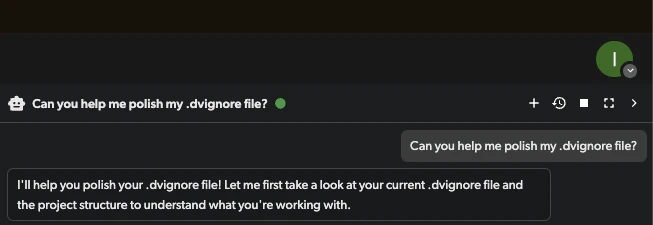 The pane shows the active session and a small header toolbar:
* **New chat** - start a fresh session
* **Session history** - browse past sessions
* **Cancel session** - stop the agent mid-run; this terminates the entire session, not the current message (visible while a session is active)
* **Full width** - expand the pane across the workspace view
* **Collapse** - hide the pane
## What You Can Do With It
Prompt examples grouped by intent:
"What does `Assets/Scripts/Player/PlayerController.cs` do?"
"Show me where damage and health are calculated."
"Walk me through how the save system serializes player state."
"How does this Blueprint connect to the C++ side?"
"Write a coroutine that fades the screen to black over 2 seconds."
"Add a damage falloff curve to the AOE spell."
"Rename `playerHealth` to `currentHealth` everywhere it's used."
"Add null checks to every `GetComponent` call in this file."
Drop a file path or class name into your prompt to anchor SlothBot's attention. The more specific you are, the better the answer.
## What It Can Access
SlothBot runs as a subprocess on your machine, with the same permissions as your user account. By default, it works inside the current Diversion workspace, but it has the same reach as you do on the host:
* **Read, edit, move, and delete files** anywhere your user can - workspace files, but also files outside the workspace if you point it there.
* **Run shell commands** on your machine.
* **Fetch web pages** (for example, to look up documentation).
SlothBot is not sandboxed. Diversion does not restrict the filesystem paths or commands it can touch.
Treat SlothBot's actions like commands you'd run yourself. It can install dependencies, modify your environment, and touch files outside the workspace - review prompts that hand it that kind of scope, and review the diff before committing.
State-changing actions (commits, branches, file deletes) are covered separately - see [Review and Accept Changes](#review-and-accept-changes).
## Privacy
* Prompts, plus the file context SlothBot needs to answer them, are sent to a trusted third-party LLM provider through Diversion. No API key needed on your end.
* Diversion does **not** train models on your data, and the LLM provider does not train on prompts sent through this API.
* Diversion logs **token counts** (not prompt content) for fair-use accounting.
## Limits and Cost
SlothBot is a research preview. There is no published pricing.
Fair-use guardrails today:
* **Token budget**: each organization has a rolling 6-hour token budget. When it's exhausted, follow-up requests fail with a budget-exceeded error until the rolling window advances. Wait for the budget to refresh, or try a smaller follow-up prompt.
* **Research preview access**: SlothBot is enabled per organization. If the pane doesn't appear, your organization isn't enrolled yet - [request access](mailto:hello@diversion.dev?subject=SlothBot%20research%20preview).
* **Limits may change** without notice while in research preview.
## Known Limitations
* **May make wrong assumptions** about your repo's structure or your intent. Read the diff before you commit.
* **No mid-action stop**. You can see chat output and tool calls live, but you can't stop a single tool call mid-execution. If SlothBot is going down the wrong path, cancel the whole session and start a new one.
## Review and Accept Changes
SlothBot edits files directly in your workspace as it works, and can run state-changing commands - commits, branch operations, resets, file deletes - if asked. It's prompted to describe its intended action before running it, though that's not guaranteed.
Treat every change as your responsibility:
* Inspect uncommitted changes with `dv diff` (or the desktop app's change list) before committing.
* Land changes yourself with `dv commit -a -m ""` when you're ready, or discard them with `dv reset -f ` (or `dv reset -f --all`).
* Approved commits sync to the cloud immediately - there is no separate push step.
See [What to do with your changes](/basic/what-to-do-with-your-changes) for the full workflow.
## Disable SlothBot for Your Organization
Organization admins can turn SlothBot off for the entire organization. The setting lives in **Preferences** and applies to every member.
1. Open the profile menu and go to **Settings**.
2. In the left sidebar, under **Organization**, select **Preferences**.
3. Pick the organization using the organization selector in the top-left of the global bar (if you manage more than one).
4. Toggle **SlothBot** off. Confirm in the dialog.
The pane shows the active session and a small header toolbar:
* **New chat** - start a fresh session
* **Session history** - browse past sessions
* **Cancel session** - stop the agent mid-run; this terminates the entire session, not the current message (visible while a session is active)
* **Full width** - expand the pane across the workspace view
* **Collapse** - hide the pane
## What You Can Do With It
Prompt examples grouped by intent:
"What does `Assets/Scripts/Player/PlayerController.cs` do?"
"Show me where damage and health are calculated."
"Walk me through how the save system serializes player state."
"How does this Blueprint connect to the C++ side?"
"Write a coroutine that fades the screen to black over 2 seconds."
"Add a damage falloff curve to the AOE spell."
"Rename `playerHealth` to `currentHealth` everywhere it's used."
"Add null checks to every `GetComponent` call in this file."
Drop a file path or class name into your prompt to anchor SlothBot's attention. The more specific you are, the better the answer.
## What It Can Access
SlothBot runs as a subprocess on your machine, with the same permissions as your user account. By default, it works inside the current Diversion workspace, but it has the same reach as you do on the host:
* **Read, edit, move, and delete files** anywhere your user can - workspace files, but also files outside the workspace if you point it there.
* **Run shell commands** on your machine.
* **Fetch web pages** (for example, to look up documentation).
SlothBot is not sandboxed. Diversion does not restrict the filesystem paths or commands it can touch.
Treat SlothBot's actions like commands you'd run yourself. It can install dependencies, modify your environment, and touch files outside the workspace - review prompts that hand it that kind of scope, and review the diff before committing.
State-changing actions (commits, branches, file deletes) are covered separately - see [Review and Accept Changes](#review-and-accept-changes).
## Privacy
* Prompts, plus the file context SlothBot needs to answer them, are sent to a trusted third-party LLM provider through Diversion. No API key needed on your end.
* Diversion does **not** train models on your data, and the LLM provider does not train on prompts sent through this API.
* Diversion logs **token counts** (not prompt content) for fair-use accounting.
## Limits and Cost
SlothBot is a research preview. There is no published pricing.
Fair-use guardrails today:
* **Token budget**: each organization has a rolling 6-hour token budget. When it's exhausted, follow-up requests fail with a budget-exceeded error until the rolling window advances. Wait for the budget to refresh, or try a smaller follow-up prompt.
* **Research preview access**: SlothBot is enabled per organization. If the pane doesn't appear, your organization isn't enrolled yet - [request access](mailto:hello@diversion.dev?subject=SlothBot%20research%20preview).
* **Limits may change** without notice while in research preview.
## Known Limitations
* **May make wrong assumptions** about your repo's structure or your intent. Read the diff before you commit.
* **No mid-action stop**. You can see chat output and tool calls live, but you can't stop a single tool call mid-execution. If SlothBot is going down the wrong path, cancel the whole session and start a new one.
## Review and Accept Changes
SlothBot edits files directly in your workspace as it works, and can run state-changing commands - commits, branch operations, resets, file deletes - if asked. It's prompted to describe its intended action before running it, though that's not guaranteed.
Treat every change as your responsibility:
* Inspect uncommitted changes with `dv diff` (or the desktop app's change list) before committing.
* Land changes yourself with `dv commit -a -m ""` when you're ready, or discard them with `dv reset -f ` (or `dv reset -f --all`).
* Approved commits sync to the cloud immediately - there is no separate push step.
See [What to do with your changes](/basic/what-to-do-with-your-changes) for the full workflow.
## Disable SlothBot for Your Organization
Organization admins can turn SlothBot off for the entire organization. The setting lives in **Preferences** and applies to every member.
1. Open the profile menu and go to **Settings**.
2. In the left sidebar, under **Organization**, select **Preferences**.
3. Pick the organization using the organization selector in the top-left of the global bar (if you manage more than one).
4. Toggle **SlothBot** off. Confirm in the dialog.
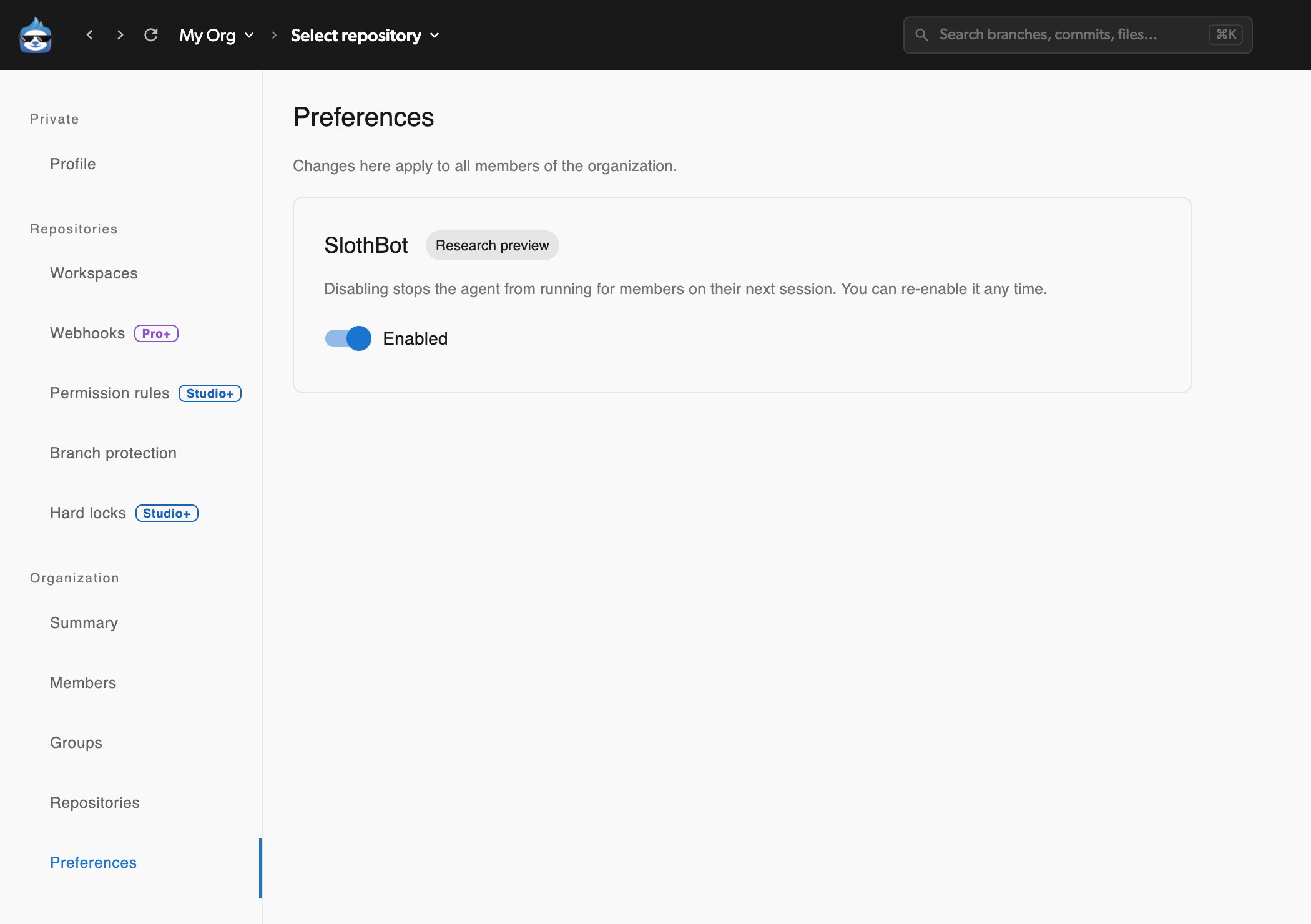 Only organization admins see this setting. Disabling stops the agent from running for all members on their next session. You can re-enable it any time from the same screen.
## Troubleshooting
SlothBot is enabled per organization during the research preview. If your organization isn't enrolled, the pane won't show. [Request access](mailto:hello@diversion.dev?subject=SlothBot%20research%20preview) and we'll enable it for you.
If your organization was enrolled but the pane stopped appearing, an admin may have disabled SlothBot in **Preferences** - see [Disable SlothBot for Your Organization](#disable-slothbot-for-your-organization).
An organization admin can disable it for everyone under **Settings -> Organization -> Preferences**. See [Disable SlothBot for Your Organization](#disable-slothbot-for-your-organization).
Your organization hit the rolling 6-hour token budget. Wait for the budget to refresh, or try a smaller follow-up prompt. The budget resets continuously, not at a fixed time.
The LLM provider returned an error. Usually transient - retry the prompt. If it persists for more than a few minutes, the provider may be having an outage.
There is no per-tool-call stop today - cancel the whole session and start a new one. A more specific follow-up prompt usually steers the agent back on track.
Use the **New chat** button in the pane header. Past sessions remain in the session history.
## Send Feedback
SlothBot is actively developed, and your feedback shapes what we build next. When the in-app **Send Feedback** button is available on the SlothBot pane, that's the fastest way to reach us - it auto-attaches your session ID, organization, and version so we don't have to chase context. In the meantime, [email us](mailto:hello@diversion.dev?subject=SlothBot%20feedback).
Only organization admins see this setting. Disabling stops the agent from running for all members on their next session. You can re-enable it any time from the same screen.
## Troubleshooting
SlothBot is enabled per organization during the research preview. If your organization isn't enrolled, the pane won't show. [Request access](mailto:hello@diversion.dev?subject=SlothBot%20research%20preview) and we'll enable it for you.
If your organization was enrolled but the pane stopped appearing, an admin may have disabled SlothBot in **Preferences** - see [Disable SlothBot for Your Organization](#disable-slothbot-for-your-organization).
An organization admin can disable it for everyone under **Settings -> Organization -> Preferences**. See [Disable SlothBot for Your Organization](#disable-slothbot-for-your-organization).
Your organization hit the rolling 6-hour token budget. Wait for the budget to refresh, or try a smaller follow-up prompt. The budget resets continuously, not at a fixed time.
The LLM provider returned an error. Usually transient - retry the prompt. If it persists for more than a few minutes, the provider may be having an outage.
There is no per-tool-call stop today - cancel the whole session and start a new one. A more specific follow-up prompt usually steers the agent back on track.
Use the **New chat** button in the pane header. Past sessions remain in the session history.
## Send Feedback
SlothBot is actively developed, and your feedback shapes what we build next. When the in-app **Send Feedback** button is available on the SlothBot pane, that's the fastest way to reach us - it auto-attaches your session ID, organization, and version so we don't have to chase context. In the meantime, [email us](mailto:hello@diversion.dev?subject=SlothBot%20feedback).