> ## Documentation Index
> Fetch the complete documentation index at: https://docs.diversion.dev/llms.txt
> Use this file to discover all available pages before exploring further.
# 請求書と支払い
> 請求書へのアクセス、支払い方法の更新、サブスクリプションの管理
Diversion のすべての請求と請求書発行は、当社の請求ポータルを介して管理されます。そこから請求書の表示とダウンロード、支払い方法の更新、サブスクリプションの調整ができます。
請求ポータルには組織のオーナーのみがアクセスできます。チームメンバーの場合は、組織のオーナーに請求書のコピーを依頼してください。
## 請求ポータルへのアクセス
上部ナビゲーションのアバターをクリックし、**Plan & Billing** を選択します。
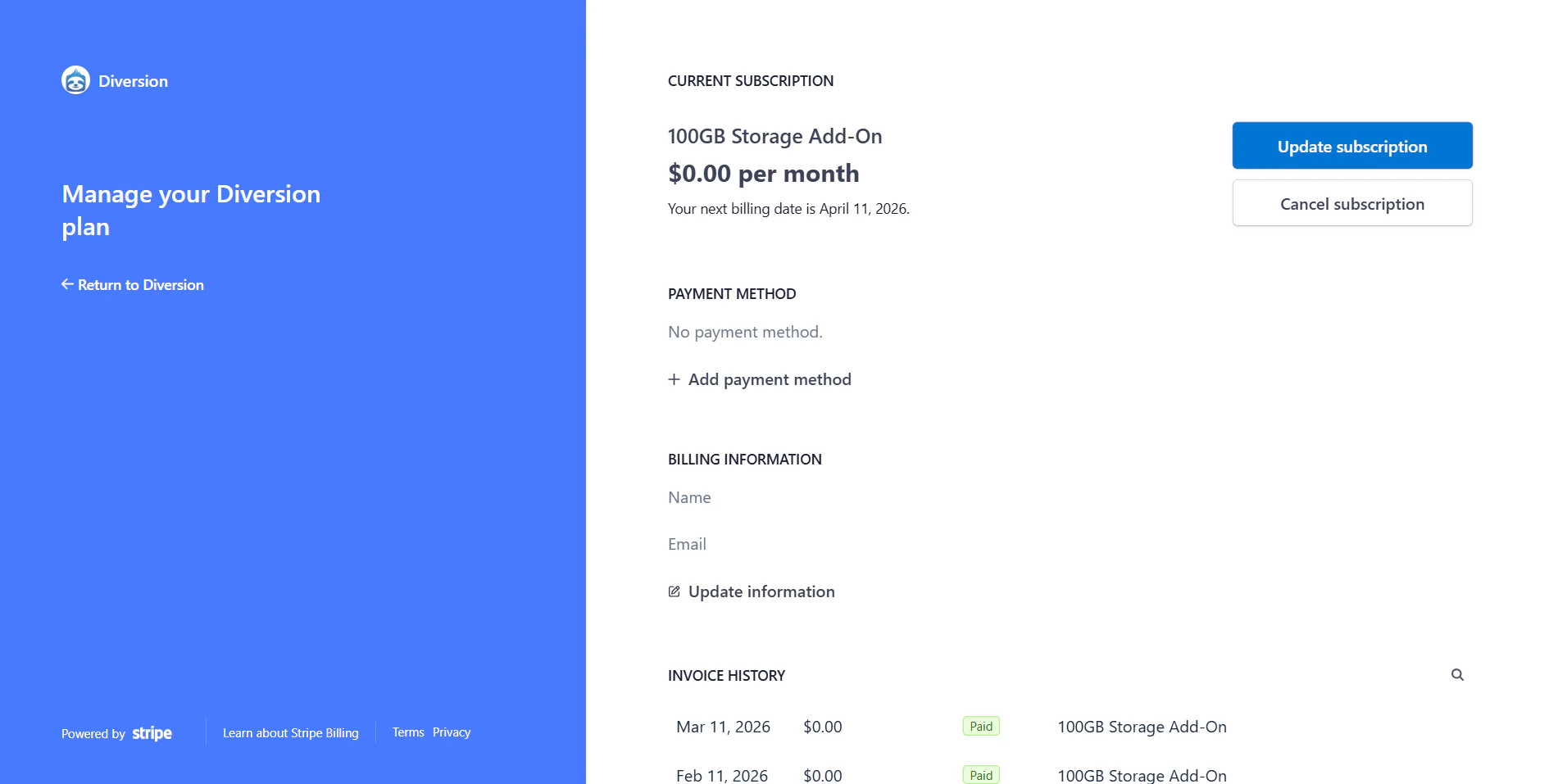
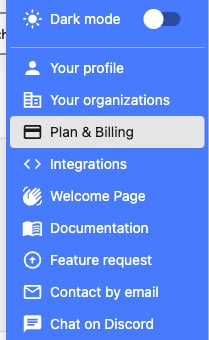 請求ポータルにリダイレクトされ、以下ができます:
* 過去の請求書と領収書の表示とダウンロード
* 支払い方法の更新
* 現在のサブスクリプション詳細の表示
* ユーザーシートとストレージの調整
請求ポータルにリダイレクトされ、以下ができます:
* 過去の請求書と領収書の表示とダウンロード
* 支払い方法の更新
* 現在のサブスクリプション詳細の表示
* ユーザーシートとストレージの調整
 ## 請求書のダウンロード
請求ポータルで、請求書履歴セクションから必要な請求書を見つけます。請求書をクリックして詳細を表示し、ダウンロードまたは印刷オプションを使ってコピーを保存します。
## 請求書のダウンロード
請求ポータルで、請求書履歴セクションから必要な請求書を見つけます。請求書をクリックして詳細を表示し、ダウンロードまたは印刷オプションを使ってコピーを保存します。
 ## 支払い方法の管理
請求ポータルで、支払い方法セクションを見つけて **Add payment method** をクリックし、クレジットカードまたは他の支払い方法を追加します。
アクティブなプランを持っている間、デフォルトの支払い方法を削除することはできません。変更するには、新しい支払い方法を追加してデフォルトに設定し、それから古いものを削除してください。
## サブスクリプションのキャンセル
上部ナビゲーションのアバターをクリックし、**Plan & Billing** を選択して請求ポータルを開きます。
**Current subscription** の下で、**Cancel subscription** をクリックします。
## 支払い方法の管理
請求ポータルで、支払い方法セクションを見つけて **Add payment method** をクリックし、クレジットカードまたは他の支払い方法を追加します。
アクティブなプランを持っている間、デフォルトの支払い方法を削除することはできません。変更するには、新しい支払い方法を追加してデフォルトに設定し、それから古いものを削除してください。
## サブスクリプションのキャンセル
上部ナビゲーションのアバターをクリックし、**Plan & Billing** を選択して請求ポータルを開きます。
**Current subscription** の下で、**Cancel subscription** をクリックします。
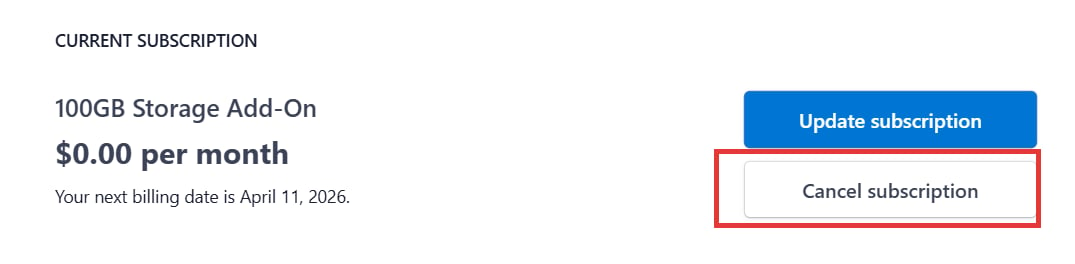 キャンセルは現在の請求期間の終わりに有効になるため、それまではプランへのアクセスを維持できます。**Plan & Billing** からいつでも再登録できます。
## サポートが必要ですか?
請求に関するご質問、返金、カスタム請求書が必要な場合は、[請求チームまでご連絡ください](mailto:billing@diversion.dev)。
利用可能なプランと料金については、[プランを選択する](/ja/choosing-your-plan) または当社の [料金ページ](https://www.diversion.dev/pricing) をご覧ください。
キャンセルは現在の請求期間の終わりに有効になるため、それまではプランへのアクセスを維持できます。**Plan & Billing** からいつでも再登録できます。
## サポートが必要ですか?
請求に関するご質問、返金、カスタム請求書が必要な場合は、[請求チームまでご連絡ください](mailto:billing@diversion.dev)。
利用可能なプランと料金については、[プランを選択する](/ja/choosing-your-plan) または当社の [料金ページ](https://www.diversion.dev/pricing) をご覧ください。