> ## Documentation Index
> Fetch the complete documentation index at: https://docs.diversion.dev/llms.txt
> Use this file to discover all available pages before exploring further.

# 選択同期

> 必要なファイルのみを同期

これは、コードが不要なアーティストや、芸術的な傾向のない開発者向けの機能です。

## 選択同期とは?

選択同期は、ローカルに同期したいフォルダーを選択できる機能です。必要なファイルだけを手元に置けるため、コンピューターの容量を節約できます。

## 選択同期の使い方

ワークスペースセレクター (「THIS WORKSPACE」) の隣にあるワークスペースの **... (その他のオプション) メニュー** を開き、Selective sync を選択します。

<Steps>
  <Step title="リポジトリを開く">
    ローカルフォルダーから `dv view` を実行するか、UI の View Repo ボタンをクリックします。
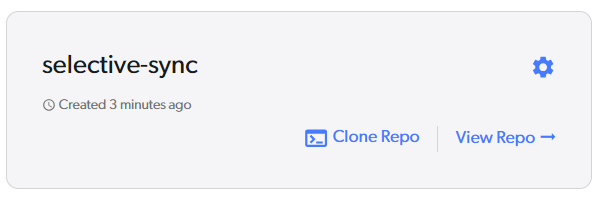
    <img alt="リポジトリを開く" style={{width: '90%', borderRadius: '1.5rem', border: '.3rem solid #555', boxShadow: '0 0 1rem #888' }} src="https://mintcdn.com/diversion-2/HhHa-PhS49hu7GIa/images/view-repo-button.png?fit=max&auto=format&n=HhHa-PhS49hu7GIa&q=85&s=770e3422fcee4a3d6f1171e7ab53f79e" width="595" height="201" data-path="images/view-repo-button.png" />
  </Step>

  <Step title="ワークスペースの同期設定を開く">
    ワークスペースセレクターの隣にある **... (その他のオプション) ボタン** をクリックして「THIS WORKSPACE」メニューを開き、**Selective sync** (「Choose which folders sync to this machine」) を選択します。
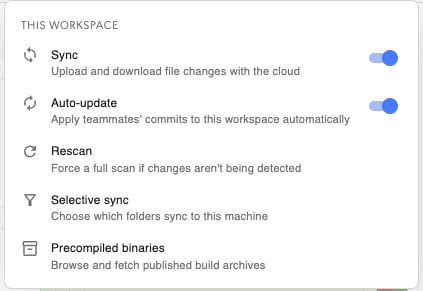
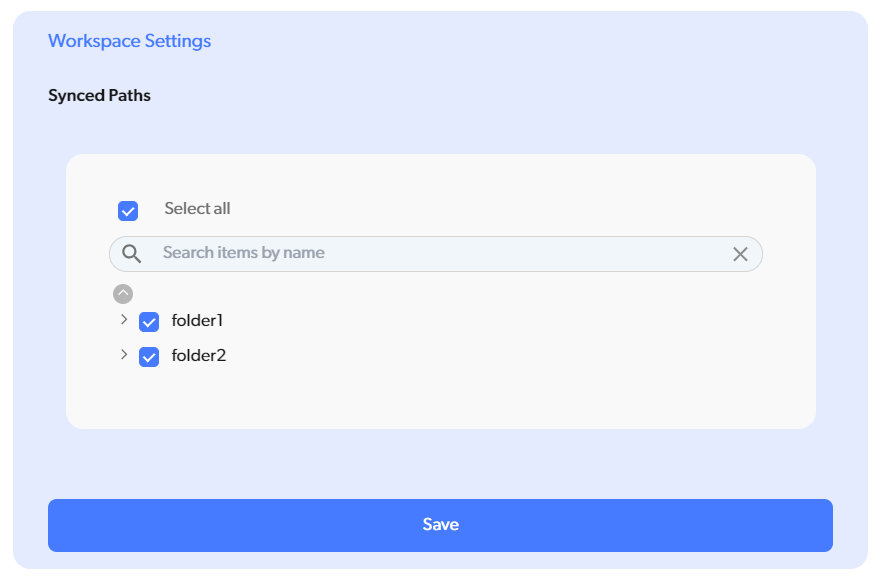
    <img alt="設定を開く" style={{width: '90%', borderRadius: '1.5rem', border: '.3rem solid #555', boxShadow: '0 0 1rem #888' }} src="https://mintcdn.com/diversion-2/UZ43CqMpCXHHcPfk/images/workspace-settings.png?fit=max&auto=format&n=UZ43CqMpCXHHcPfk&q=85&s=88ac1cc6fa6e6f1f8a5a8811679d4a4b" width="423" height="291" data-path="images/workspace-settings.png" />
  </Step>

  <Step title="Selective sync へようこそ。">
    <img alt="Selective Sync ページ" style={{width: '90%', borderRadius: '1.5rem', border: '.3rem solid #555', boxShadow: '0 0 1rem #888' }} src="https://mintcdn.com/diversion-2/zdFp0wmCrPve5JMp/images/selective-sync-page.png?fit=max&auto=format&n=zdFp0wmCrPve5JMp&q=85&s=b1872da88e84a160ac7bcbac691f86ca" width="882" height="580" data-path="images/selective-sync-page.png" />
  </Step>
</Steps>

### フォルダーの同期解除

`folder 1` を見てみましょう。

UI では:
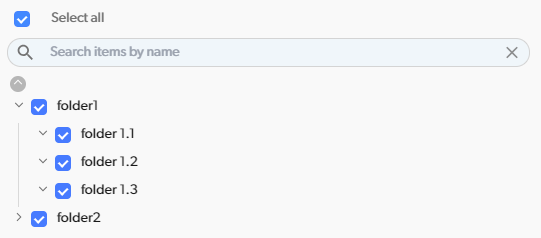
<img alt="Selective Sync UI 全体" style={{width: '90%', borderRadius: '1.5rem', border: '.3rem solid #555', boxShadow: '0 0 1rem #888' }} src="https://mintcdn.com/diversion-2/zdFp0wmCrPve5JMp/images/selective-sync-folder1-full-ui.png?fit=max&auto=format&n=zdFp0wmCrPve5JMp&q=85&s=59872cec20ecbb8ab2c89afefc908b9e" width="541" height="238" data-path="images/selective-sync-folder1-full-ui.png" />

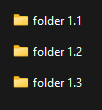
そしてローカルでは:

<img alt="Selective Sync ローカル全体" style={{width: '90%', borderRadius: '1.5rem', border: '.3rem solid #555', boxShadow: '0 0 1rem #888' }} src="https://mintcdn.com/diversion-2/zdFp0wmCrPve5JMp/images/selective-sync-folder1-full-local.png?fit=max&auto=format&n=zdFp0wmCrPve5JMp&q=85&s=ce1657a677598e248386576eb682df0d" width="102" height="110" data-path="images/selective-sync-folder1-full-local.png" />

`folder 1.2` の同期を解除してみましょう。UI でフォルダーの選択を外し、Save を押します。
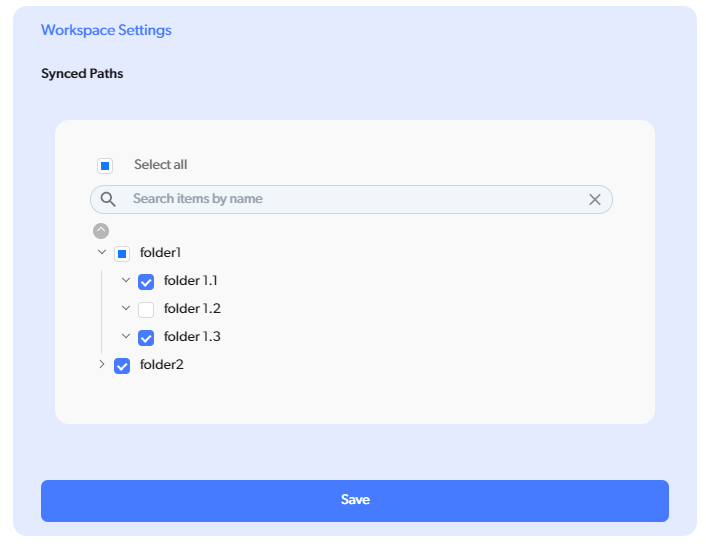
<img alt="Selective Sync folder 1.2 の削除" style={{width: '90%', borderRadius: '1.5rem', border: '.3rem solid #555', boxShadow: '0 0 1rem #888' }} src="https://mintcdn.com/diversion-2/HhHa-PhS49hu7GIa/images/selective-sync-unselecting-1.2.png?fit=max&auto=format&n=HhHa-PhS49hu7GIa&q=85&s=3a78b83f563d00846524ff2dcc2e390c" width="706" height="551" data-path="images/selective-sync-unselecting-1.2.png" />

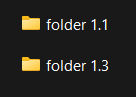
ローカルでは、フォルダーが自動的に消えます。

<img alt="Selective Sync ローカルで folder 1.2 が削除された状態" style={{width: '90%', borderRadius: '1.5rem', border: '.3rem solid #555', boxShadow: '0 0 1rem #888' }} src="https://mintcdn.com/diversion-2/zdFp0wmCrPve5JMp/images/selective-sync-1.2-missing-local.png?fit=max&auto=format&n=zdFp0wmCrPve5JMp&q=85&s=558172d7117c0c30620112fd0cf39b45" width="136" height="97" data-path="images/selective-sync-1.2-missing-local.png" />

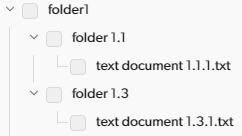
UI からも消えています。

<img alt="Selective Sync UI で folder 1.2 が削除された状態" style={{width: '90%', borderRadius: '1.5rem', border: '.3rem solid #555', boxShadow: '0 0 1rem #888' }} src="https://mintcdn.com/diversion-2/zdFp0wmCrPve5JMp/images/selective-sync-1.2-missing-repo-ui.png?fit=max&auto=format&n=zdFp0wmCrPve5JMp&q=85&s=43dac60a3dc8b2688bb37802d4214cf4" width="242" height="136" data-path="images/selective-sync-1.2-missing-repo-ui.png" />

### コミットしていない変更がある場合は?

心配ご無用! コミットしていない変更がある場合は、選択同期設定を変更できません。実際にどうなるか見てみましょう。

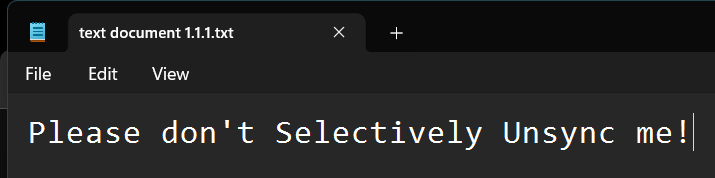
`folder 1.1` の中の `text document 1.1.1.txt` を編集して保存します。
<img alt="Selective Sync 1.1.1.txt の編集" style={{width: '90%', borderRadius: '1.5rem', border: '.3rem solid #555', boxShadow: '0 0 1rem #888' }} src="https://mintcdn.com/diversion-2/zdFp0wmCrPve5JMp/images/selective-sync-editing-1.1.1.png?fit=max&auto=format&n=zdFp0wmCrPve5JMp&q=85&s=ea1527c8b6ac708ee65aa0a30a01d947" width="715" height="178" data-path="images/selective-sync-editing-1.1.1.png" />

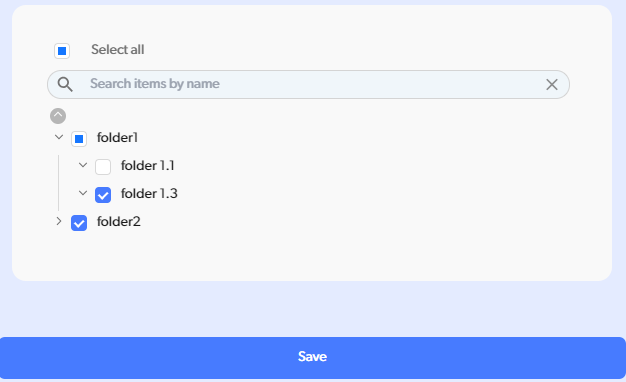
ワークスペース設定に戻り、`folder 1.1` の同期を解除してみます。
<img alt="Selective Sync 1.1 の同期解除に失敗" style={{width: '90%', borderRadius: '1.5rem', border: '.3rem solid #555', boxShadow: '0 0 1rem #888' }} src="https://mintcdn.com/diversion-2/HhHa-PhS49hu7GIa/images/selective-sync-trying-to-unsync-with-changes.png?fit=max&auto=format&n=HhHa-PhS49hu7GIa&q=85&s=183127ee37683db348bb2bc5bbb20e31" width="626" height="382" data-path="images/selective-sync-trying-to-unsync-with-changes.png" />

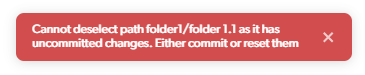
エラーメッセージが出ました! フォルダーの同期を解除するには、変更をコミットするか破棄する必要があります。
<img alt="Selective Sync 1.1 の同期解除エラー" style={{width: '90%', borderRadius: '1.5rem', border: '.3rem solid #555', boxShadow: '0 0 1rem #888' }} src="https://mintcdn.com/diversion-2/HhHa-PhS49hu7GIa/images/selective-sync-trying-to-unsync-with-changes-error.png?fit=max&auto=format&n=HhHa-PhS49hu7GIa&q=85&s=13edcab91482f0c349252483d1a9ada2" width="365" height="75" data-path="images/selective-sync-trying-to-unsync-with-changes-error.png" />

## ルースなファイル

現時点で、選択同期はフォルダーのみに対応しています。したがって、フォルダーに含まれないファイルは異なる扱いになります。

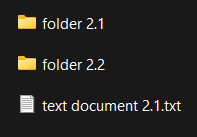
`folder 2` を見てみましょう。
<img alt="Selective Sync ルースなファイルを持つフォルダー" style={{width: '90%', borderRadius: '1.5rem', border: '.3rem solid #555', boxShadow: '0 0 1rem #888' }} src="https://mintcdn.com/diversion-2/zdFp0wmCrPve5JMp/images/selective-sync-folder-2-loose-file.png?fit=max&auto=format&n=zdFp0wmCrPve5JMp&q=85&s=ba64f54db3a00ee3ee515eb180a5097c" width="197" height="137" data-path="images/selective-sync-folder-2-loose-file.png" />

直下に `text document 2.1.txt` というファイルがあります。この場合、`folder 2.1` の同期を解除すると、`text document 2.1.txt` の同期も解除されます! ファイルはフォルダーの兄弟であって子ではないにもかかわらずです。これは、`folder 2` が部分的に同期されているとマークされ、明示的に同期されているフォルダー (この場合は `folder 2.2`) のみが保持されるためです。

これは依然として、この機能の主なユースケースをサポートしています:

1. コードをローカルに同期したくないアーティストは、ルートの `Source` フォルダー (またはそれに相当するもの) を無視できます。
2. 重いアセットを同期したくない開発者は、ルートの `Content` フォルダー (またはそれに相当するもの) を無視できます。

## ワークスペースごとに設定

選択同期機能はワークスペースごとに動作します。つまり、ワークスペースごとに異なる選択同期設定を持てます。同じリポジトリに複数のプロジェクトがある場合や、同じプロジェクトの別々の部分で作業している場合に便利です。