> ## Documentation Index
> Fetch the complete documentation index at: https://docs.diversion.dev/llms.txt
> Use this file to discover all available pages before exploring further.
# Hard Locks
> Prevent conflicting edits by exclusively locking files and folders
Hard locks give a user exclusive write access to a specific path in a repository. While [soft locks](/coming_from_perforce#soft-locking-vs-hard-locking) are non-blocking indicators that show when someone is editing a file, hard locks **prevent** other users from committing changes to the locked path until the lock is released.
Hard locks are especially useful for binary files (such as `.uasset`, `.umap`, or `.fbx`) that cannot be merged and require exclusive editing.
Hard locks are available on **Studio** and **Enterprise** plans.
## How Hard Locks Work
* A lock is **per-repository** and **per-path** — each lock applies to a specific path in a specific repo.
* A lock is tied to the **user** who created it.
* Once a path is locked, **only the locking user** can commit changes to that path.
* If another user edits a locked file locally, a **warning** is displayed but the edit is saved. However, **committing** those changes will be **blocked**.
* Only the **locking user** or a **repository admin/owner** can release the lock.
## Locking and Releasing Paths
### Using the Desktop or Web App
To lock a path, right-click the file or folder in the tree view and select **Lock** from the context menu.
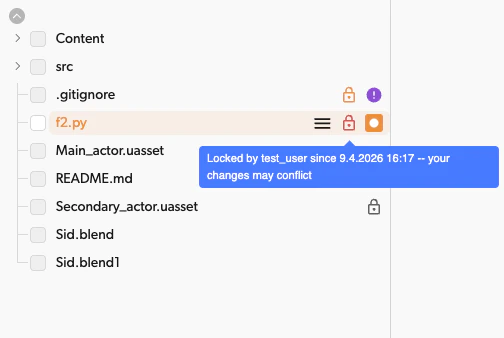
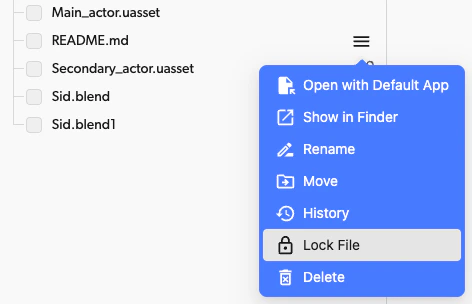 Once locked, a lock icon appears next to the path in the tree view, indicating who holds the lock.
 To release a lock, right-click the locked path and select **Unlock** from the context menu.
Only the user who created the lock or a repository admin/owner can release it. If the locking user is unavailable, contact a repo admin.
### Using the CLI
Lock a path:
```bash theme={null}
dv lock
```
Release a lock:
```bash theme={null}
dv lock -d
```
List all locked paths in the repository:
```bash theme={null}
dv lock
```
## Auto-Lock
Repository admins can configure file patterns (by extension) so that matching files are **automatically locked** when a user begins editing them. This removes the need for manual locking on common binary or unmergeable file types.
### How Auto-Lock Works
* When a user edits a file that matches a configured pattern, Diversion automatically locks it for that user.
* If the file is **already locked by another user**, auto-lock does not apply — the existing lock is preserved.
Auto-lock is particularly useful for binary files like `.uasset`, `.umap`, or `.fbx` that cannot be merged and always require exclusive editing.
### Configuring Auto-Lock Patterns
Auto-lock is a per-repository setting configured by a repo admin or owner.
1. Click your **profile avatar**, select **Your organizations**, then select **Repositories** in the sidebar and **Hard locks** in the repository column
2. Use the repository picker at the top of the repository column to select the repository
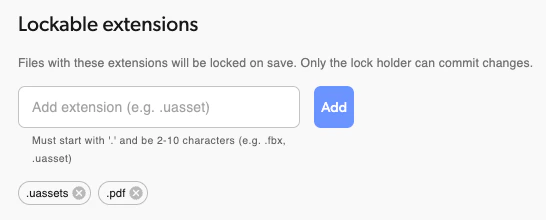
3. Add file extension patterns (e.g., `.uasset`, `.umap`, `.fbx`)
4. Save changes
To release a lock, right-click the locked path and select **Unlock** from the context menu.
Only the user who created the lock or a repository admin/owner can release it. If the locking user is unavailable, contact a repo admin.
### Using the CLI
Lock a path:
```bash theme={null}
dv lock
```
Release a lock:
```bash theme={null}
dv lock -d
```
List all locked paths in the repository:
```bash theme={null}
dv lock
```
## Auto-Lock
Repository admins can configure file patterns (by extension) so that matching files are **automatically locked** when a user begins editing them. This removes the need for manual locking on common binary or unmergeable file types.
### How Auto-Lock Works
* When a user edits a file that matches a configured pattern, Diversion automatically locks it for that user.
* If the file is **already locked by another user**, auto-lock does not apply — the existing lock is preserved.
Auto-lock is particularly useful for binary files like `.uasset`, `.umap`, or `.fbx` that cannot be merged and always require exclusive editing.
### Configuring Auto-Lock Patterns
Auto-lock is a per-repository setting configured by a repo admin or owner.
1. Click your **profile avatar**, select **Your organizations**, then select **Repositories** in the sidebar and **Hard locks** in the repository column
2. Use the repository picker at the top of the repository column to select the repository
3. Add file extension patterns (e.g., `.uasset`, `.umap`, `.fbx`)
4. Save changes
 ## Auto-Release
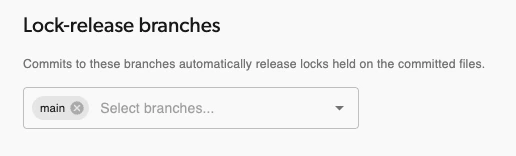
Locks can be automatically released when the locking user commits changes on specific branches. This is configured alongside the auto-lock settings.
### How Auto-Release Works
* A repository admin defines which **branches** trigger auto-release (e.g., `main`, `develop`).
* When a user commits or merges to one of these branches, their locked files included in the commit are automatically released.
## Auto-Release
Locks can be automatically released when the locking user commits changes on specific branches. This is configured alongside the auto-lock settings.
### How Auto-Release Works
* A repository admin defines which **branches** trigger auto-release (e.g., `main`, `develop`).
* When a user commits or merges to one of these branches, their locked files included in the commit are automatically released.
 ## Viewing Locked Paths
* **Desktop or Web App:** Lock icons appear in the tree view next to locked paths. Hover over the icon to see who holds the lock.
* **CLI:** Run `dv lock` with no arguments to list all locks in the repository.
## Permissions
| Action | Who can do it |
| ------------------------------------ | -------------------------------------- |
| Lock a path | Any user with write access |
| Unlock own lock | The locking user, repo admin, or owner |
| Unlock another user's lock | Repo admin or owner |
| Configure auto-lock/release settings | Repo admin or owner |
## Viewing Locked Paths
* **Desktop or Web App:** Lock icons appear in the tree view next to locked paths. Hover over the icon to see who holds the lock.
* **CLI:** Run `dv lock` with no arguments to list all locks in the repository.
## Permissions
| Action | Who can do it |
| ------------------------------------ | -------------------------------------- |
| Lock a path | Any user with write access |
| Unlock own lock | The locking user, repo admin, or owner |
| Unlock another user's lock | Repo admin or owner |
| Configure auto-lock/release settings | Repo admin or owner |