> ## Documentation Index
> Fetch the complete documentation index at: https://docs.diversion.dev/llms.txt
> Use this file to discover all available pages before exploring further.
# Syncing
> Understand how to pause/resume, toggle automatic updates and selectively sync your repositories
## Repositories
By default your workspaces are synced in full, but there will be cases when you might want to:
* pause temporarily the syncing of your workspace.
* just sync a subset of your workspaces.
## Pause workspace sync
You can temporarily pause syncing for any workspace through the desktop app:
Open the workspace's "THIS WORKSPACE" sync settings, reached via the **... (more options) button** next to the workspace selector
 Toggle **Sync** off to pause ("Upload and download file changes with the cloud")
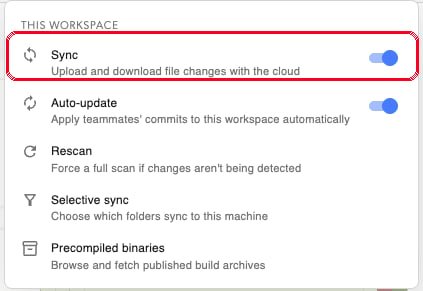 Confirm to pause syncing for the current workspace
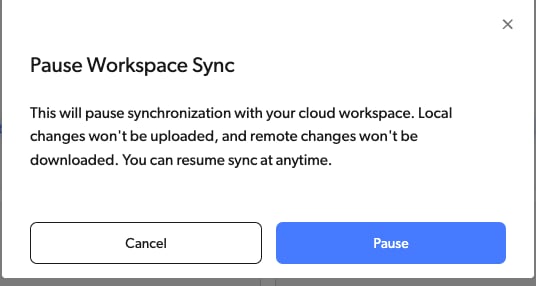 While paused:
Your local changes are preserved and you can continue working
Remote commits from other team members won't sync to your workspace
Your commits won't be pushed to the repository
This is useful when you need to work offline or want to prevent interruptions during intensive work sessions. Remember to resume syncing when you're ready to collaborate again.
## Workspace Automatic Update
While paused:
Your local changes are preserved and you can continue working
Remote commits from other team members won't sync to your workspace
Your commits won't be pushed to the repository
This is useful when you need to work offline or want to prevent interruptions during intensive work sessions. Remember to resume syncing when you're ready to collaborate again.
## Workspace Automatic Update
 While sync pause/resume controls the syncing between your local copy to the cloud workspace, auto-update controls the merging of new commits from the shared branch into your cloud workspace.
#### How it works
Remote commits to the current branch will be automatically merged to the cloud workspace.
Remote commits to the current branch will **not** be automatically merged to the cloud workspace.
In case of remote commits to the branch, a notification "Updates available" will be displayed.
Toggling auto-update from off to on will trigger an automatic workspace update in case of pending updates.
While sync pause/resume controls the syncing between your local copy to the cloud workspace, auto-update controls the merging of new commits from the shared branch into your cloud workspace.
#### How it works
Remote commits to the current branch will be automatically merged to the cloud workspace.
Remote commits to the current branch will **not** be automatically merged to the cloud workspace.
In case of remote commits to the branch, a notification "Updates available" will be displayed.
Toggling auto-update from off to on will trigger an automatic workspace update in case of pending updates.
```mermaid theme={null}
flowchart TD
G[Local Workspace Updated] --> H{Sync Status}
H -->|Resumed| I[Local changes automatically synced with cloud workspace]
H -->|Paused| J[No sync to / with cloud workspace]
A[Remote Branch Commit] --> B{Auto-Update}
B -->|Enabled| C[New commits automatically merged to cloud workspace]
B -->|Disabled| K[No sync with cloud workspace]
C --> H{Sync Status}
```
#### When should I turn it off?
In most cases it is better to be in sync with the remote branch, it allows finding and fixing conflicts fast and to avoid complex merges in the future.
Turn it off if you don't want remote branch updates to automatically be synced into your cloud workspace, for example if you think that changes from other teammates might break your current project state.
#### Alternative to disabling auto-update
It is possible to branch-out to a side branch in order to avoid receiving new commits from the shared branch into your local workspace while you are working on a feature or a fix. The advantages of this approach are:
* You can commit in more granular steps, and retain fine-grained control over your project history.
* When you are ready to merge your changes into the shared branch, you can create a Review Request to have your changes reviewed by your team members.
* Whenever you start working on a new feature, you can be sure that you are working on the latest version of the shared branch.
#### Default automatic update setting
 Repo admins and owners can set the default auto-update value of new workspaces created in the selected repo.
To change the setting, open the settings sidebar (via your avatar -> `Your organizations`) and go to `Organization` -> `Repositories`.
This will **not** affect existing workspaces' settings. Users can control the auto-update setting for their individual workspaces regardless of the default setting for new workspaces.
## Selective sync
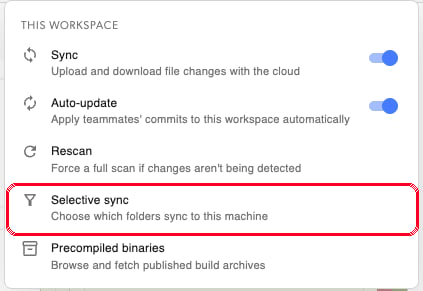
Control exactly which folders sync to your local workspace through the workspace's "THIS WORKSPACE" sync settings (the **... (more options) menu** next to the workspace selector).
Choose **Selective sync** ("Choose which folders sync to this machine")
Repo admins and owners can set the default auto-update value of new workspaces created in the selected repo.
To change the setting, open the settings sidebar (via your avatar -> `Your organizations`) and go to `Organization` -> `Repositories`.
This will **not** affect existing workspaces' settings. Users can control the auto-update setting for their individual workspaces regardless of the default setting for new workspaces.
## Selective sync
Control exactly which folders sync to your local workspace through the workspace's "THIS WORKSPACE" sync settings (the **... (more options) menu** next to the workspace selector).
Choose **Selective sync** ("Choose which folders sync to this machine")
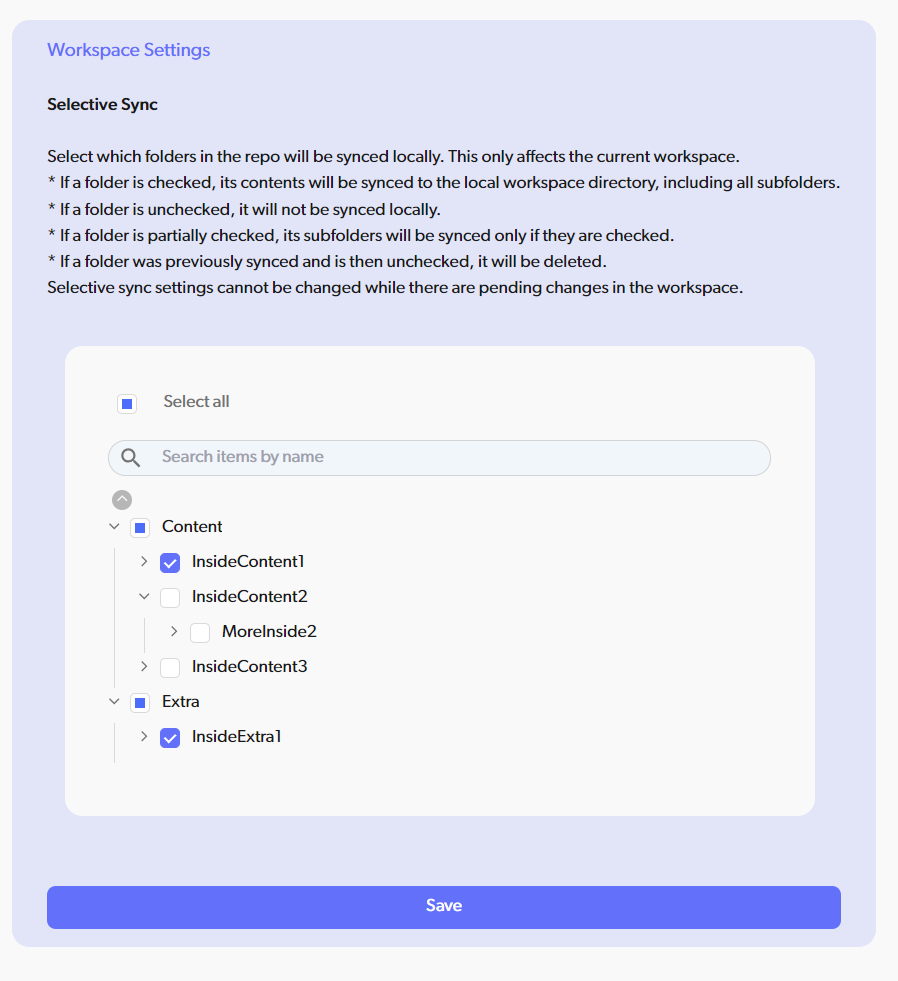
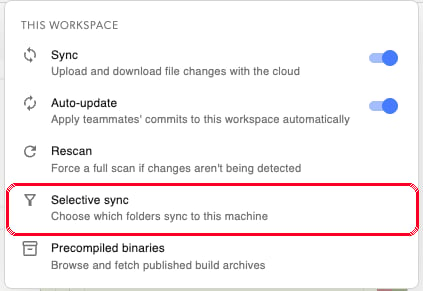 Check (for sync) or uncheck (for unsync) the desired directories
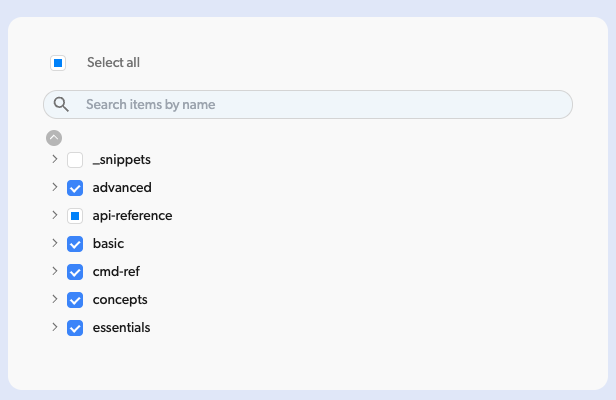 How it works:
Checked folders: Contents sync locally, including all subfolders
Unchecked folders: Won't sync locally
Partially checked folders: Only checked subfolders will sync
Previously synced folders: Will be deleted locally if unchecked
Important notes:
Selective sync settings apply only to the current workspace
Settings cannot be changed while you have pending changes—commit or stash first
Each workspace can have different selective sync configurations
This feature is particularly useful for large repositories where you only need specific assets or code sections for your current task.
### Partially clone a repo with selective sync
You can use selective sync to clone only specific folders from a repository, reducing disk space usage and sync time.
Find the repository that you want to partially clone.
How it works:
Checked folders: Contents sync locally, including all subfolders
Unchecked folders: Won't sync locally
Partially checked folders: Only checked subfolders will sync
Previously synced folders: Will be deleted locally if unchecked
Important notes:
Selective sync settings apply only to the current workspace
Settings cannot be changed while you have pending changes—commit or stash first
Each workspace can have different selective sync configurations
This feature is particularly useful for large repositories where you only need specific assets or code sections for your current task.
### Partially clone a repo with selective sync
You can use selective sync to clone only specific folders from a repository, reducing disk space usage and sync time.
Find the repository that you want to partially clone.
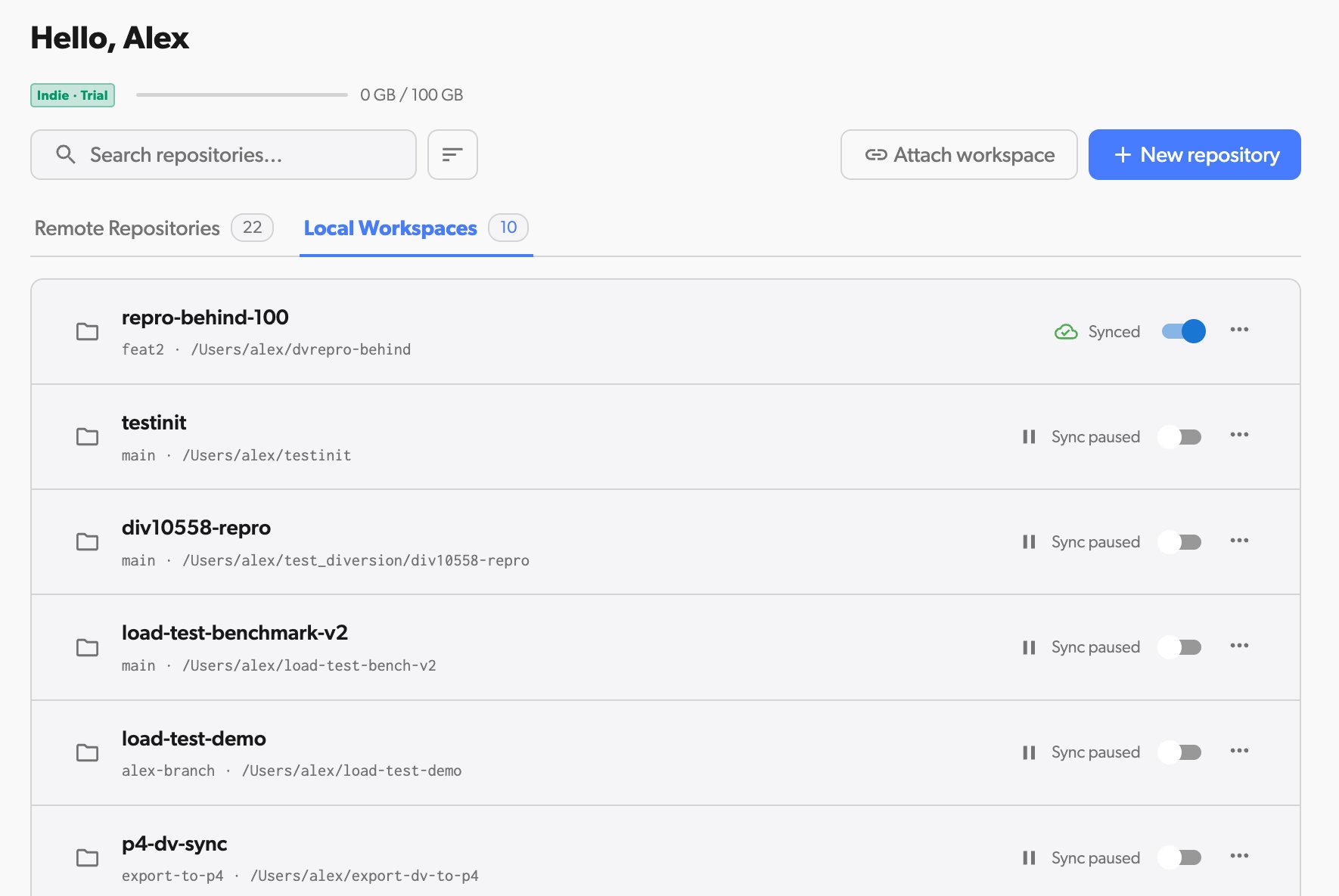 Open the workspace selector (top-right of the repo sub-header), click `+ New workspace`, and enter a name for your new workspace.
 In the new workspace settings, select `Selective sync` to configure folder selection.
 Choose which folders you want to include in your partial clone.
 Navigate to the desktop app (if not already there) and open the workspace selector. Your new workspace appears under the **Remote** section (workspaces that aren't cloned to this machine yet). Locate it, click the **...** (more options) menu next to it, and select `Clone`.
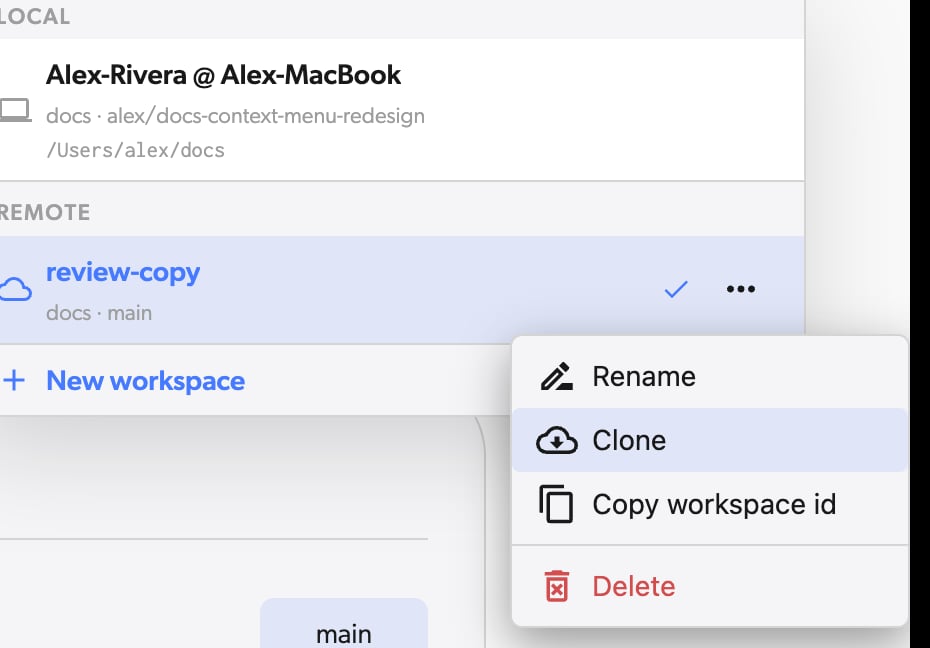 That's it! You've successfully set up a partial clone with only the folders you need. Your workspace is now lighter and faster to sync.