> ## Documentation Index
> Fetch the complete documentation index at: https://docs.diversion.dev/llms.txt
> Use this file to discover all available pages before exploring further.
# Coming from perforce
This guide covers migrating your Unreal Engine projects from Perforce to Diversion, including feature comparison and a step-by-step migration process.
## Why Consider Migration?
Diversion offers the same core version control functionality as Perforce with key improvements:
* Smaller installation footprint (for the client, no need to set up any server)
* Significantly faster **commit** speeds\
*(Diversion continuously uploads in the background; committing is the moment you save a snapshot into your history)*
* Simplified UI focused on essential workflows
* Better user experience for artists and non-technical team members
## Feature Comparison
| Feature | Perforce | Diversion |
| ----------------------------- | ----------------------------------- | --------------------------------------------------------------- |
| **Client Installation Size** | Large, complex installer | Small, easy installer |
| **Learning Curve** | Steep, overwhelming UI | Intuitive, streamlined interface |
| **Commit Speed** | Standard | Significantly faster |
| **Visual Diffs** | ✅ Available | ✅ Available |
| **Changelist Management** | ✅ Available | ✅ Available |
| **Locking Model** | Hard (exclusive) lock | Soft lock (non-blocking) + [Hard Locks](/hard-locks) (optional) |
| **History Tracking** | ✅ Complete history | ✅ Complete history |
| **Unreal Engine Integration** | ✅ Native plugin | ✅ Native plugin |
| **User Experience** | Complex, tool-heavy | Clean, action-focused |
| **Artist Friendliness** | Challenging for non-technical users | Designed for all skill levels |
## Soft Locking vs. Hard Locking
Diversion automatically indicates when a file is being edited (**soft lock**)—no one needs to explicitly take authorship.
You’re **not blocked**: you can confirm editing via the prompt and proceed.
If a teammate’s version was committed, you can merge it into your branch (auto-merge on same branch when there’s no conflict).
Some teams require hard locks; see [Hard Locks](/hard-locks) for details on configuring exclusive file locking.
**Why this matters:**\
In Perforce, you must explicitly take authorship of a file (check-out). If someone else has it locked and is unavailable to release it (vacation, sick, etc.), you’re deadlocked.\
In Diversion, the backend automatically and implicitly signals active edits without blocking your work.
***
## Migration Options
If you have a project in Perforce and want to move over to Diversion, there are two options to do so:
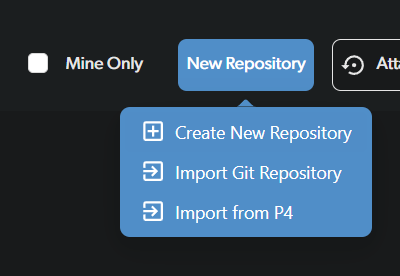 **Option 1: Import From P4** – Brings over your full Perforce history. Contact the Diversion team to complete this process.
**Option 2: Create New Repository** – Start with a clean slate without history. Faster setup for immediate use.
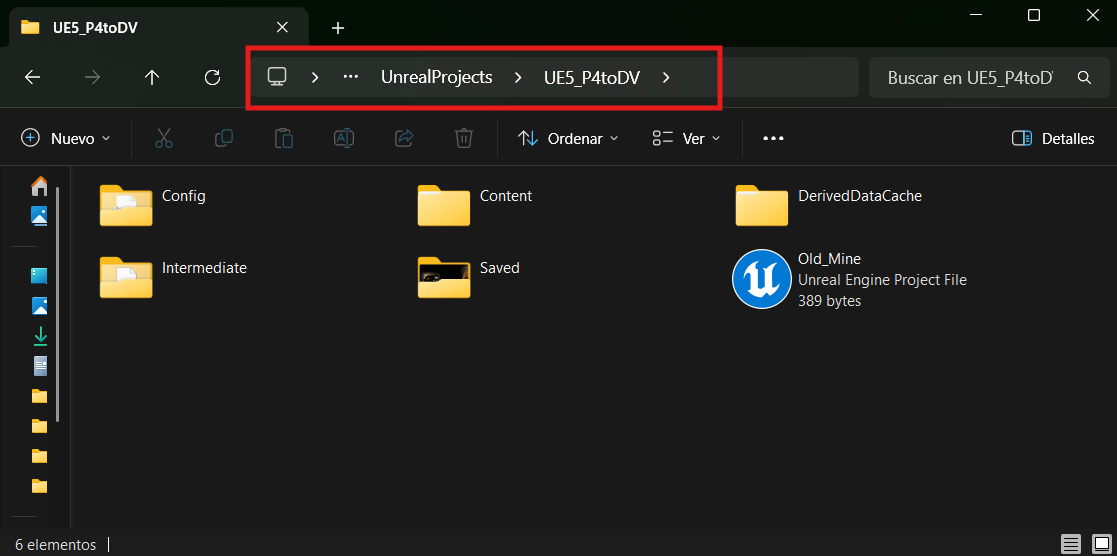
For this guide, we'll use Option 2. Browse to your local Perforce project path:
**Option 1: Import From P4** – Brings over your full Perforce history. Contact the Diversion team to complete this process.
**Option 2: Create New Repository** – Start with a clean slate without history. Faster setup for immediate use.
For this guide, we'll use Option 2. Browse to your local Perforce project path:
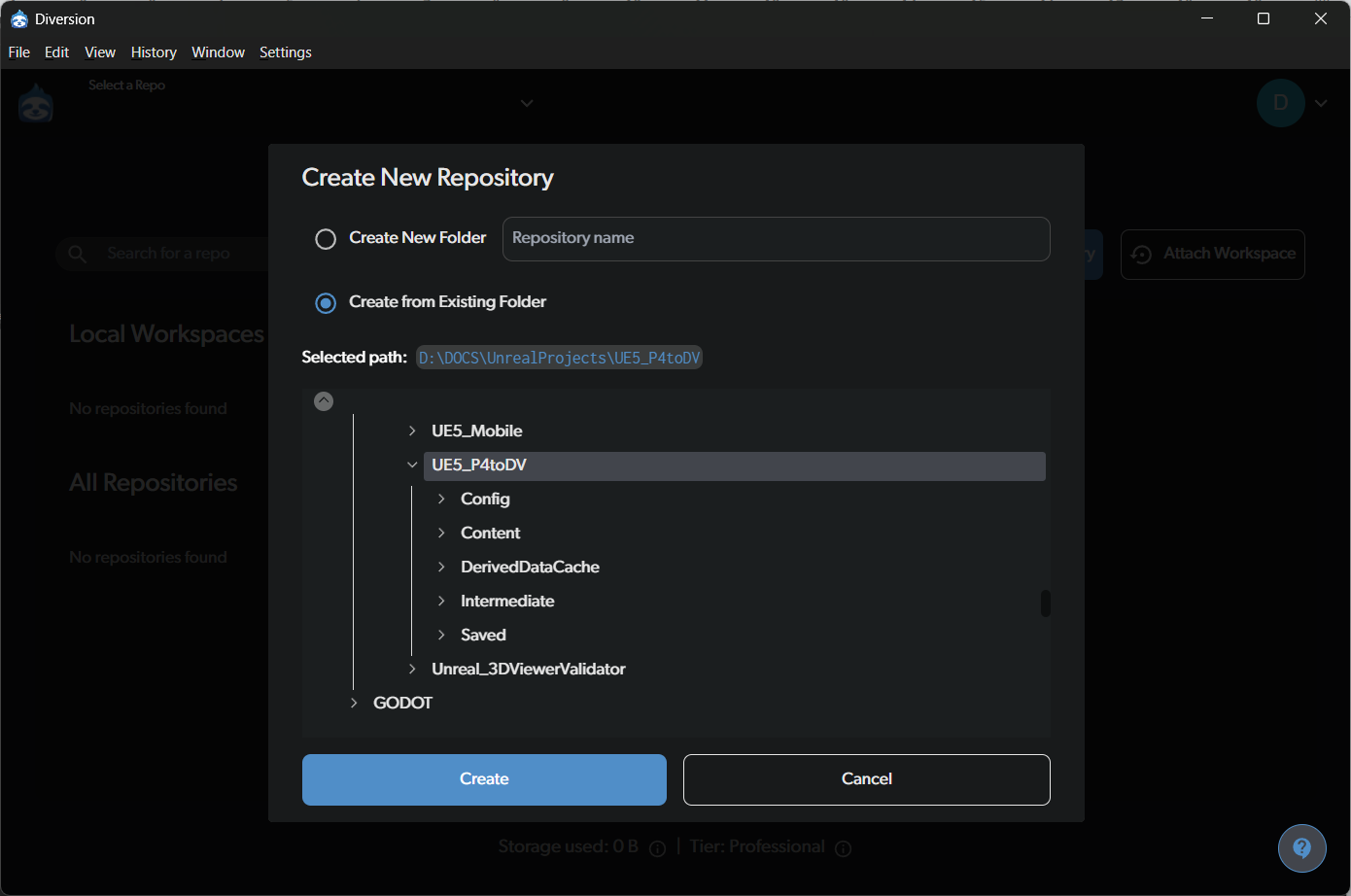
 After locating the project folder previously used with Perforce, choose **Create from Existing Folder** in Diversion.
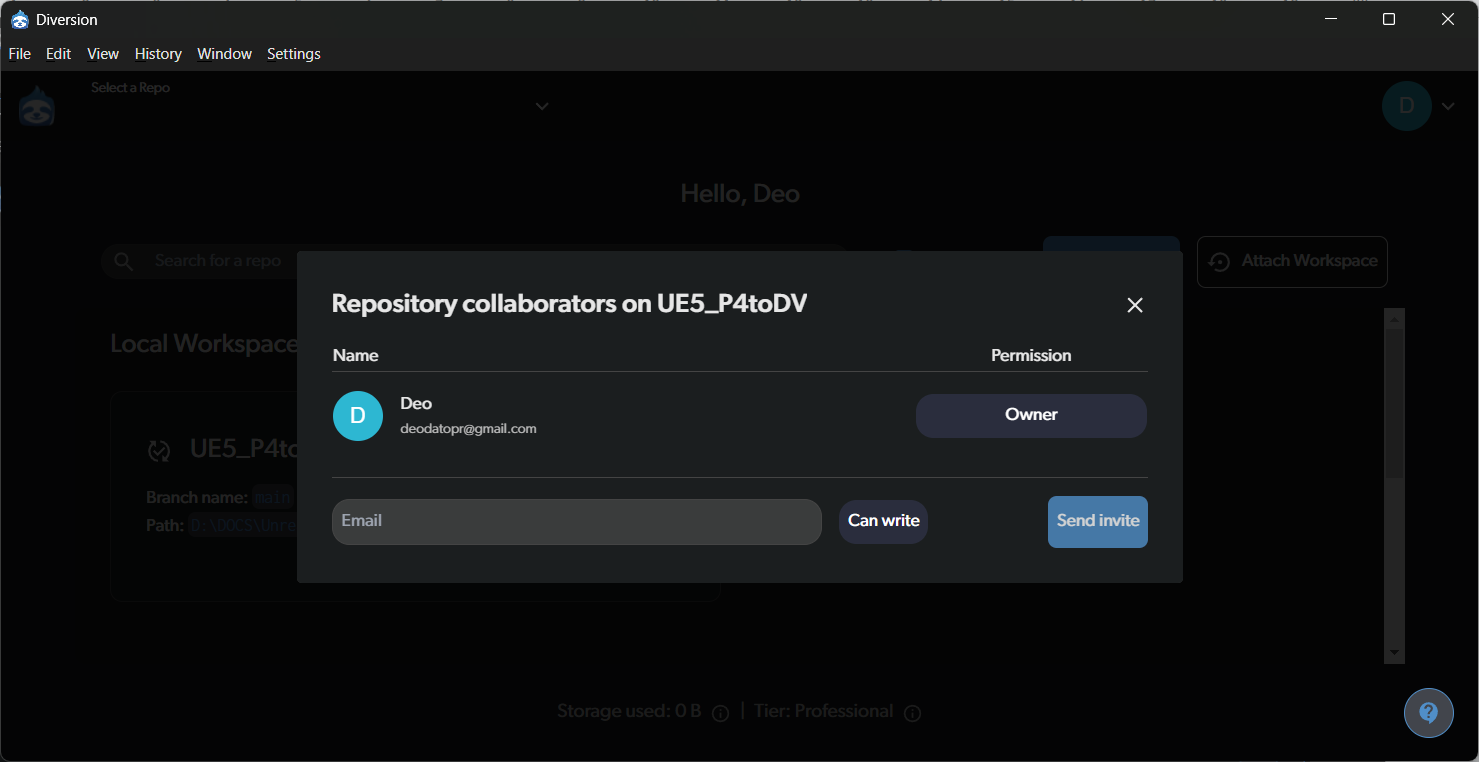
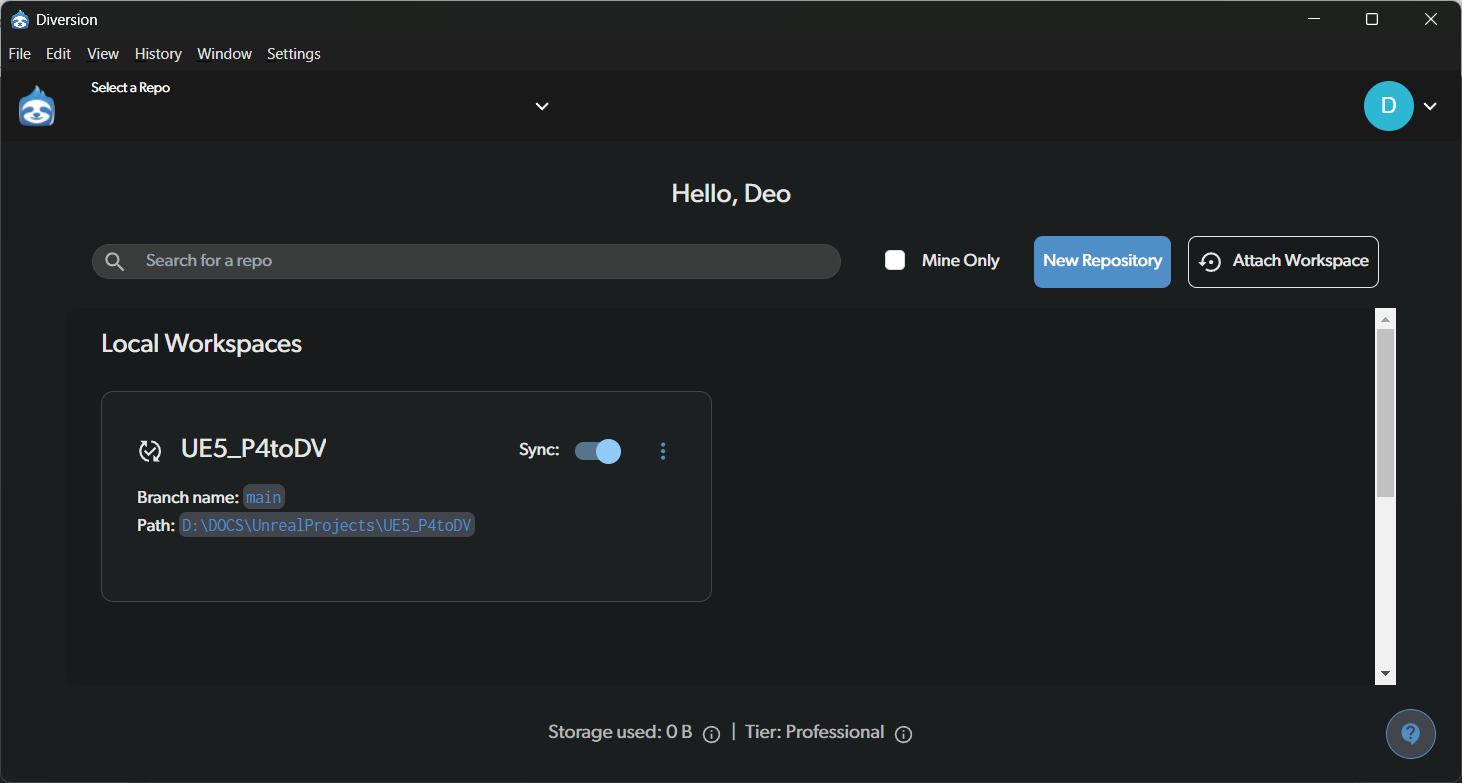
 Once the workspace is created locally from the chosen path, you can invite collaborators by providing their email addresses.
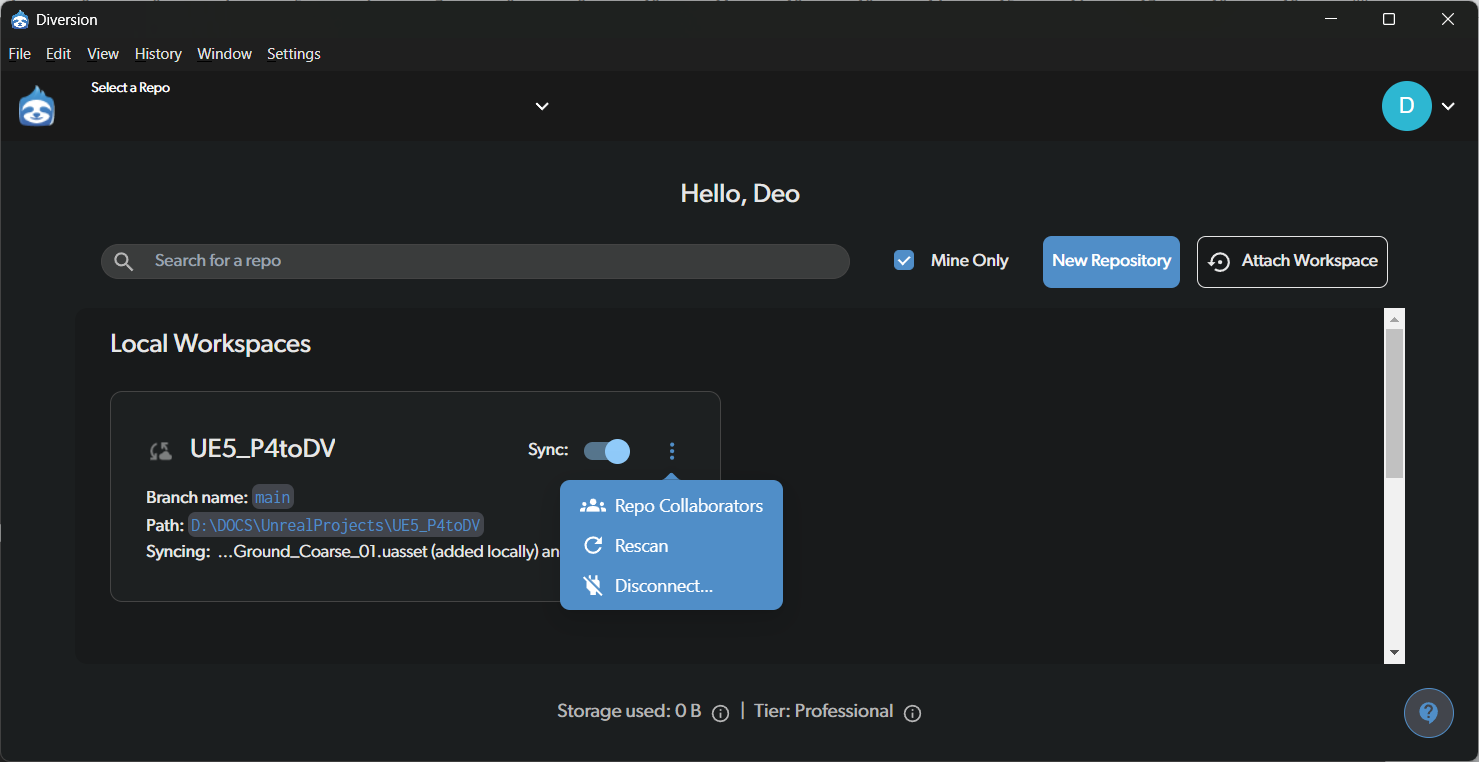 It’s simple to invite collaborators to your project.
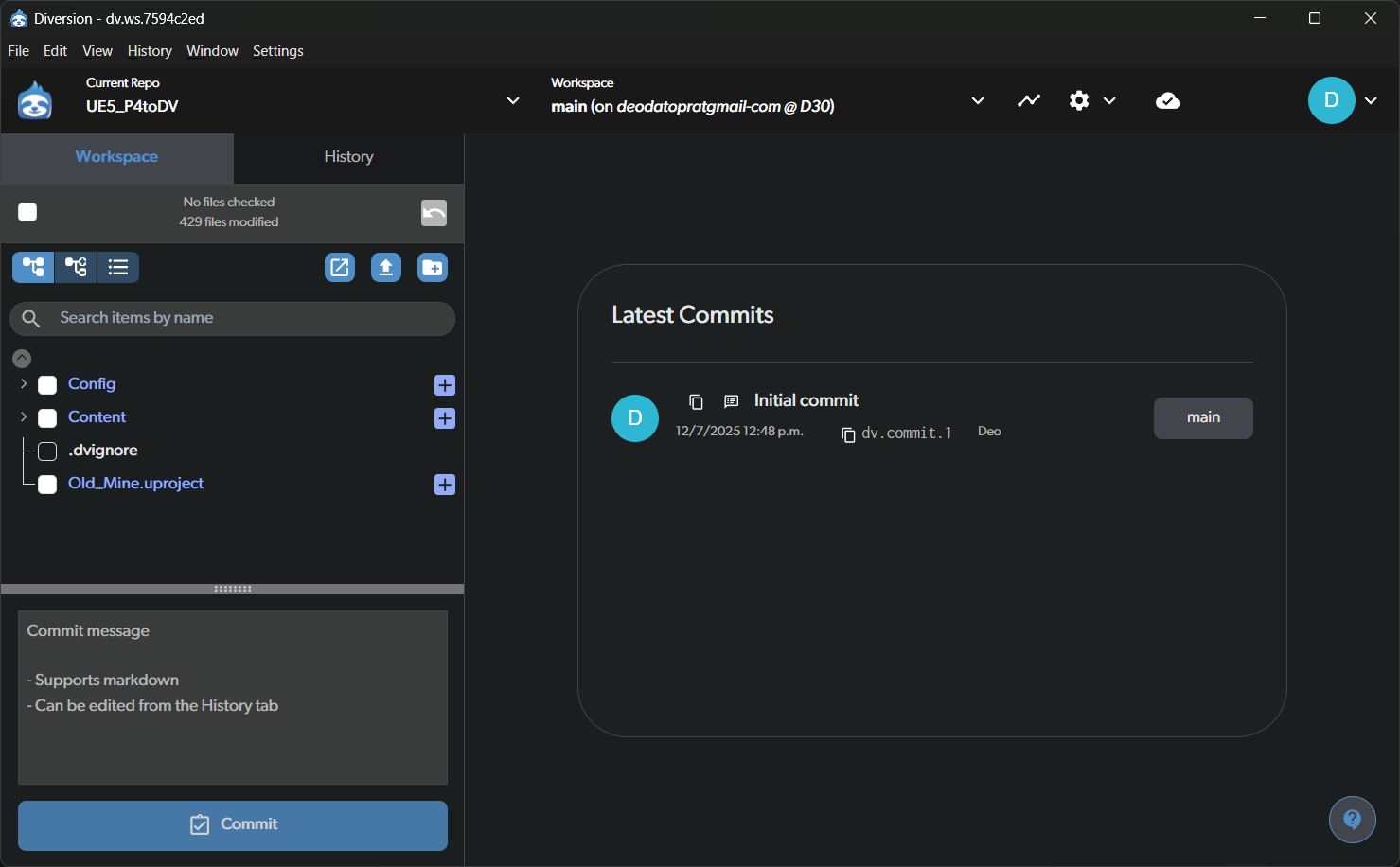
 Once your Workspace is set up, just select your project from the list. Diversion will automatically launch the project management panel, allowing you to choose exactly what to commit to your history.
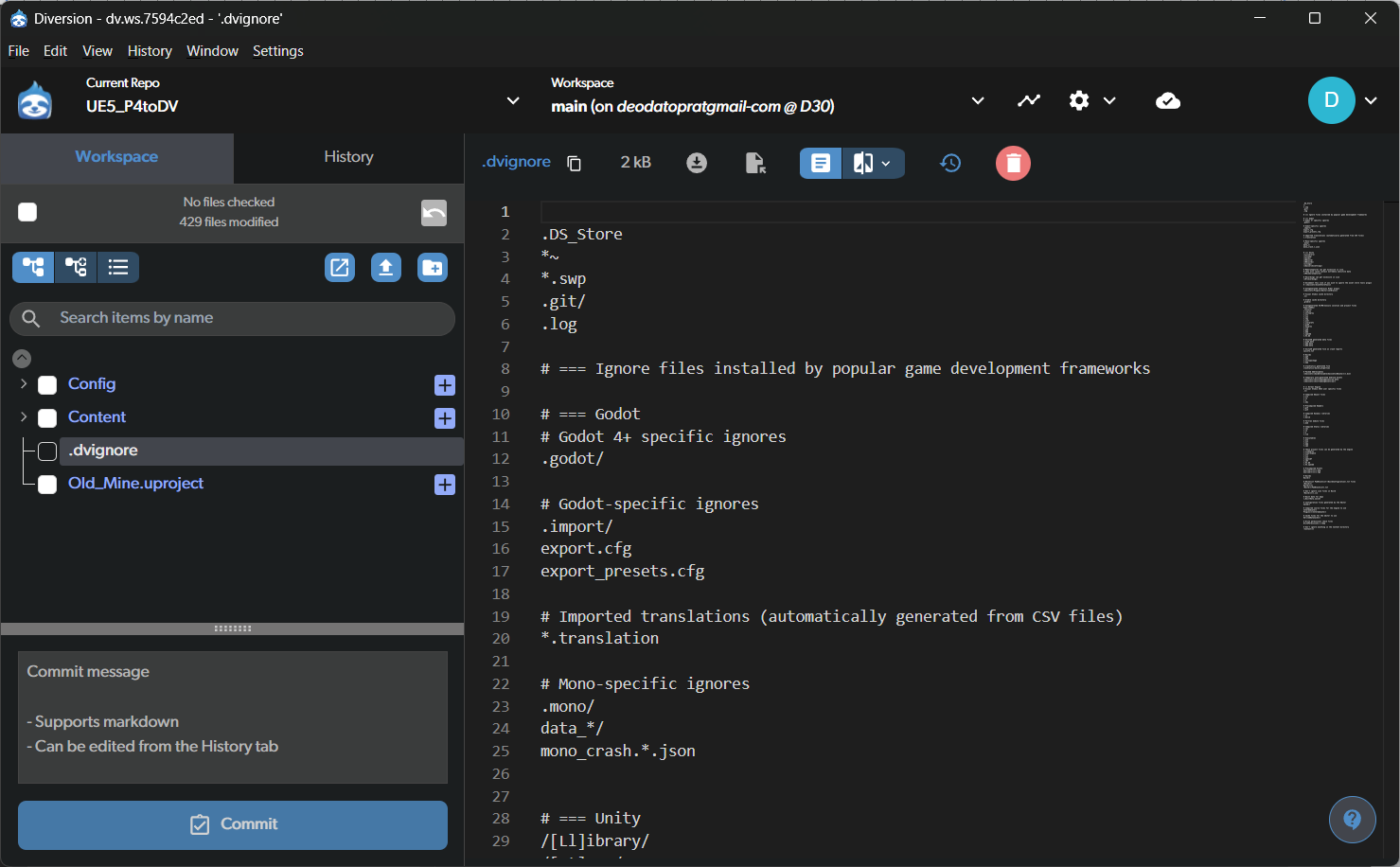
 If you're using Unreal, Godot, or Unity, Diversion sets up the `.dvignore` file for you, skipping folders that are temporary or rebuilt by the engine.
 ## Commit Time
With Diversion, your workspace is continuously synced to the cloud. **Committing** is the moment you choose to save a snapshot into history. Because of Diversion’s architecture, commit operations are fast, even for large UE projects.
As of 5.6, Diversion includes a dedicated **Commit** button for faster commits from the UI.
## Commit Time
With Diversion, your workspace is continuously synced to the cloud. **Committing** is the moment you choose to save a snapshot into history. Because of Diversion’s architecture, commit operations are fast, even for large UE projects.
As of 5.6, Diversion includes a dedicated **Commit** button for faster commits from the UI.
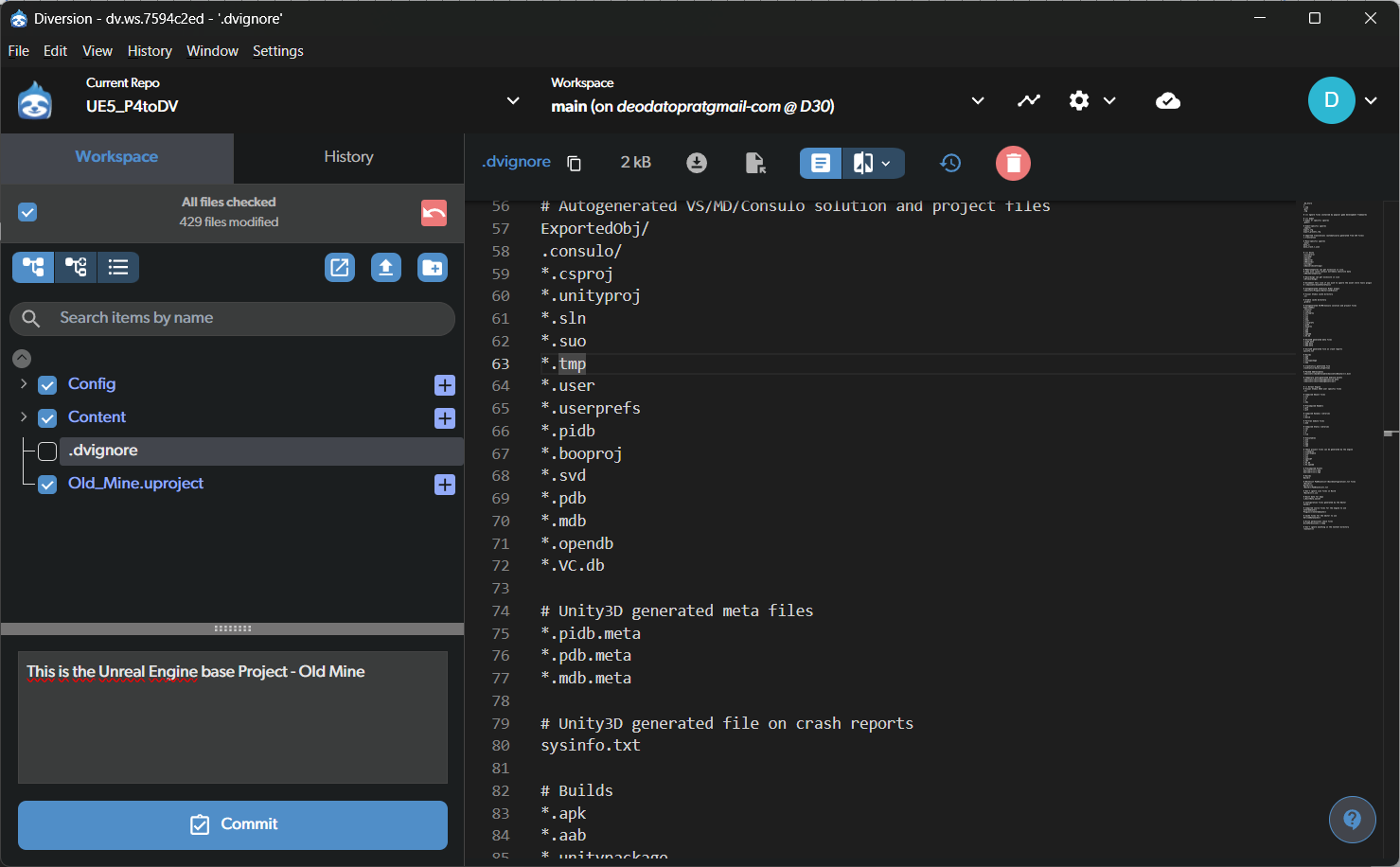 Compared to Perforce, the commit speed is significantly faster.
The entire project was committed to history in a fraction of the time!
Compared to Perforce, the commit speed is significantly faster.
The entire project was committed to history in a fraction of the time!
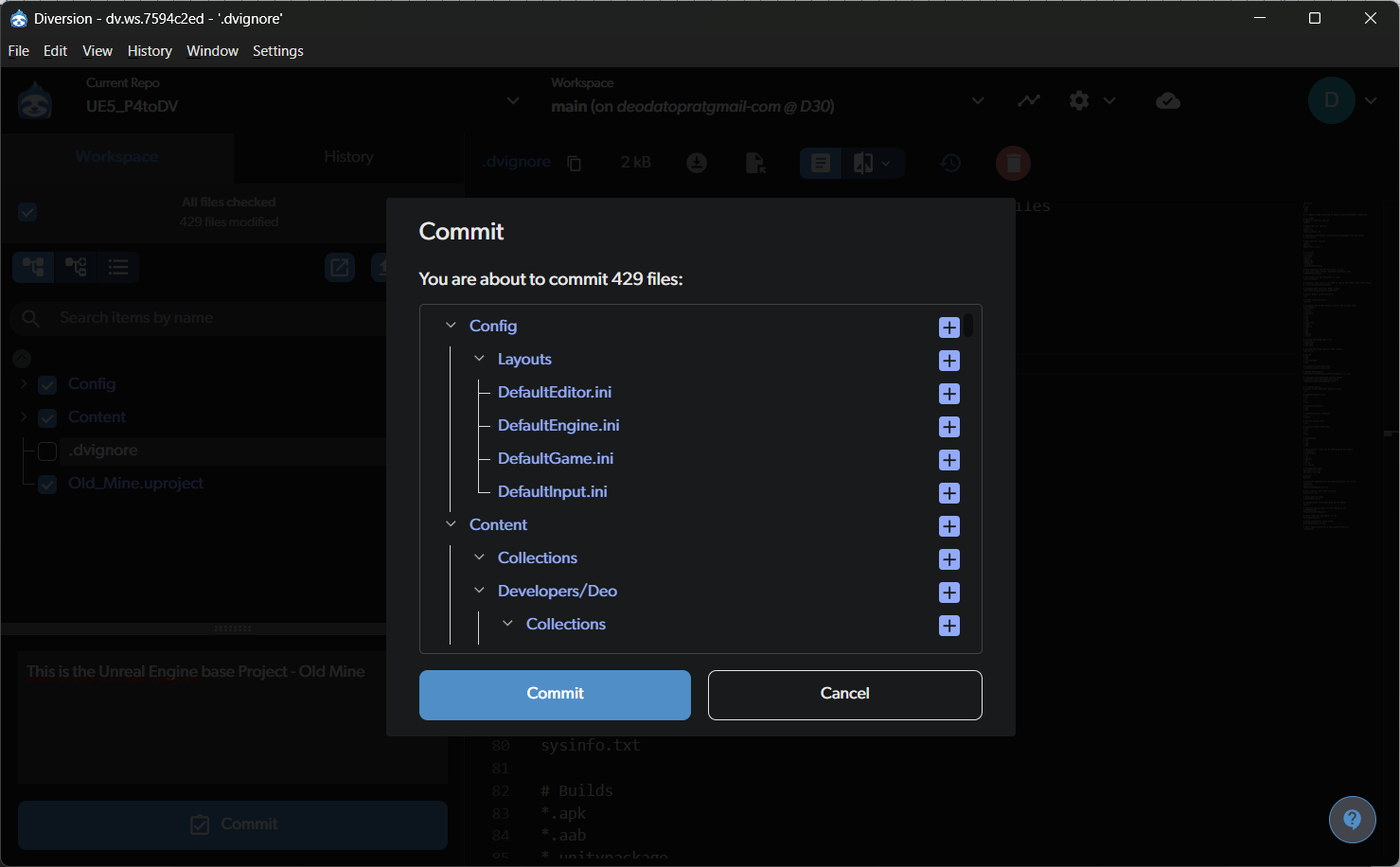 Now your project lives both on your machine and in the cloud, ready for collaborative work.
 ***
## Unreal Engine Integration
To integrate Diversion with Unreal Engine, go to [FAB](https://www.fab.com), search for “Diversion,” and download the plugin.
***
## Unreal Engine Integration
To integrate Diversion with Unreal Engine, go to [FAB](https://www.fab.com), search for “Diversion,” and download the plugin.
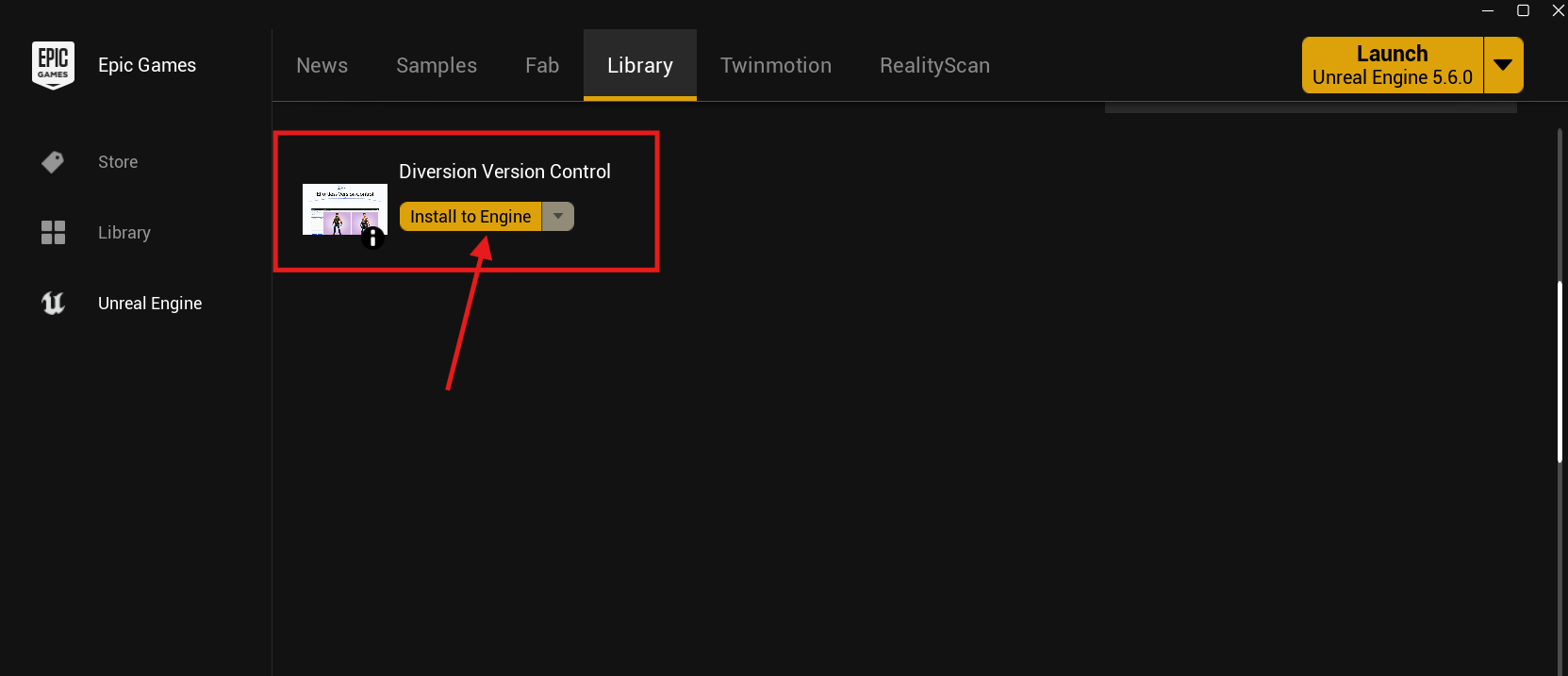
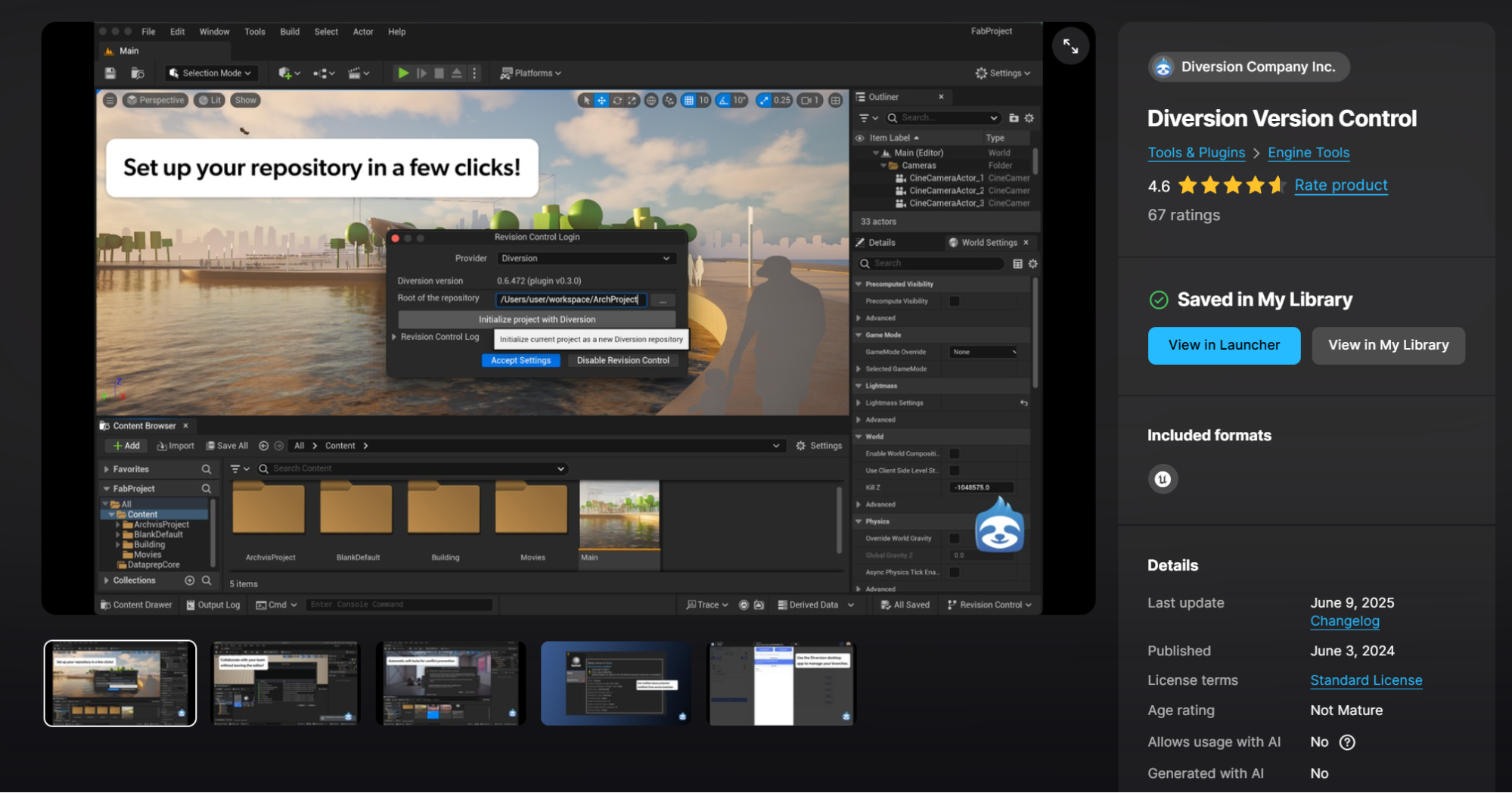 The plugin is downloaded and installed through the Diversion Version Control panel. Click **Install to Engine** to integrate it with Unreal Launcher and enable Diversion support across all your Unreal projects.
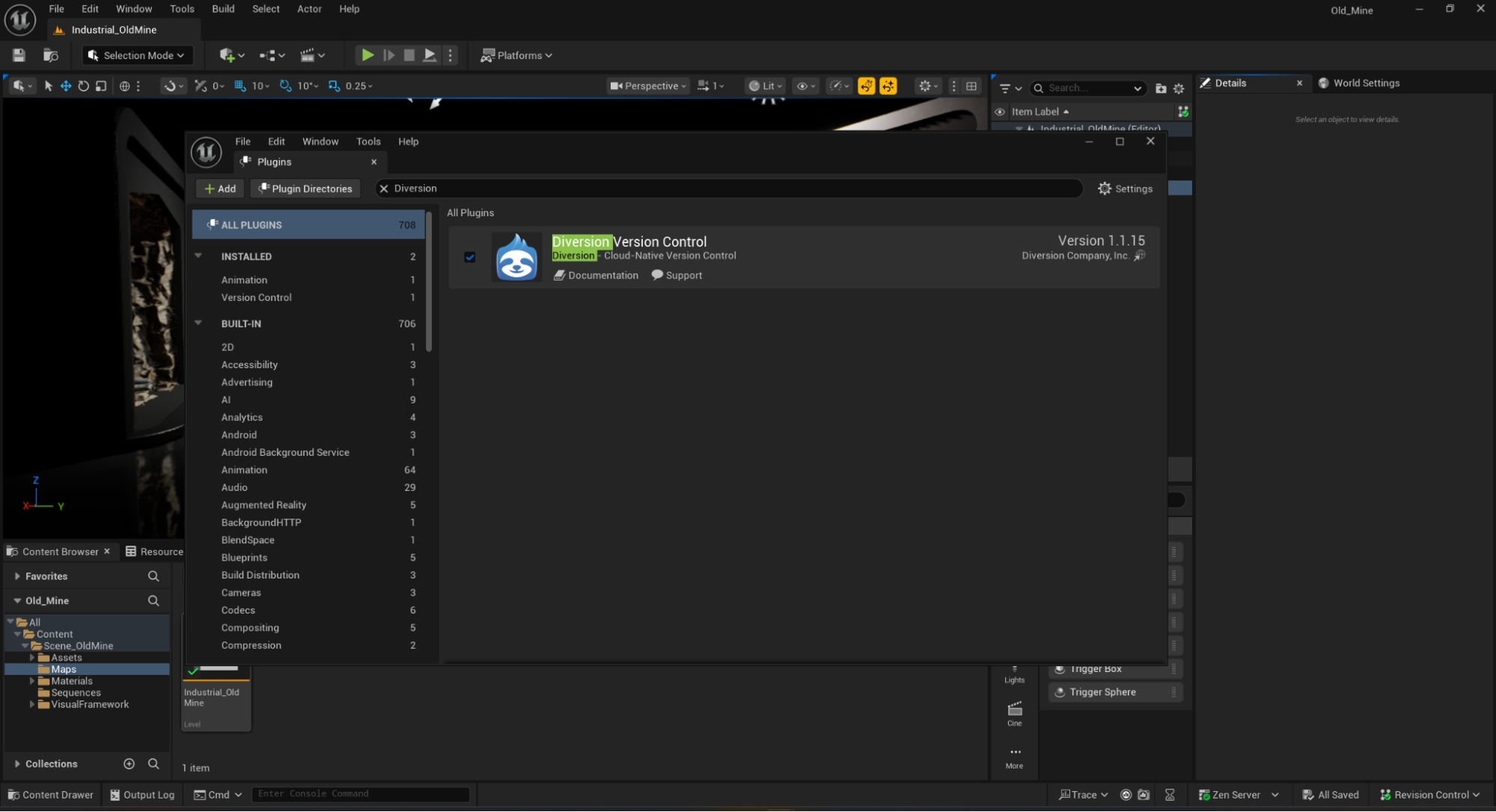
 Open the Plugins panel in Unreal Engine, type “Diversion Version Control” in the search bar, enable the plugin, and restart Unreal Engine to apply the changes.
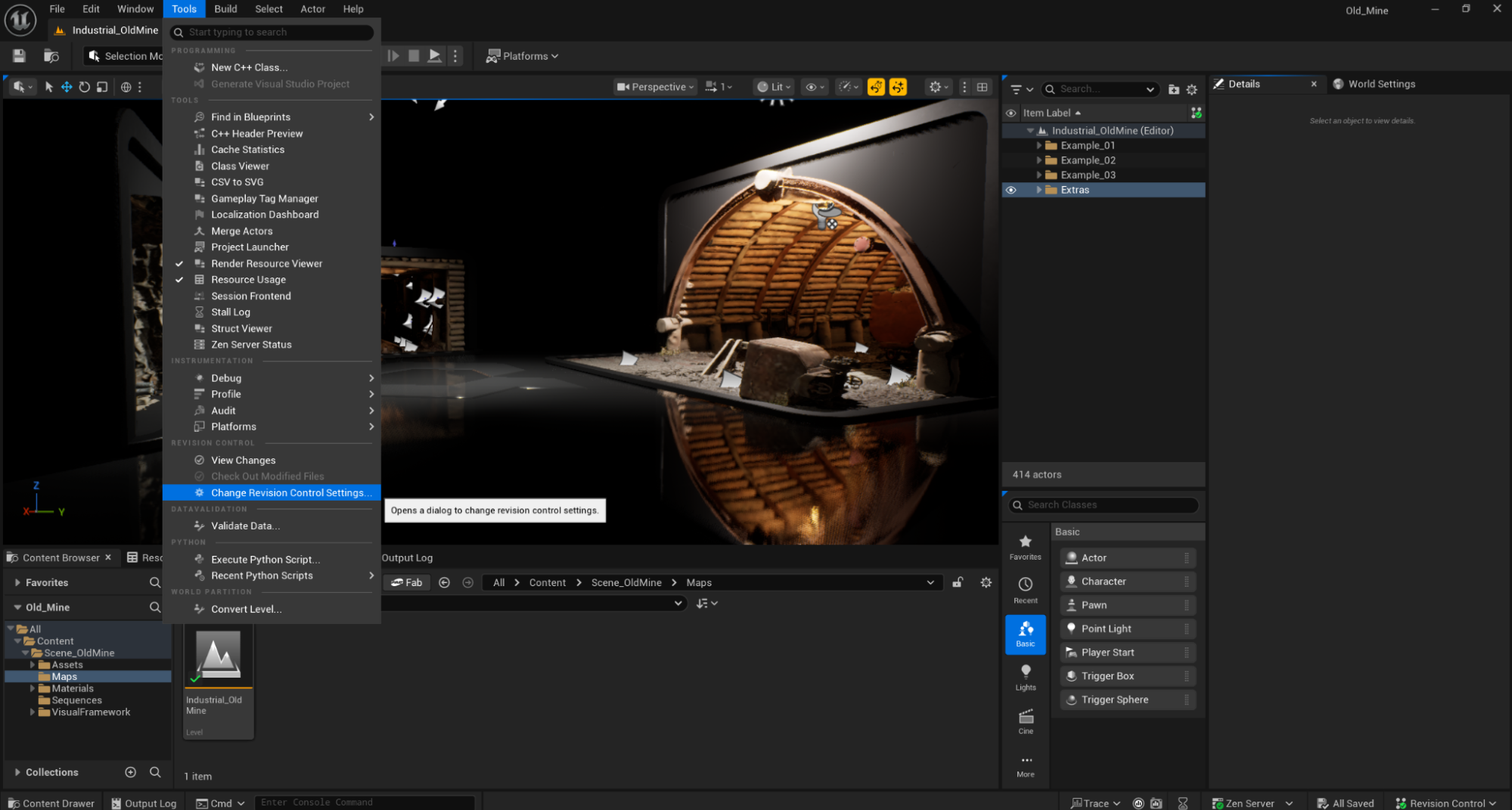
 From the main toolbar in Unreal Engine, navigate to **Tools > Change Revision Control Settings…** to configure your version control system to Diversion.
 Diversion is now active and ready to manage your project’s version control.
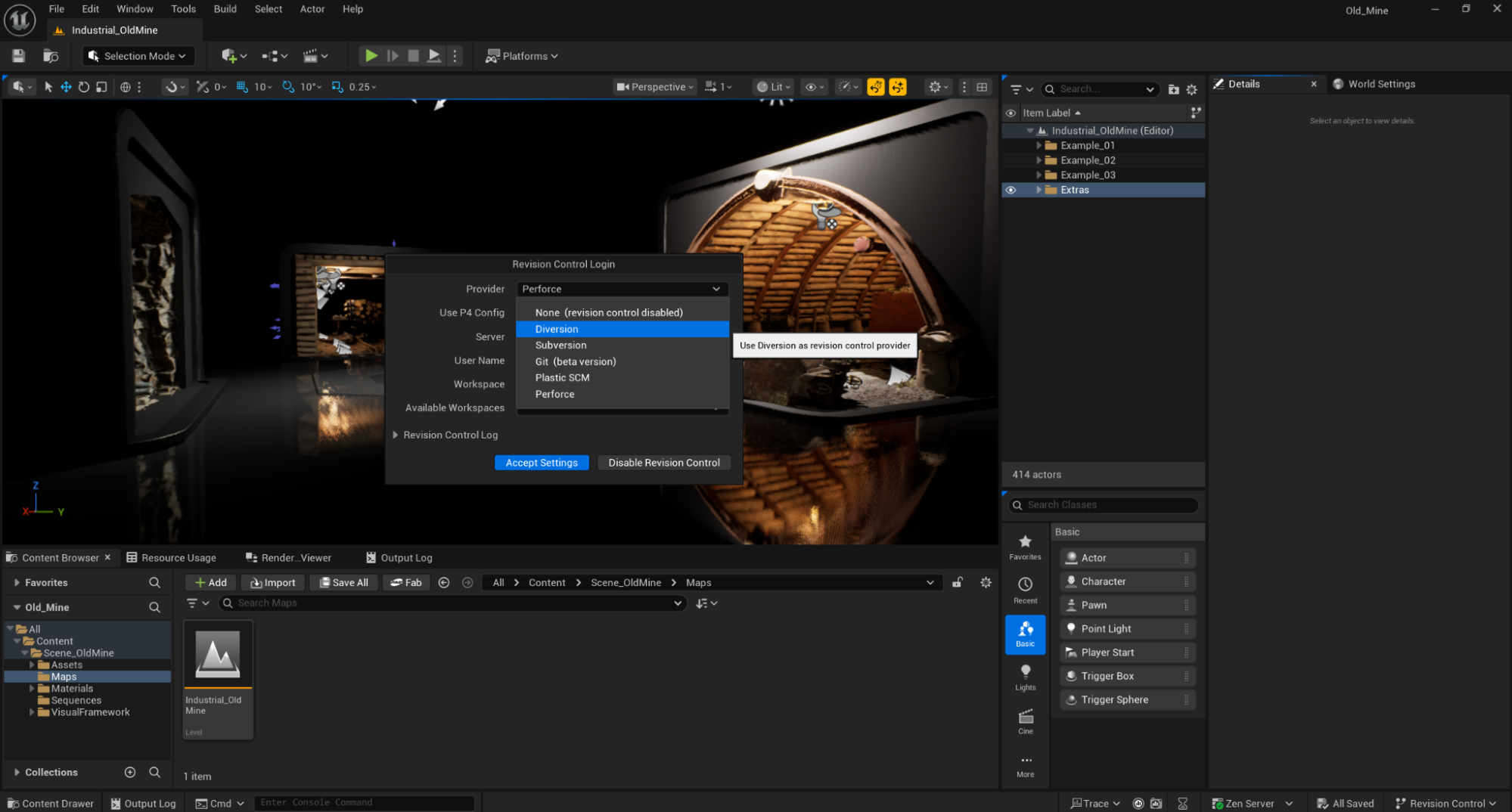 ***
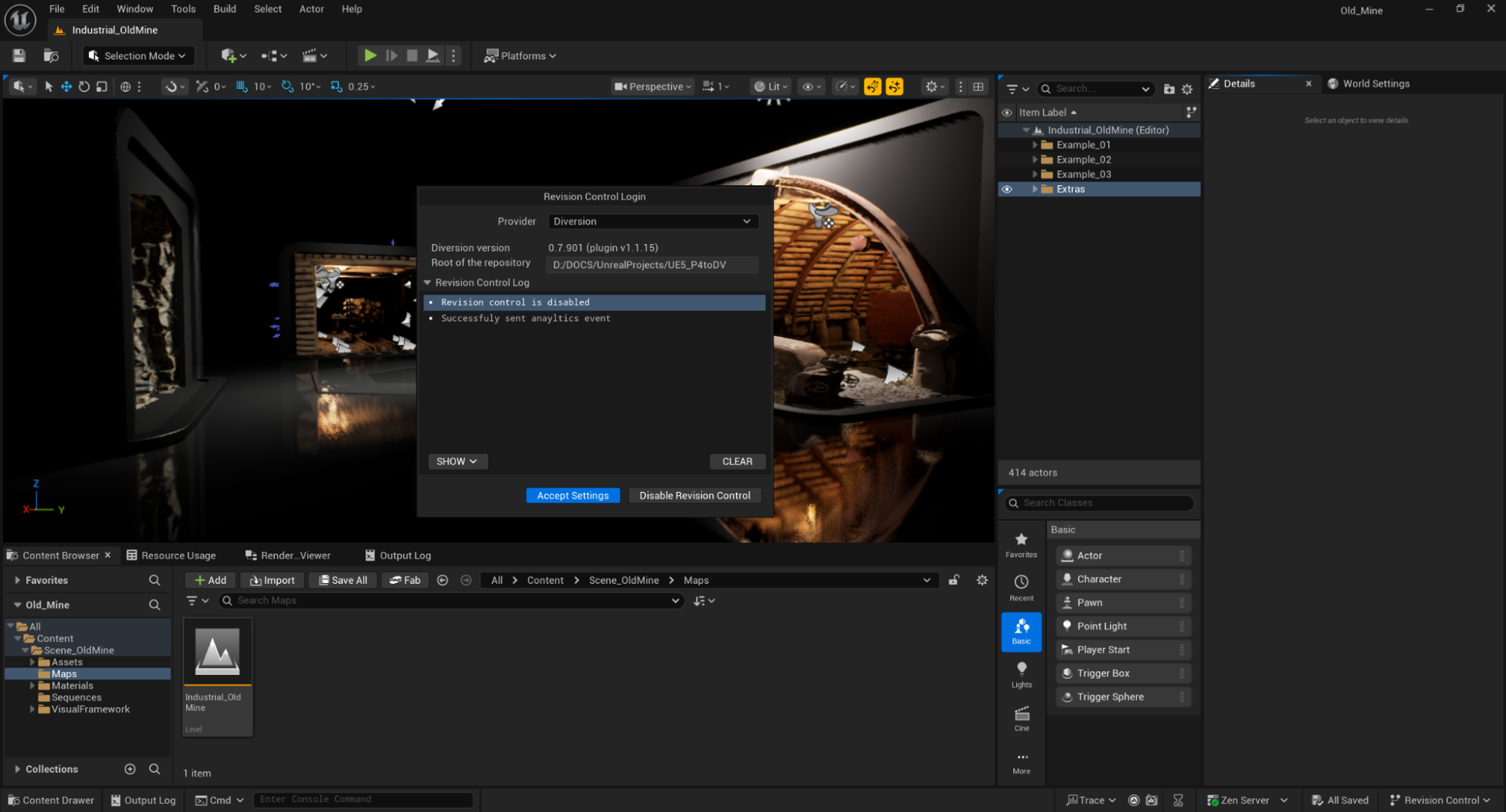
By selecting Diversion as your version control provider, Unreal Engine automatically detects the configuration and establishes the connection without requiring any manual setup.
***
By selecting Diversion as your version control provider, Unreal Engine automatically detects the configuration and establishes the connection without requiring any manual setup.
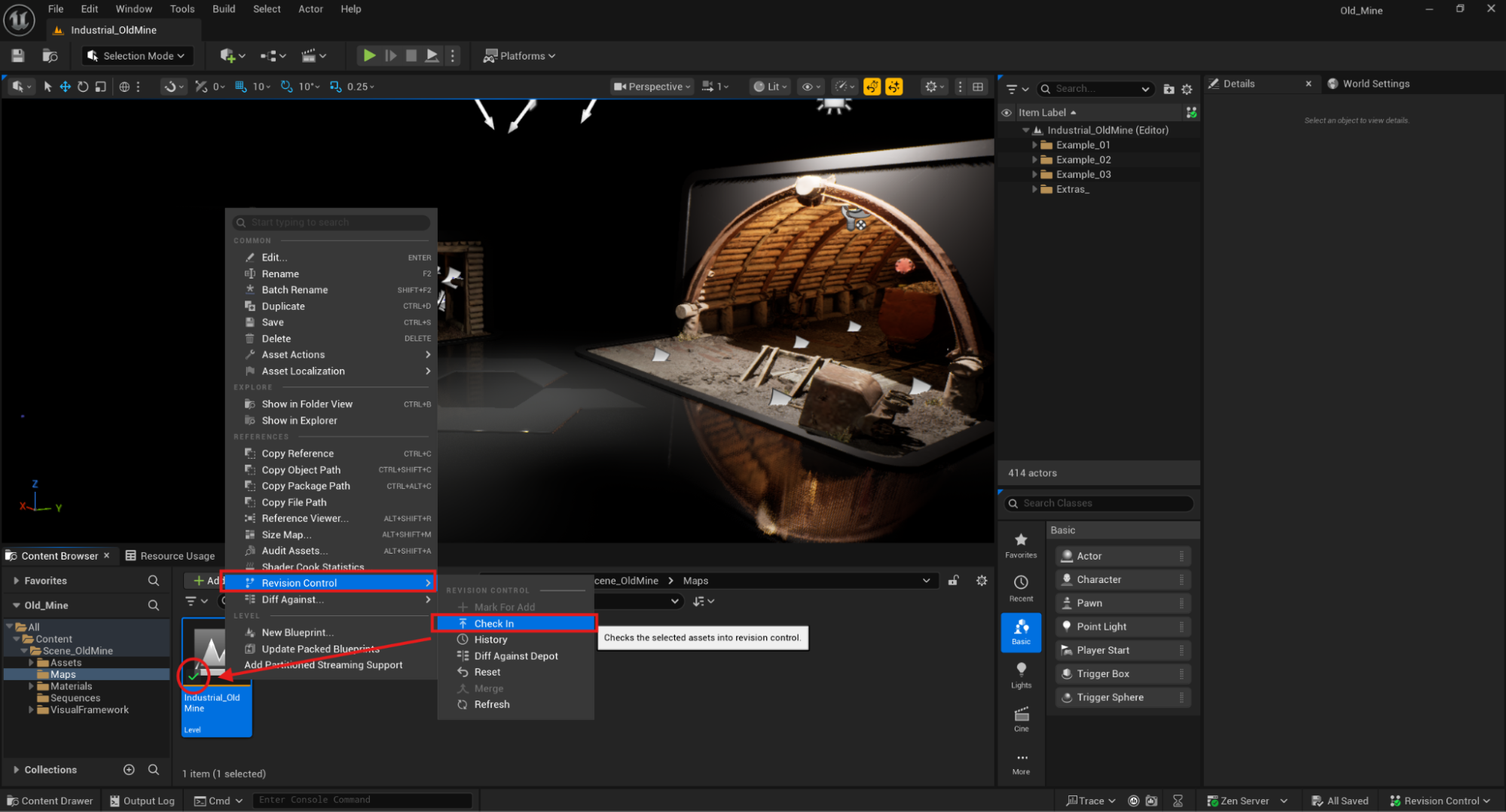
 In Unreal, **Revision Control > Check In** performs a **commit**.\
In Perforce, an exclusive lock corresponds to **check-out**; Diversion uses **soft locking** (non-blocking indicators) and supports merge-based collaboration.
In Unreal, **Revision Control > Check In** performs a **commit**.\
In Perforce, an exclusive lock corresponds to **check-out**; Diversion uses **soft locking** (non-blocking indicators) and supports merge-based collaboration.
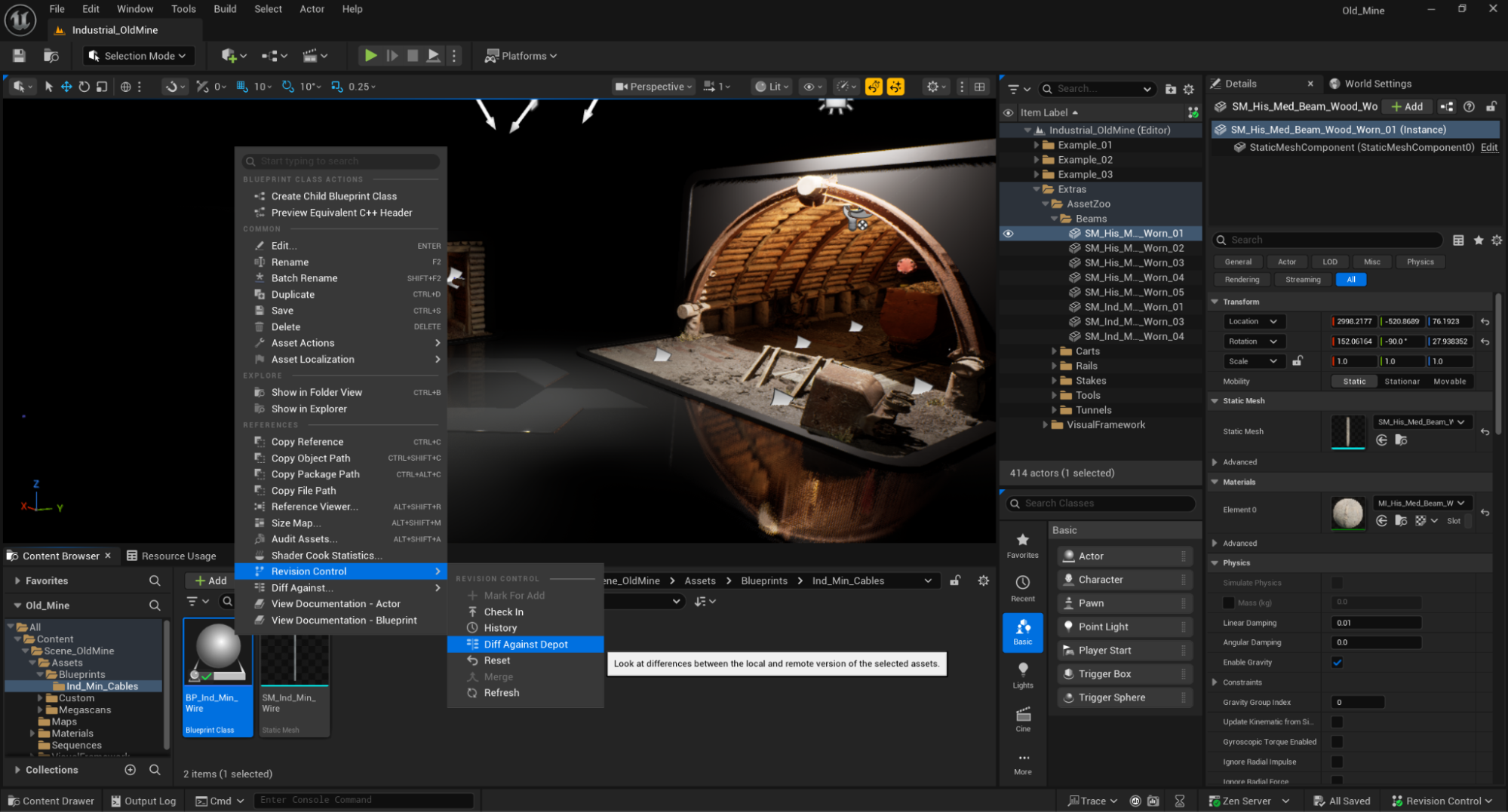
 File comparison is one of Perforce’s most powerful tools. In Diversion, you get the same benefit: go to **Revision Control > Diff Against Depot** to visually inspect differences between your local file and the version stored in the repository.
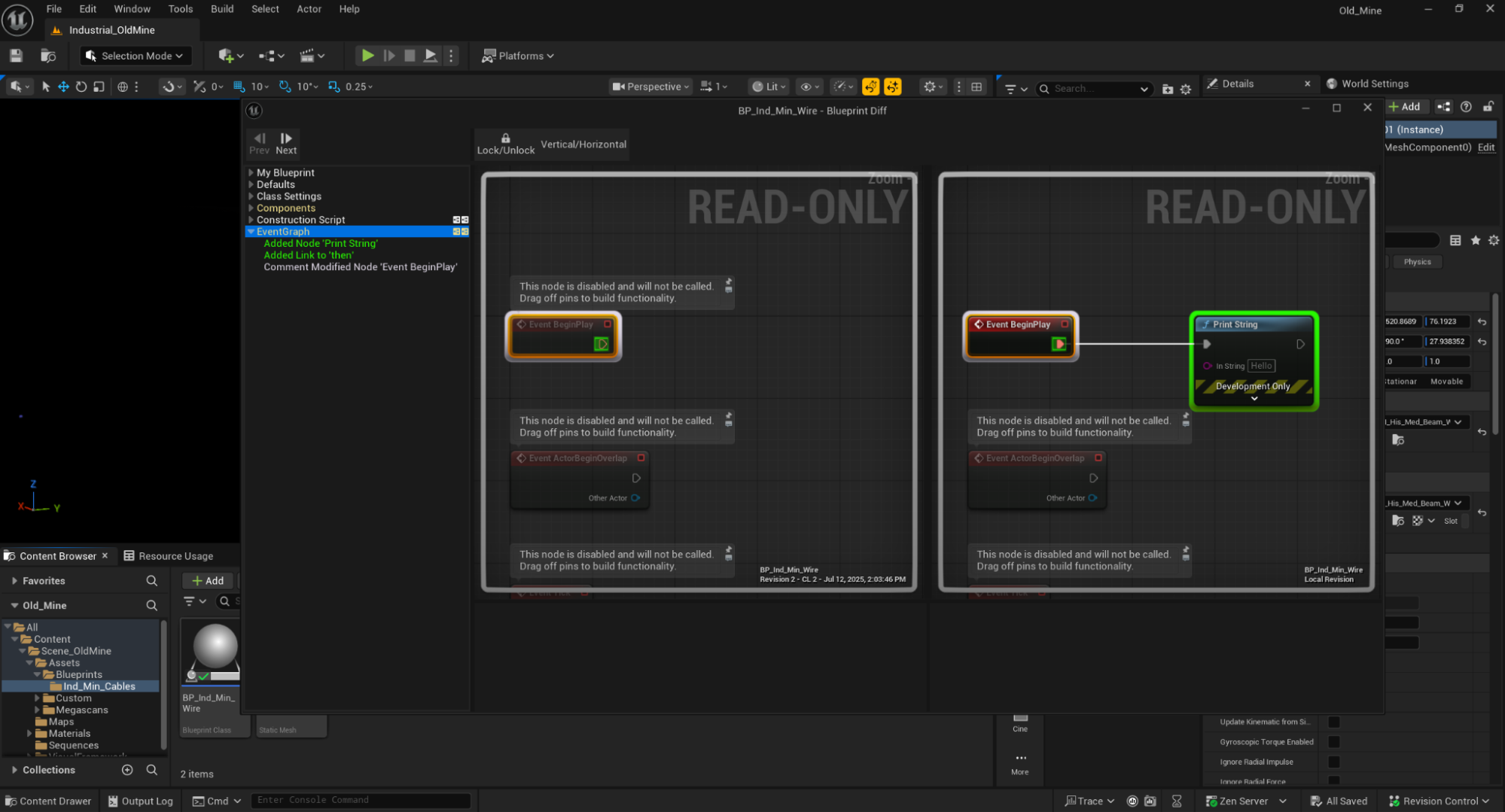
 Diversion provides a similar diff panel for visually inspecting changes made to each file.
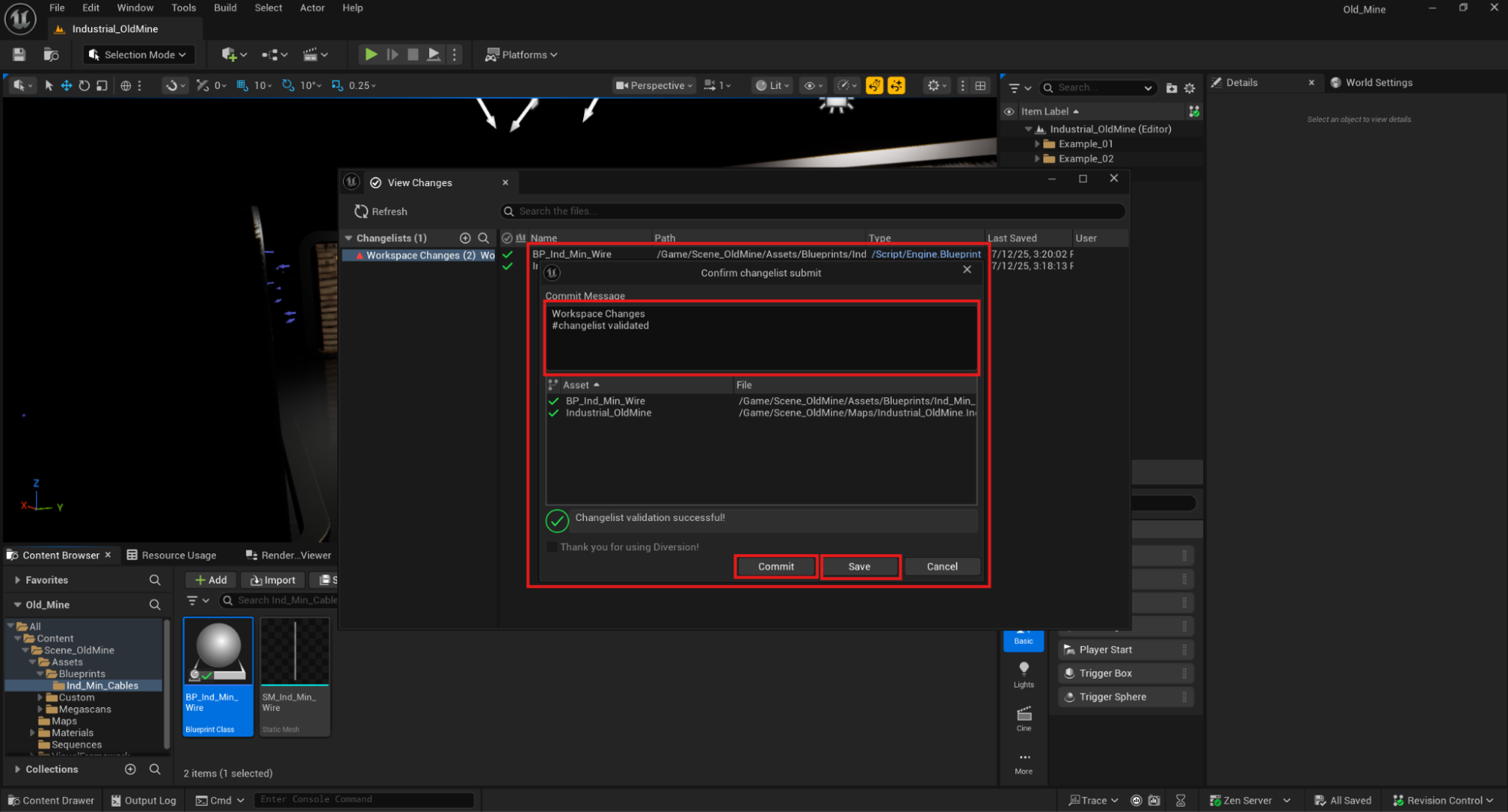
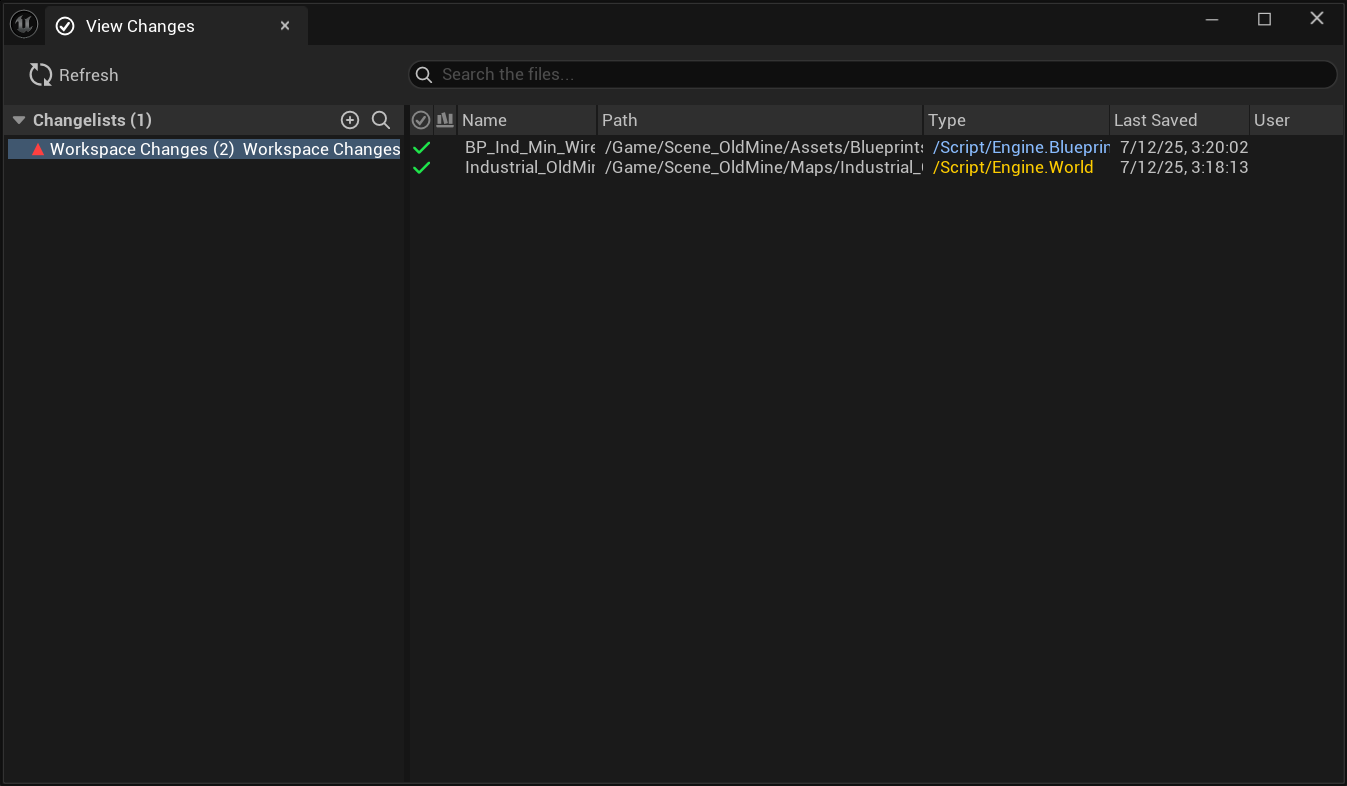
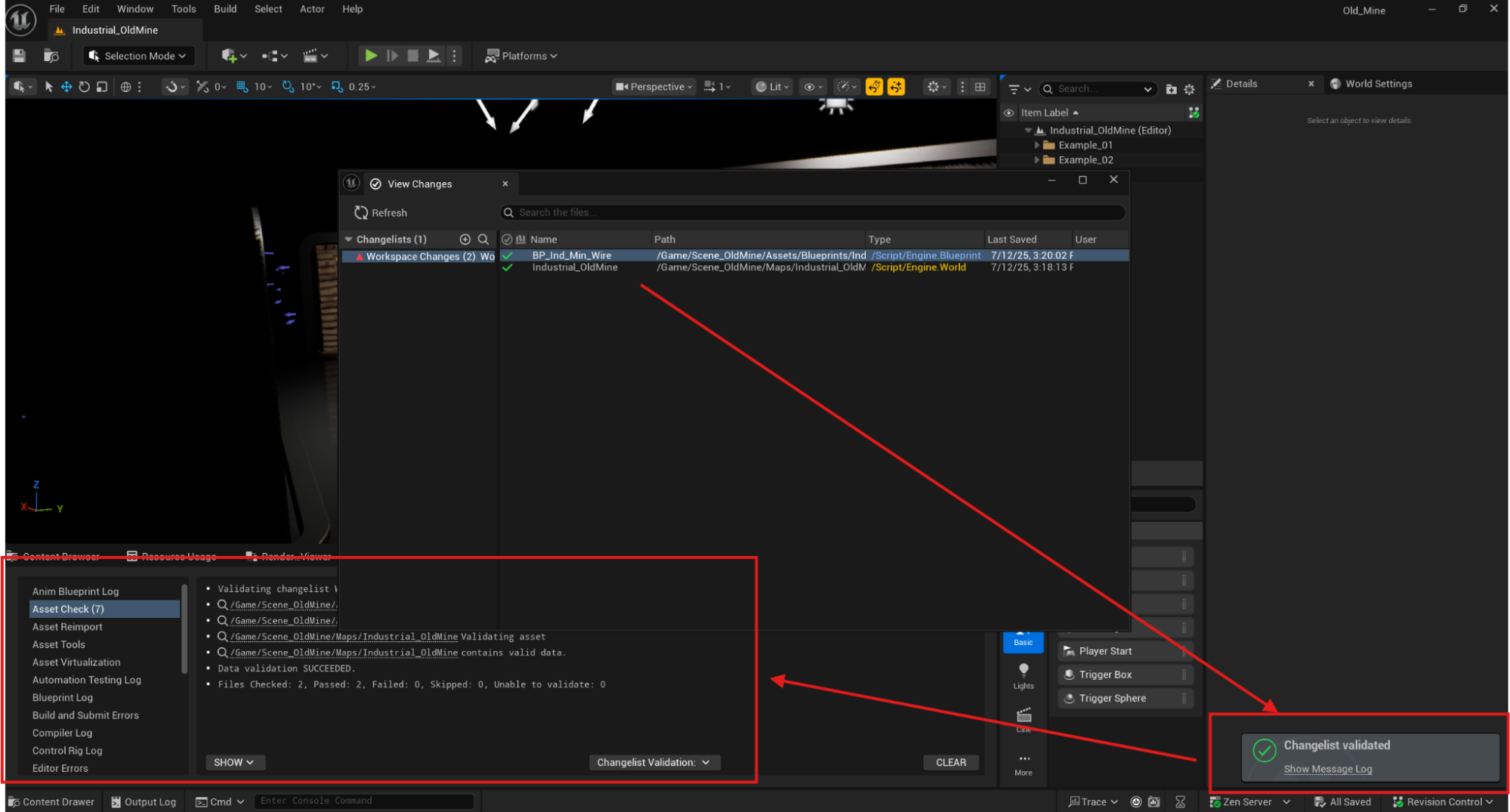
 To view pending changes, open the **View Changes** panel at the bottom-right of the interface or navigate to it via the Tools menu.
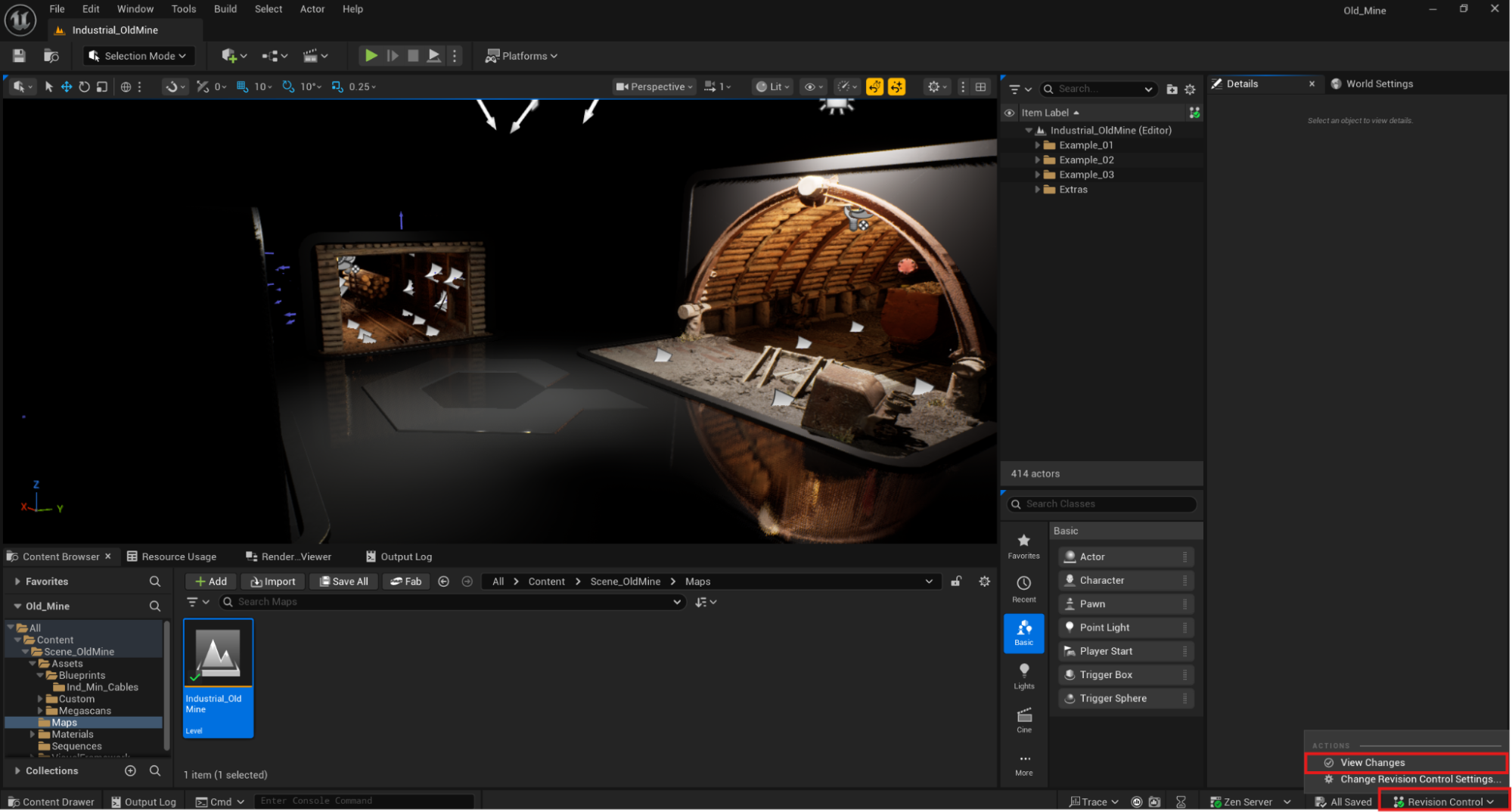 The **View Changes** panel shows all modified assets in the scene. Double-click any entry to automatically locate it in the Content Browser.
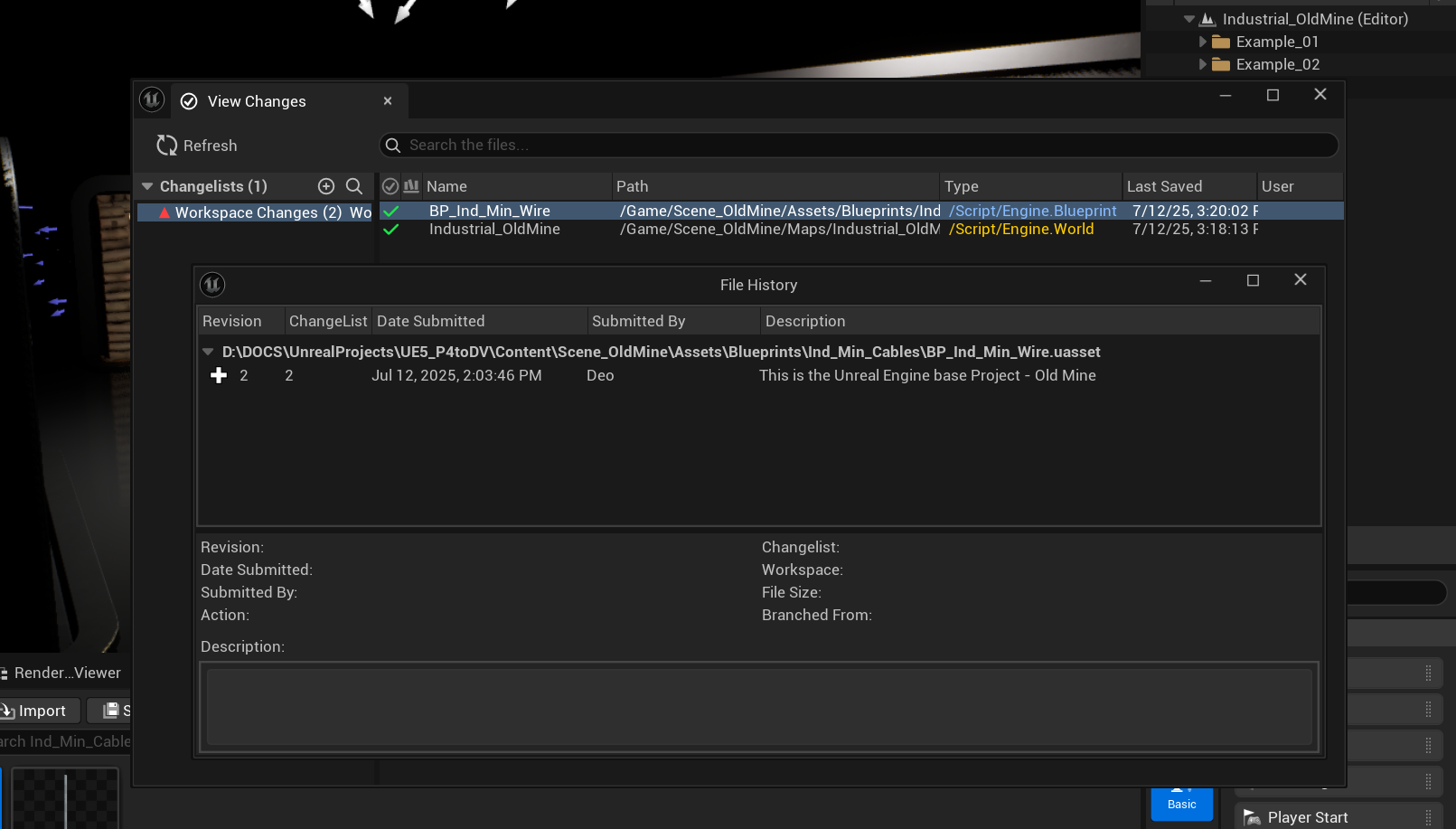
 Each file includes a complete interactive history showing all changes made throughout the branch.
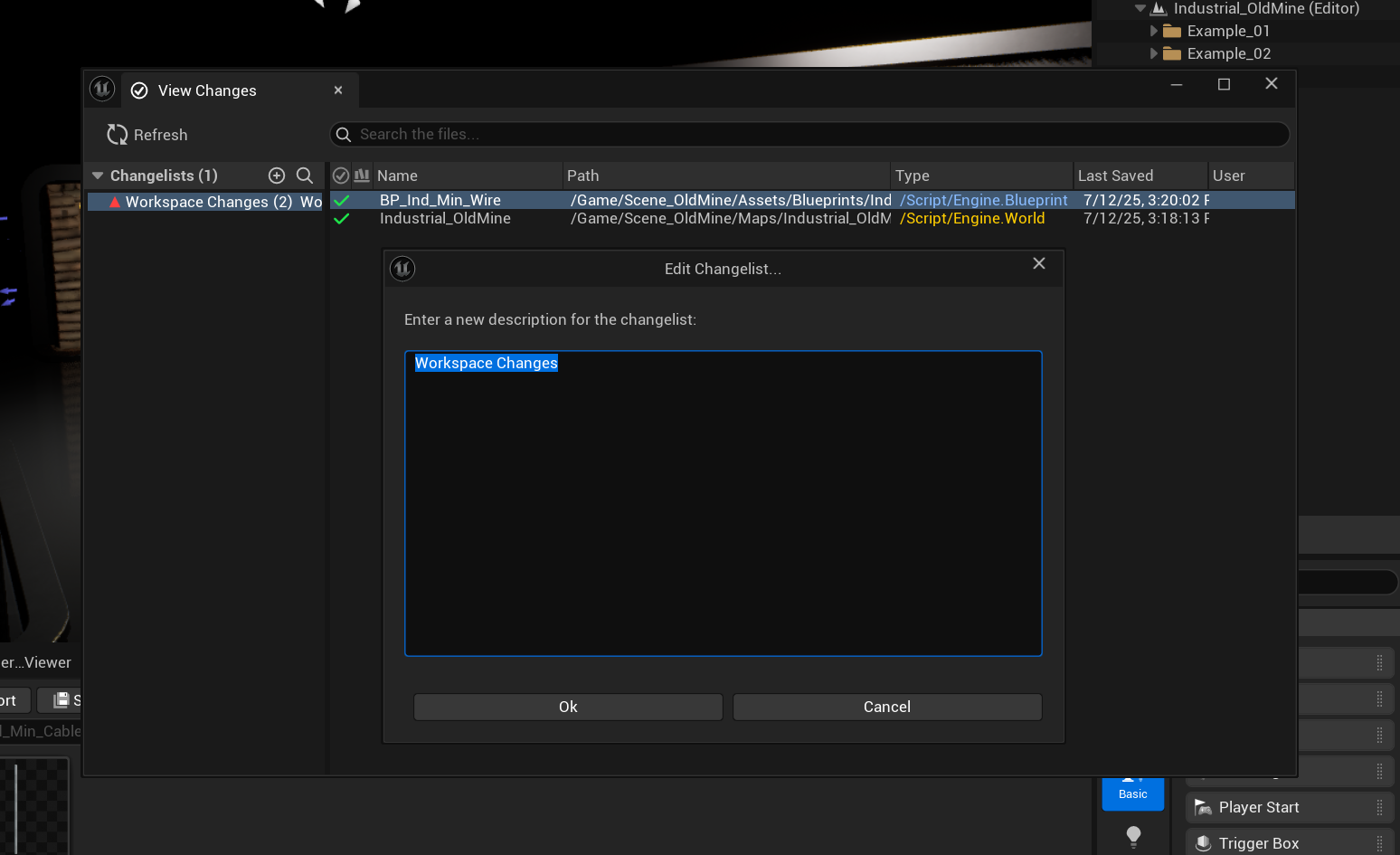
 You can modify the Changelist description to summarize your changes before submitting to the repository.
 You can visually validate your Changelist or revert file changes directly from the Unreal Engine interface.
 You can commit changes immediately or save the changelist with a description for later submission.