> ## Documentation Index
> Fetch the complete documentation index at: https://docs.diversion.dev/llms.txt
> Use this file to discover all available pages before exploring further.
# Shelves
> Save workspace changes temporarily and manage your shelves
In Diversion, you can shelve your current work and apply it later when switching back to the original branch.
This works similarly to the "stash" mechanism in Git.
## When to use shelves
* **Switching context:** Save work-in-progress before switching to another branch
* **Experimenting:** Try out changes without committing, easily revert if the experiment doesn't work
* **Working across machines:** Shelve changes on one computer and apply them on another. Shelves are stored in the cloud per repository, so they are available from any workspace on the same repo.
## Creating a shelf
Use the shelf button in your workspace to create a shelf.
1. Select the files you want to shelve in your workspace
2. Click **Shelve...** to open the naming dialog:
 3. [Name](#naming-your-shelf) your shelf
4. Click **Create shelf**
### Automatic shelves
When switching branches with uncommitted changes, a popup menu will ask what to do with them.
3. [Name](#naming-your-shelf) your shelf
4. Click **Create shelf**
### Automatic shelves
When switching branches with uncommitted changes, a popup menu will ask what to do with them.
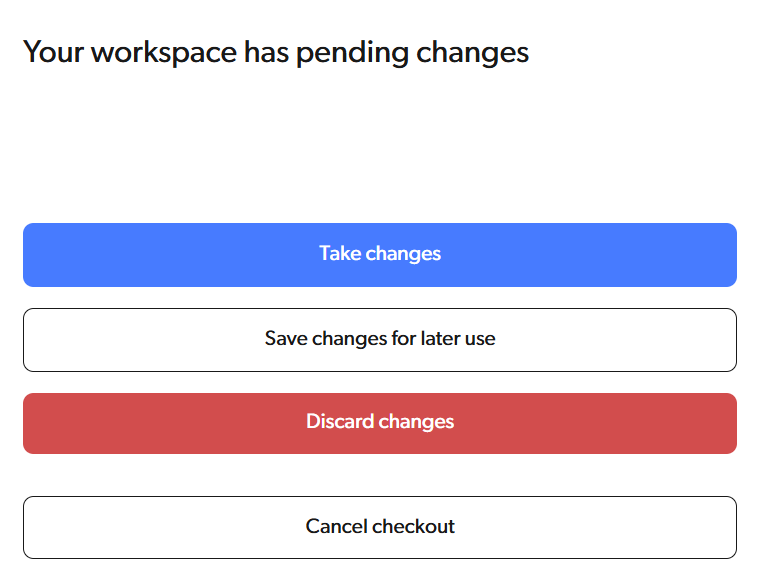 Select **Save changes for later use** to create an automatic shelf.
### Naming your shelf
When creating a shelf, you can:
* Enter a custom name (max 60 characters)
* Click **Generate name**
Select **Save changes for later use** to create an automatic shelf.
### Naming your shelf
When creating a shelf, you can:
* Enter a custom name (max 60 characters)
* Click **Generate name**  to create a name like `my_branch (2025-01-13 13:00:00)`
Shelf names must be unique within your repository.
## Managing shelves
Open the branch selector and switch to the **Shelves** tab to view and manage your shelves.
to create a name like `my_branch (2025-01-13 13:00:00)`
Shelf names must be unique within your repository.
## Managing shelves
Open the branch selector and switch to the **Shelves** tab to view and manage your shelves.
 ### Preview
Click on a shelf to preview its contents before applying.
### Apply
Click **Apply** to restore the shelved changes to your workspace.
If the shelved changes conflict with your current workspace, you'll need to resolve the conflicts before continuing.
### Rename
Click **Rename** to change the shelf name.
### Delete
Click **Delete** to permanently remove a shelf. This action cannot be undone.
***
For CLI usage, see the [shelf](../cmd-ref/shelf) command reference.
### Preview
Click on a shelf to preview its contents before applying.
### Apply
Click **Apply** to restore the shelved changes to your workspace.
If the shelved changes conflict with your current workspace, you'll need to resolve the conflicts before continuing.
### Rename
Click **Rename** to change the shelf name.
### Delete
Click **Delete** to permanently remove a shelf. This action cannot be undone.
***
For CLI usage, see the [shelf](../cmd-ref/shelf) command reference.