> ## Documentation Index
> Fetch the complete documentation index at: https://docs.diversion.dev/llms.txt
> Use this file to discover all available pages before exploring further.
# Repository management
> Rename, delete, and manage your Diversion repositories and workspaces
## Renaming a repository
Only the repository owner can rename a repository.
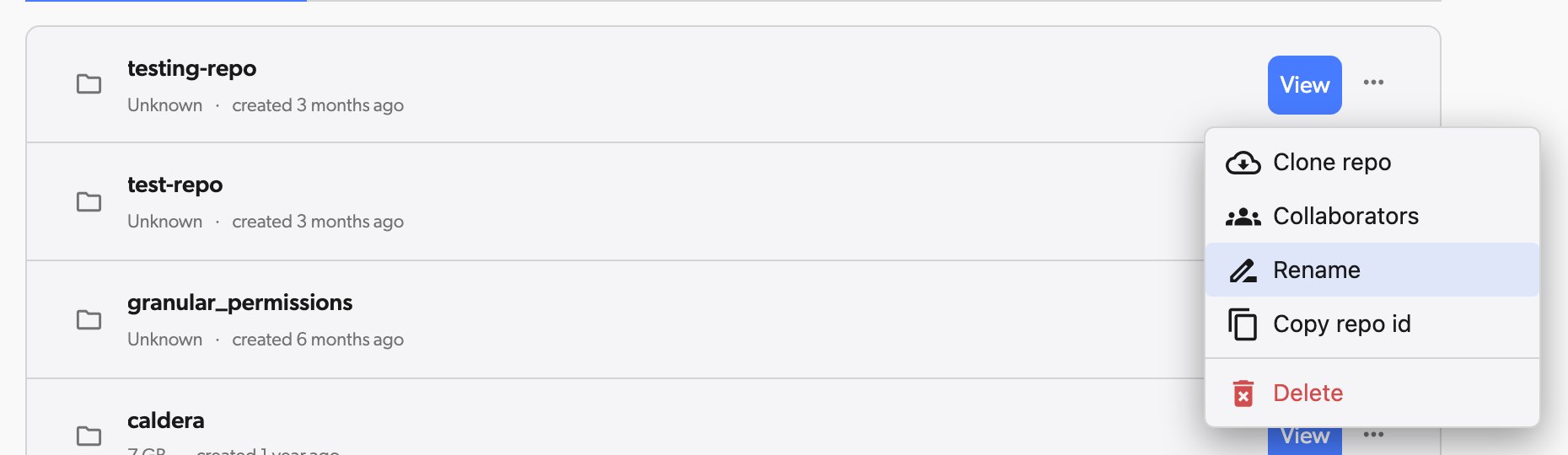
Go to the **Remote Repositories** tab on the dashboard (not from a local workspace). Locate the repository you want to rename.
Click the **...** menu on the repo's row and select **Rename**.
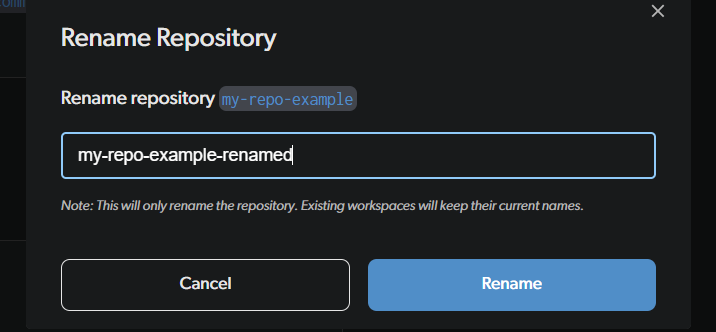
 In the **Rename Repository** dialog, type the new name for your repository and click **Rename**.
 ## Deleting a repository
Deleting a repository is permanent and cannot be undone. All branches, commits, and history will be lost.
Go to the **Remote Repositories** tab on the dashboard (not from a local workspace). Locate the repository you want to delete.
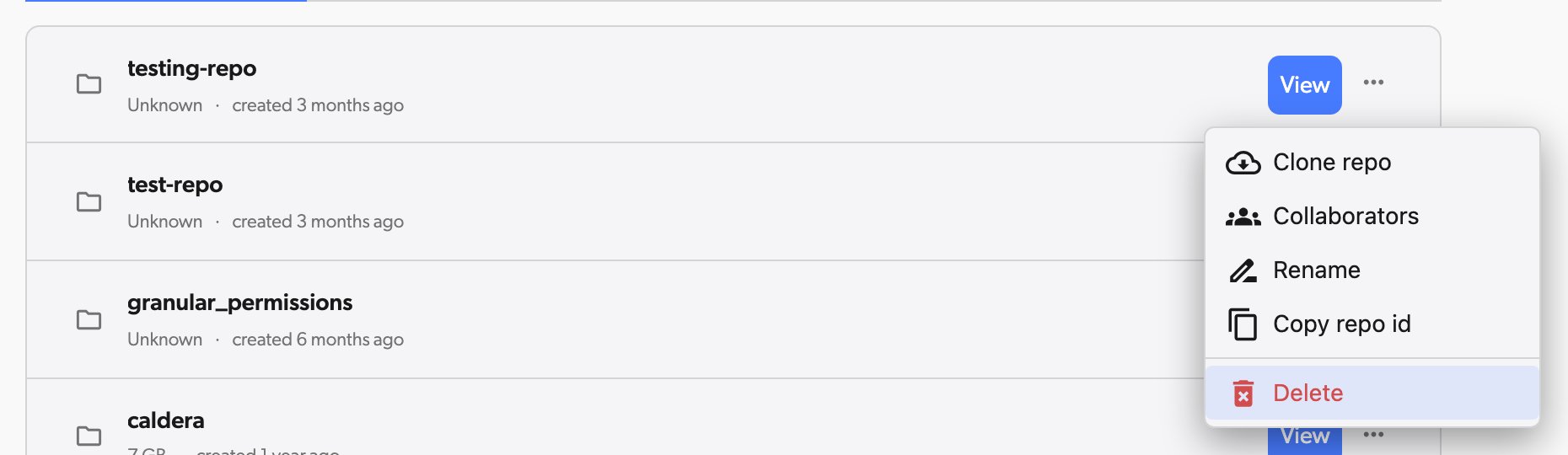
Click the **...** menu on the repo's row and select **Delete**.
## Deleting a repository
Deleting a repository is permanent and cannot be undone. All branches, commits, and history will be lost.
Go to the **Remote Repositories** tab on the dashboard (not from a local workspace). Locate the repository you want to delete.
Click the **...** menu on the repo's row and select **Delete**.
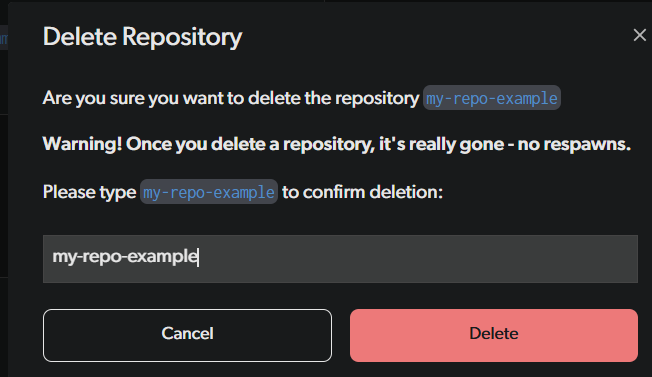
 To prevent accidental deletion, you must type the exact repository name to confirm. Then click **Delete**.
 Via the CLI, run `dv repo -d `. See the [repo command](/cmd-ref/repo) for details.
Your local files on disk are not deleted -- only the cloud repository is removed. The local folder stops syncing and can be moved or deleted manually.
## Viewing workspaces
If you are an owner or admin of a repository, you can view and manage all workspaces in that repository, including those belonging to other collaborators. This is useful for debugging issues or managing changes on behalf of a team member.
Click on your avatar in the top navigation and select **Your organizations**.
In the left sidebar, click **Repositories**, then click **Workspaces** in the repository column. If you are an owner or admin of multiple repositories, use the repository picker at the top of that column to pick the repository you want to inspect.
Via the CLI, run `dv repo -d `. See the [repo command](/cmd-ref/repo) for details.
Your local files on disk are not deleted -- only the cloud repository is removed. The local folder stops syncing and can be moved or deleted manually.
## Viewing workspaces
If you are an owner or admin of a repository, you can view and manage all workspaces in that repository, including those belonging to other collaborators. This is useful for debugging issues or managing changes on behalf of a team member.
Click on your avatar in the top navigation and select **Your organizations**.
In the left sidebar, click **Repositories**, then click **Workspaces** in the repository column. If you are an owner or admin of multiple repositories, use the repository picker at the top of that column to pick the repository you want to inspect.
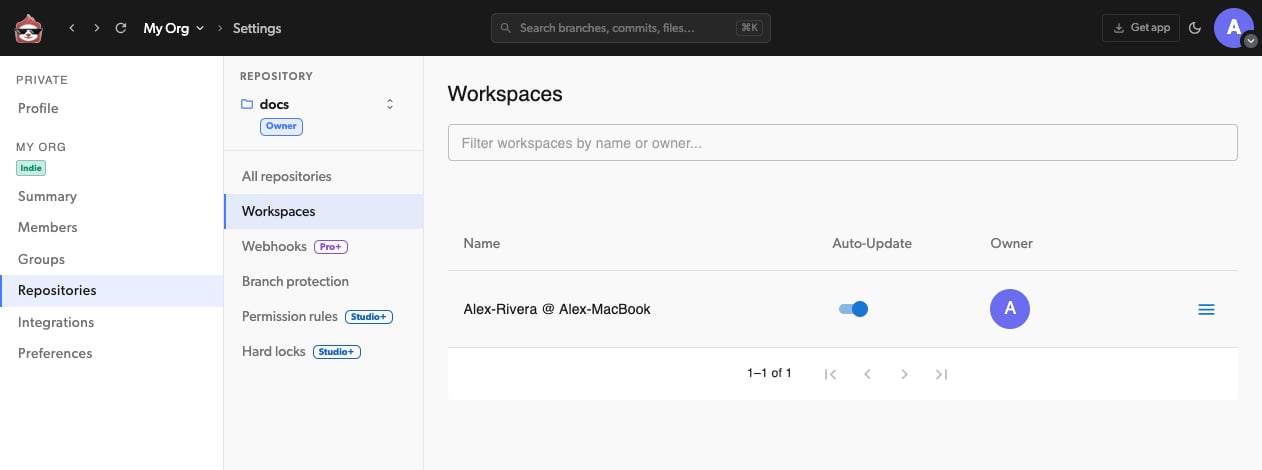 The table lists all workspaces with their name, auto-update status, and owner. Click the actions menu on a workspace and select **Open** to view its contents and pending changes. You can also **Rename** or **Delete** workspaces from this menu.
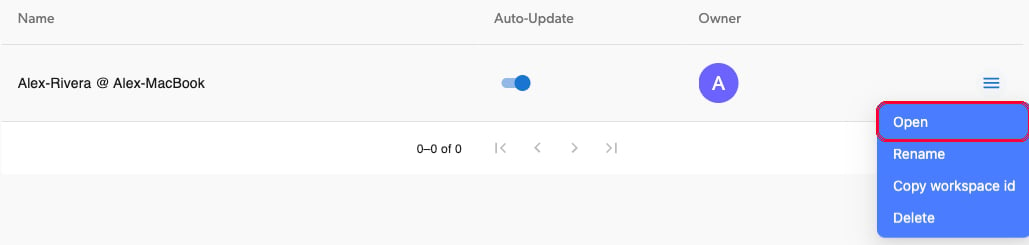 When you open a workspace you don't own, any operations you perform will affect the workspace owner. A confirmation dialog will appear before you proceed.