> ## Documentation Index
> Fetch the complete documentation index at: https://docs.diversion.dev/llms.txt
> Use this file to discover all available pages before exploring further.
# Organization management
> Managing your organization, its members, and repositories
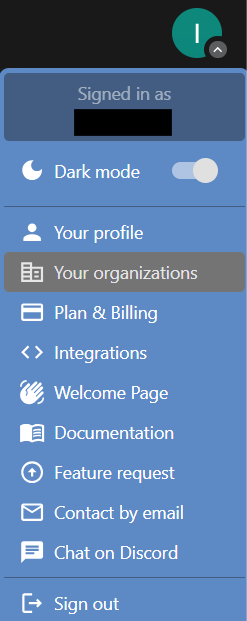
In Diversion, an organization is a group of users who share repositories, making it easier to collaborate and manage projects. You can find your organizations under `Your organizations` in the user menu.
 ## Creating an organization
You can only create one organization per account, but you can be a member of many organizations.
### Creating your first organization
**If you don't own or belong to any organization:**
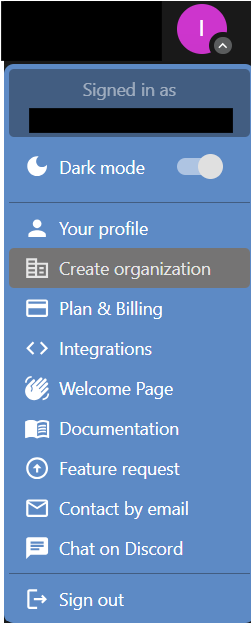
1. Click on your avatar in the top navigation and select `Create organization`.
## Creating an organization
You can only create one organization per account, but you can be a member of many organizations.
### Creating your first organization
**If you don't own or belong to any organization:**
1. Click on your avatar in the top navigation and select `Create organization`.
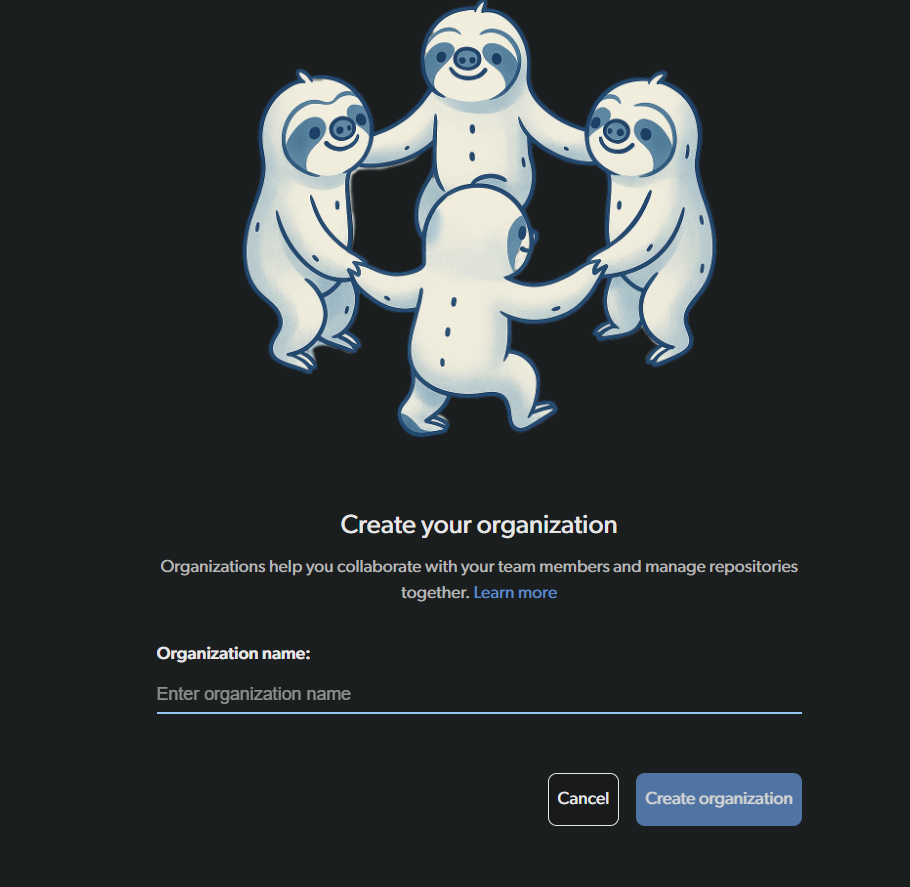
 2. Choose a name for your organization and click `Create organization`.
 **If you already belong to one or more organizations:**
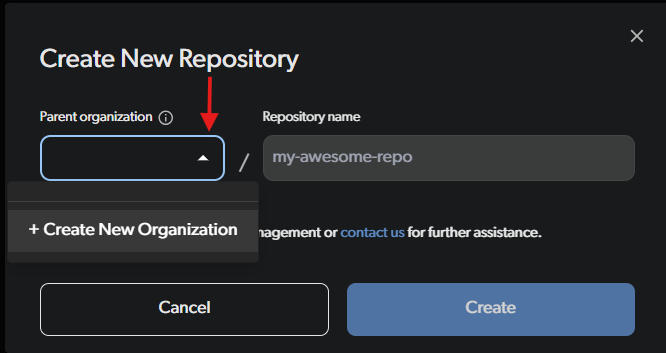
Create the new organization from the New Repository dialog: click the `Parent organization` dropdown and select `+ Create New Organization`, then enter your organization name. See [Creating an organization while creating a repository](#creating-an-organization-while-creating-a-repository) below.
### Creating an organization while creating a repository
Alternatively, you can create an organization while creating a new repository:
1. When creating a new repository, click the `Parent organization` dropdown and select `+ Create New Organization`.
2. Enter your organization name to create both the repository and organization simultaneously.
**If you already belong to one or more organizations:**
Create the new organization from the New Repository dialog: click the `Parent organization` dropdown and select `+ Create New Organization`, then enter your organization name. See [Creating an organization while creating a repository](#creating-an-organization-while-creating-a-repository) below.
### Creating an organization while creating a repository
Alternatively, you can create an organization while creating a new repository:
1. When creating a new repository, click the `Parent organization` dropdown and select `+ Create New Organization`.
2. Enter your organization name to create both the repository and organization simultaneously.
 **Note:** As an organization owner, you are responsible for all billing, including storage usage and organization member seats. When you upgrade to a paid tier, an organization may be created automatically for you depending on your tier (Indie/Educational/Professional).
## Managing an organization
Each organization has an owner. The owner can invite other users to join the organization.
When you add a user to your organization, they won't have access to all of your repositories and you can still manage access on a per-repo basis.
When inviting a user, the owner can decide if the user should have admin privileges. Admins can also manage users, same as the owner.
The difference between the owner and an admin is that billing for the organization is managed through the owner's Diversion account.
**Note:** As an organization owner, you are responsible for all billing, including storage usage and organization member seats. When you upgrade to a paid tier, an organization may be created automatically for you depending on your tier (Indie/Educational/Professional).
## Managing an organization
Each organization has an owner. The owner can invite other users to join the organization.
When you add a user to your organization, they won't have access to all of your repositories and you can still manage access on a per-repo basis.
When inviting a user, the owner can decide if the user should have admin privileges. Admins can also manage users, same as the owner.
The difference between the owner and an admin is that billing for the organization is managed through the owner's Diversion account.
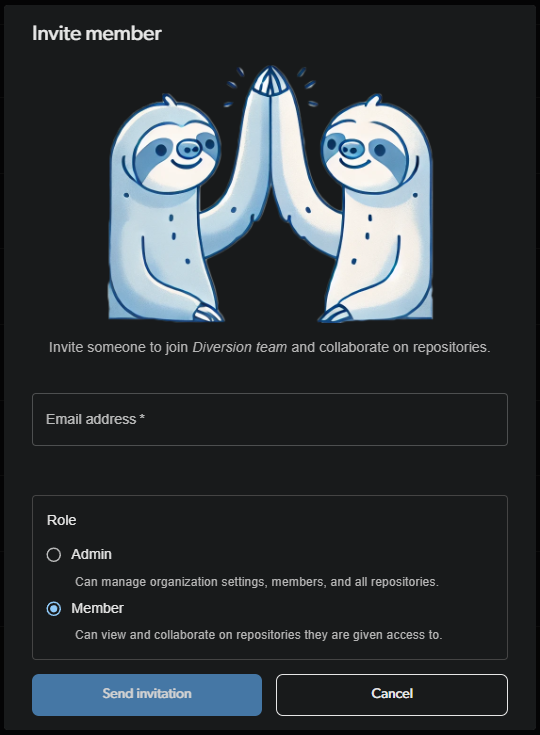 If you send an invite to someone who doesn't have a Diversion account, they will be prompted to create one.
### Removing users
The owner or admins can also remove users from the organization. When removing a user, you'll be prompted with the list of repositories the user can access. These are all of the repositories that the user will no longer have access to.
This means that the Diversion agent will no longer sync these repositories with the user's workspace. This also means that the user will keep stale copies of the repositories that were previously cloned locally.
If you send an invite to someone who doesn't have a Diversion account, they will be prompted to create one.
### Removing users
The owner or admins can also remove users from the organization. When removing a user, you'll be prompted with the list of repositories the user can access. These are all of the repositories that the user will no longer have access to.
This means that the Diversion agent will no longer sync these repositories with the user's workspace. This also means that the user will keep stale copies of the repositories that were previously cloned locally.
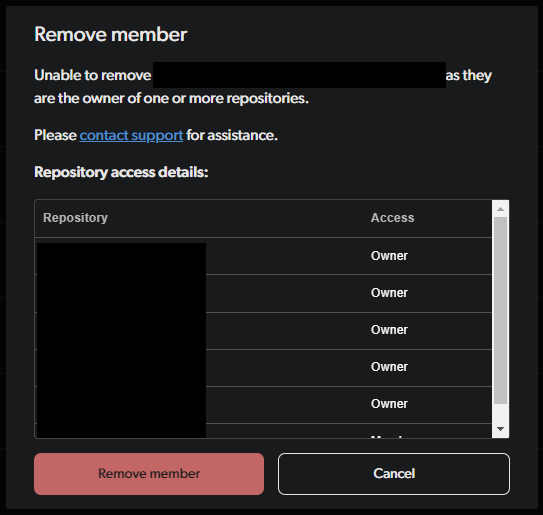
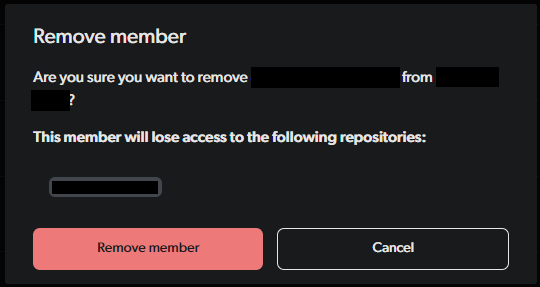 Removing a user that owns repositories is currently not supported through the app. You'll have to contact support to transfer ownership of those repositories before removing the user.
 ## Working in an organization
Every repository belongs to an organization. When you create a new repository, you set its `Parent organization` in the create dialog: if you belong to a single organization it is used automatically, and if you belong to more than one you choose which one to use. If you don't belong to any organization yet, a personal organization is created for you automatically and the repository is placed in it. This ensures that all repositories are properly organized and accessible to the relevant team members.
Other than that, working as part of an organization is exactly the same as working as an individual user.
## Attaching a repository to an organization
If you own a repository that isn't part of any organization, you can attach it to an organization you own at any time, directly from the dashboard, without contacting support. (New repositories are always created within an organization, so this applies to older repositories that predate that behavior.)
The `Attach to Organization` action is available when all of the following are true:
* You are the **owner** of the repository.
* The repository is **not** already part of an organization.
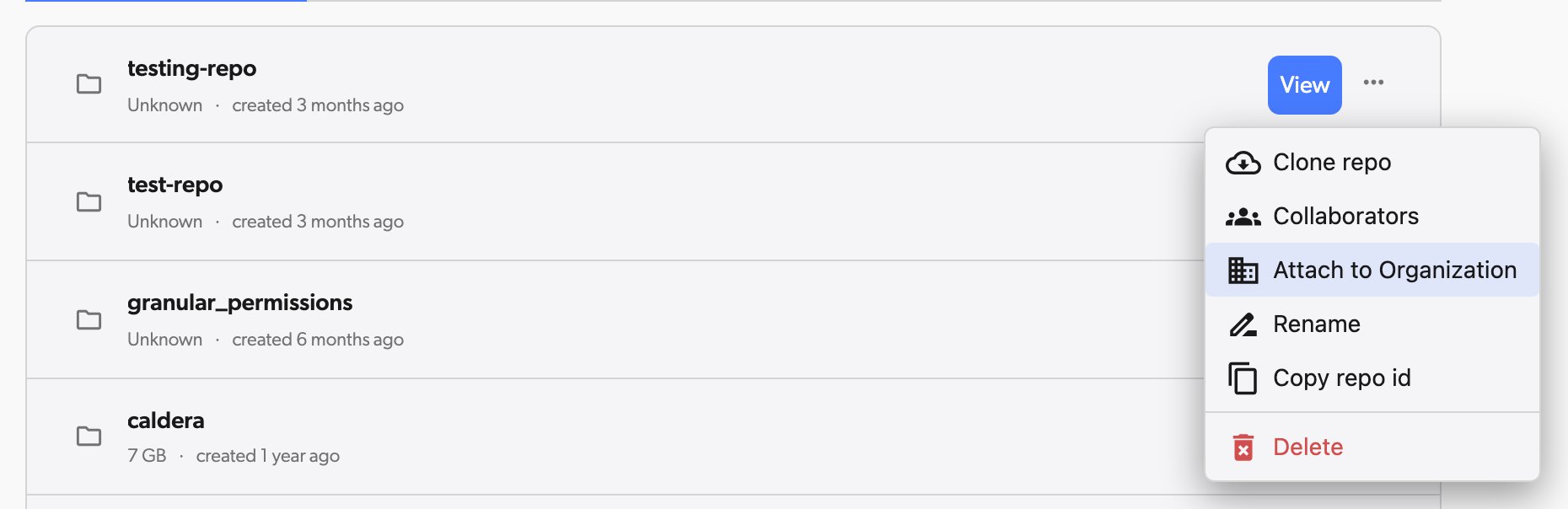
On your dashboard, open the **Remote Repositories** tab and look under **Personal** -- repositories that aren't part of an organization appear there, not under **Local Workspaces**. Find the repository's row, click its **...** menu, and select `Attach to Organization`.
## Working in an organization
Every repository belongs to an organization. When you create a new repository, you set its `Parent organization` in the create dialog: if you belong to a single organization it is used automatically, and if you belong to more than one you choose which one to use. If you don't belong to any organization yet, a personal organization is created for you automatically and the repository is placed in it. This ensures that all repositories are properly organized and accessible to the relevant team members.
Other than that, working as part of an organization is exactly the same as working as an individual user.
## Attaching a repository to an organization
If you own a repository that isn't part of any organization, you can attach it to an organization you own at any time, directly from the dashboard, without contacting support. (New repositories are always created within an organization, so this applies to older repositories that predate that behavior.)
The `Attach to Organization` action is available when all of the following are true:
* You are the **owner** of the repository.
* The repository is **not** already part of an organization.
On your dashboard, open the **Remote Repositories** tab and look under **Personal** -- repositories that aren't part of an organization appear there, not under **Local Workspaces**. Find the repository's row, click its **...** menu, and select `Attach to Organization`.
 In the `Attach Repository to Organization` dialog, choose the destination organization from the `Select Organization` dropdown. Only organizations you own are listed.
The dialog then previews which repository collaborators (and pending invitees) are not yet members of the selected organization. Attaching the repository will add them as members of the organization, counting toward its user quota. If everyone is already a member, the dialog confirms that no users will be added.
In the `Attach Repository to Organization` dialog, choose the destination organization from the `Select Organization` dropdown. Only organizations you own are listed.
The dialog then previews which repository collaborators (and pending invitees) are not yet members of the selected organization. Attaching the repository will add them as members of the organization, counting toward its user quota. If everyone is already a member, the dialog confirms that no users will be added.
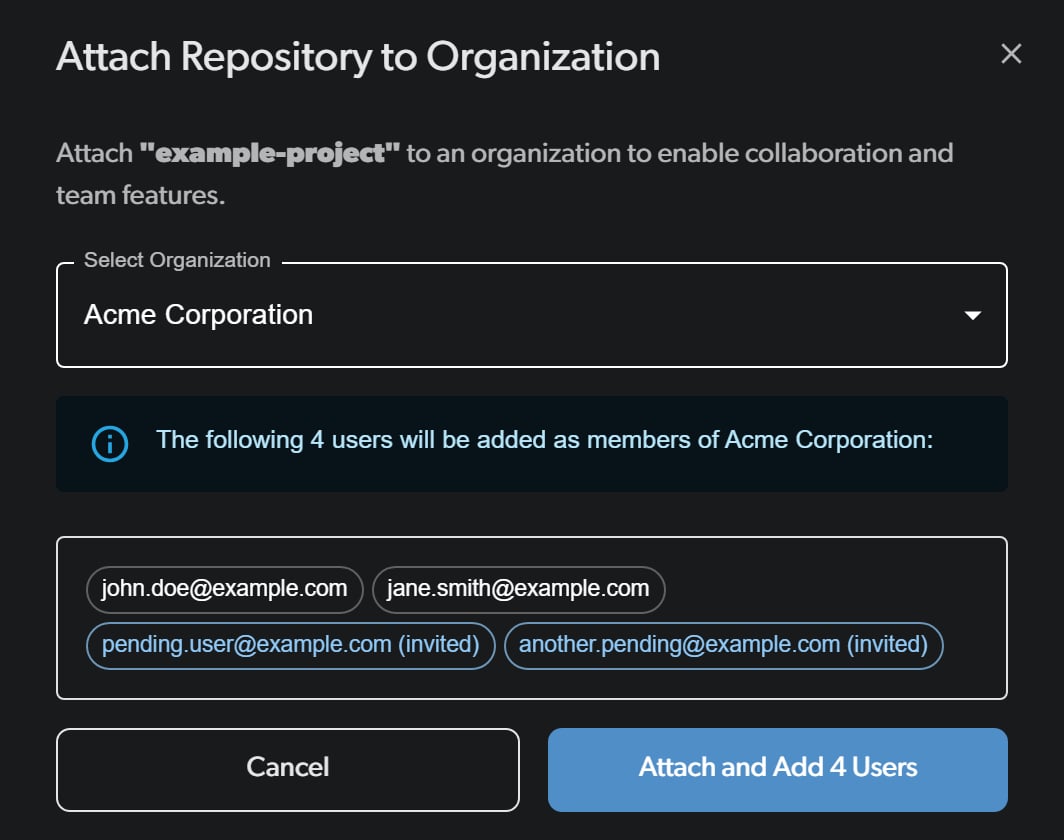 Click `Attach to Organization` (or `Attach and Add N Users` when collaborators will be added) to complete the action. The repository, along with its storage usage, now belongs to the organization.
You must be the owner of an organization to attach a repository to it. If you don't own any organization, [create one first](#creating-an-organization).
## Organization repository management
Organization owners and admins can view and manage all repositories associated with the organization, including repositories they are not personally collaborating on. This includes managing collaborators and transferring ownership.
### Viewing organization repositories
Click on your avatar in the top navigation and select `Your organizations`. The organization whose settings you see is controlled by the organization selector in the top-left of the global bar; use it to pick the organization you want.
In the left sidebar, click `Repositories` to view all repositories in the organization.
Click `Attach to Organization` (or `Attach and Add N Users` when collaborators will be added) to complete the action. The repository, along with its storage usage, now belongs to the organization.
You must be the owner of an organization to attach a repository to it. If you don't own any organization, [create one first](#creating-an-organization).
## Organization repository management
Organization owners and admins can view and manage all repositories associated with the organization, including repositories they are not personally collaborating on. This includes managing collaborators and transferring ownership.
### Viewing organization repositories
Click on your avatar in the top navigation and select `Your organizations`. The organization whose settings you see is controlled by the organization selector in the top-left of the global bar; use it to pick the organization you want.
In the left sidebar, click `Repositories` to view all repositories in the organization.
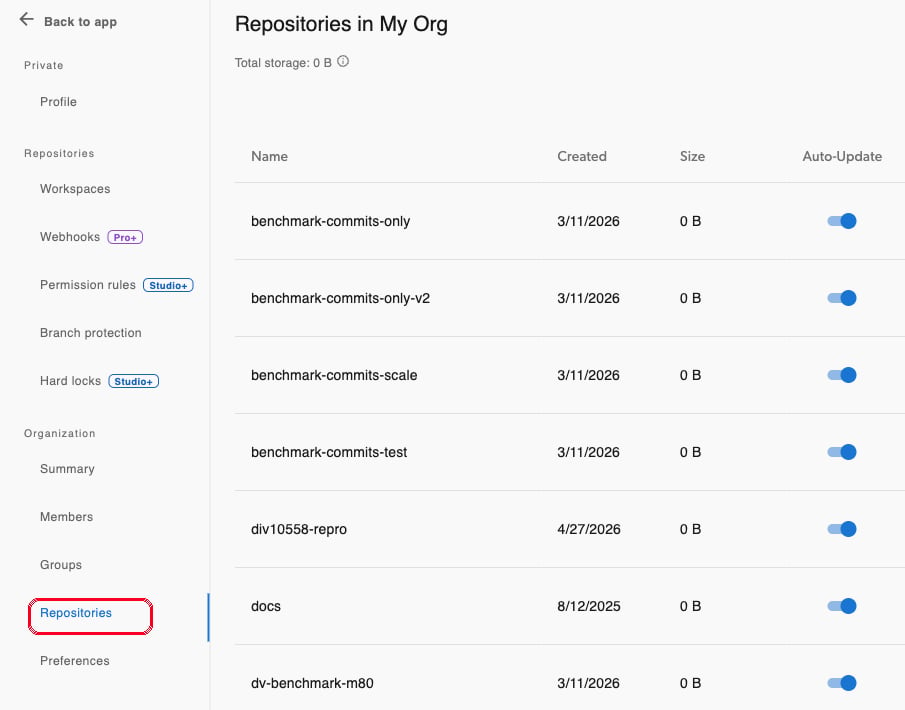 You will see a table listing all repositories in the organization, including their name, creation date, size, auto-update status, and collaborators. As an organization owner or admin, you can see repositories that you are not personally collaborating on.
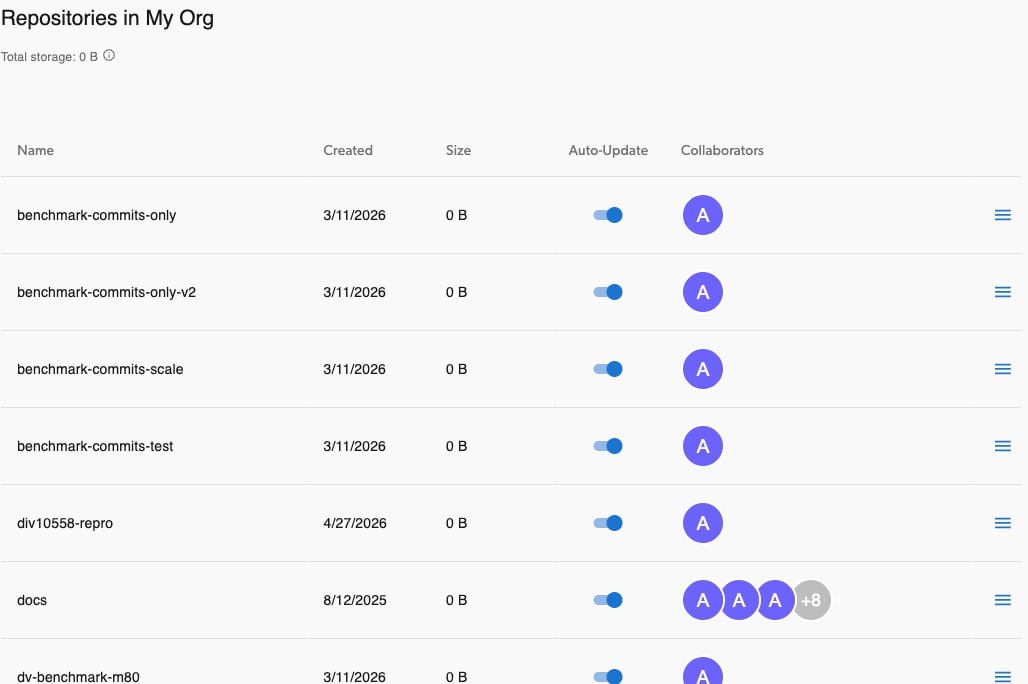 If you belong to multiple organizations, use the organization selector in the top-left of the global bar to switch between organizations.
### Managing repository collaborators
Organization owners and admins can manage collaborators for any repository in the organization, even if they are not a collaborator on that repository themselves.
Go to your organization's Repositories page as described above.
Find the desired repository in the table and click the menu icon on the right side.
If you belong to multiple organizations, use the organization selector in the top-left of the global bar to switch between organizations.
### Managing repository collaborators
Organization owners and admins can manage collaborators for any repository in the organization, even if they are not a collaborator on that repository themselves.
Go to your organization's Repositories page as described above.
Find the desired repository in the table and click the menu icon on the right side.
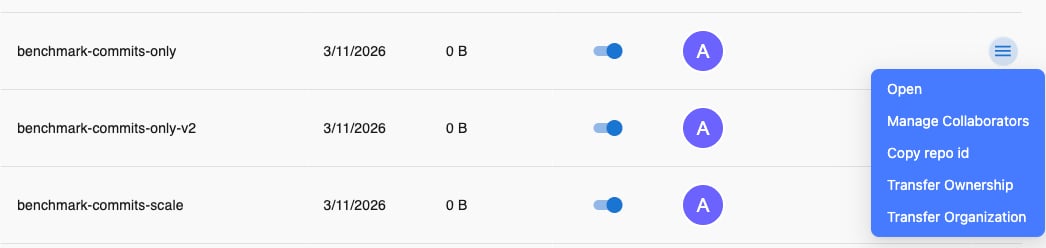 Click `Manage Collaborators` to open the collaborators dialog.
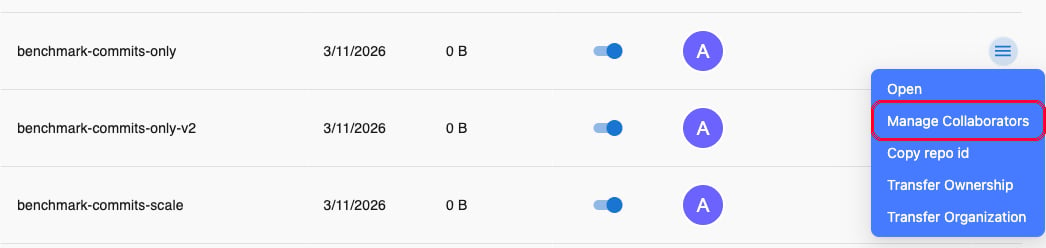 From the collaborators dialog, you can:
* View all current collaborators and their permission levels
* Invite new collaborators by entering their email address and selecting an access level
* Change a collaborator's permission level
* Remove a collaborator from the repository
* Add yourself to the repository by entering your own email address — even if you're not currently a collaborator on that repo
### Transferring repository ownership
You can transfer repository ownership to another member of the organization. The user performing the transfer must be both the repository owner and an organization admin or owner.
Go to the `Repositories` page in your organization page (accessible from the left sidebar).
From the collaborators dialog, you can:
* View all current collaborators and their permission levels
* Invite new collaborators by entering their email address and selecting an access level
* Change a collaborator's permission level
* Remove a collaborator from the repository
* Add yourself to the repository by entering your own email address — even if you're not currently a collaborator on that repo
### Transferring repository ownership
You can transfer repository ownership to another member of the organization. The user performing the transfer must be both the repository owner and an organization admin or owner.
Go to the `Repositories` page in your organization page (accessible from the left sidebar).
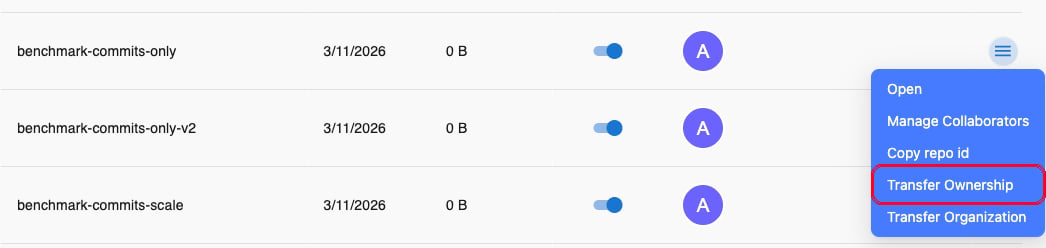
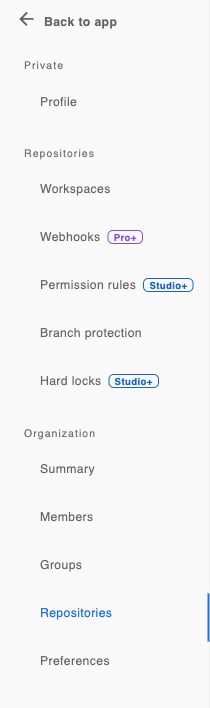 Find the desired repository. Click on the menu icon on the right side and select `Transfer ownership`.
 Choose the member you wish to transfer ownership to from the dropdown and confirm the transfer.
This action cannot be undone. The new owner will have full control over the repository, and you will lose ownership privileges.
### Transferring a repository to another organization
You can transfer a repository from your organization to another organization. Only the **owner of the source organization** can initiate the transfer. The destination organization owner must approve the request before the repository moves.
If you are a repository owner but not the source organization's owner, ask your organization owner to initiate the transfer on your behalf.
Open the source organization's `Repositories` page. If you belong to multiple organizations, use the organization selector in the top-left of the global bar to switch to the source organization first. Find the desired repository, click the menu icon on the right side, and select `Transfer Organization`.
Choose the member you wish to transfer ownership to from the dropdown and confirm the transfer.
This action cannot be undone. The new owner will have full control over the repository, and you will lose ownership privileges.
### Transferring a repository to another organization
You can transfer a repository from your organization to another organization. Only the **owner of the source organization** can initiate the transfer. The destination organization owner must approve the request before the repository moves.
If you are a repository owner but not the source organization's owner, ask your organization owner to initiate the transfer on your behalf.
Open the source organization's `Repositories` page. If you belong to multiple organizations, use the organization selector in the top-left of the global bar to switch to the source organization first. Find the desired repository, click the menu icon on the right side, and select `Transfer Organization`.
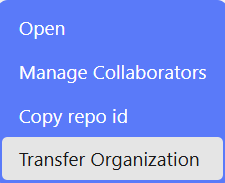 Type the email address of the destination organization's owner and click `Send Request`. A transfer request is sent to that email and appears on the destination owner's dashboard.
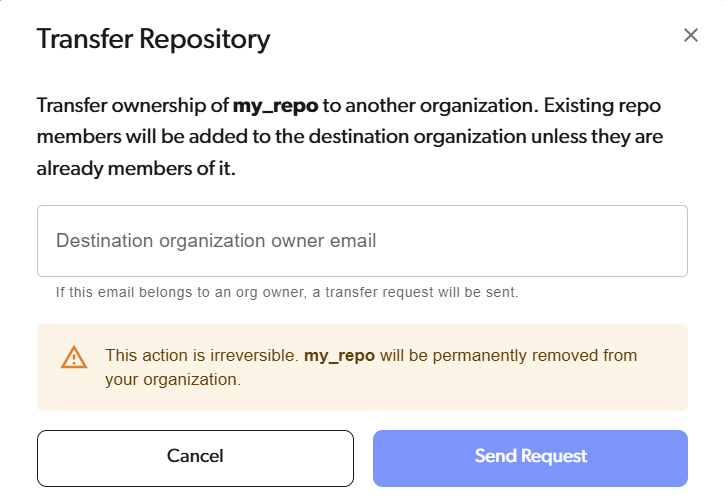 The destination organization owner has **14 days** to accept or decline the request. You will be notified by email when they respond. If the request is not approved within 14 days, it expires automatically and the repository remains in your organization.
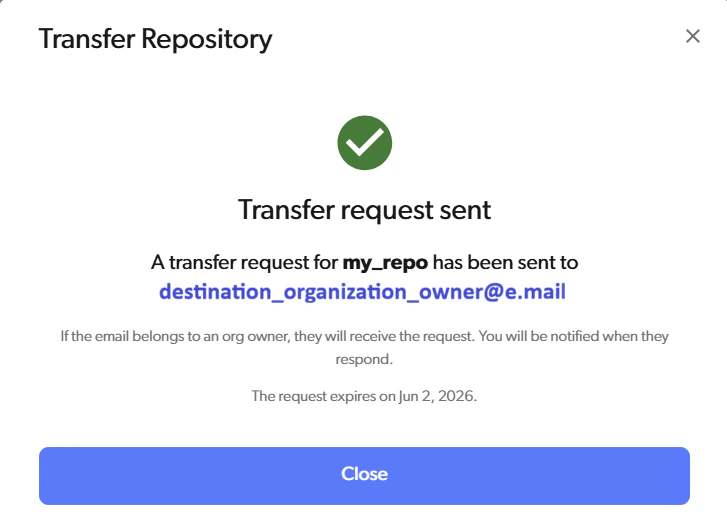 This action is irreversible. Once accepted, the repository is permanently moved out of your organization. All repository members who are not already members of the destination organization will be added to it — counting toward the destination organization's user quota — and the repository's storage will count toward the destination organization's storage quota.
If you need to remove a repository from your organization but there is no destination organization to send it to — for example, the repository's owner is no longer active and you simply want the repository gone — [contact support](mailto:support@diversion.dev).
#### Reviewing an incoming transfer request
If another organization's owner sends you a transfer request, you will be notified by email and an `Incoming repository transfer` card will appear on your dashboard.
Find the `Transfer of [repository name]` card in the pending invites section of your dashboard and click `Review...`.
This action is irreversible. Once accepted, the repository is permanently moved out of your organization. All repository members who are not already members of the destination organization will be added to it — counting toward the destination organization's user quota — and the repository's storage will count toward the destination organization's storage quota.
If you need to remove a repository from your organization but there is no destination organization to send it to — for example, the repository's owner is no longer active and you simply want the repository gone — [contact support](mailto:support@diversion.dev).
#### Reviewing an incoming transfer request
If another organization's owner sends you a transfer request, you will be notified by email and an `Incoming repository transfer` card will appear on your dashboard.
Find the `Transfer of [repository name]` card in the pending invites section of your dashboard and click `Review...`.
 The review dialog shows the source organization, the repository's storage size, the members that will be added to your organization, and when the request expires.
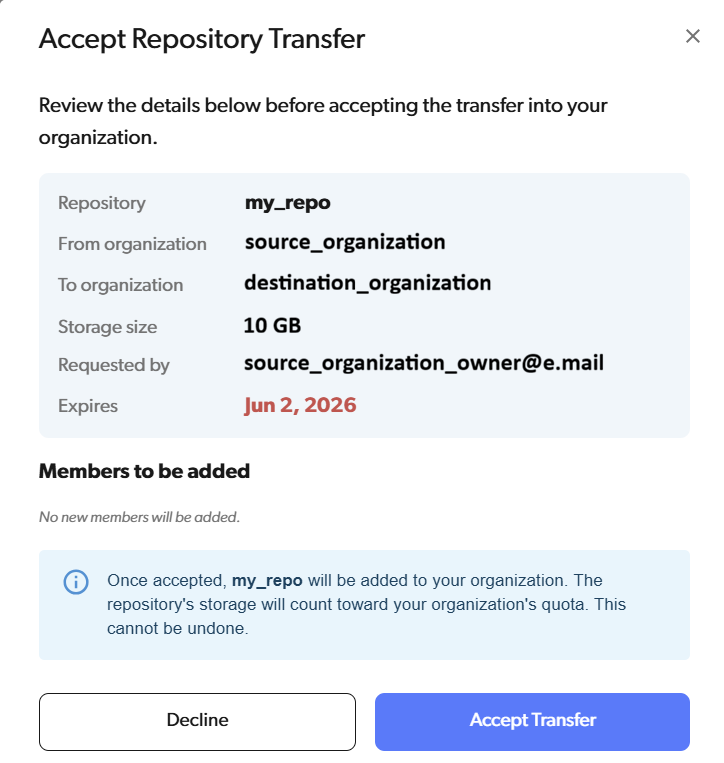 Click `Accept Transfer` to move the repository into your organization, or `Decline` to reject the request. The initiator is notified by email either way.
Transfer requests expire after 14 days. Expired requests cannot be accepted — the source organization owner must send a new request.
## Leaving an organization
Only non-owner members can leave an organization. Switch to the organization you wish to leave using the organization selector in the top-left of the global bar, then open its settings and click "Leave organization".
**Note:** Leaving an organization will result in losing access to all repositories associated with it. You can always be invited back to the organization later.
Click `Accept Transfer` to move the repository into your organization, or `Decline` to reject the request. The initiator is notified by email either way.
Transfer requests expire after 14 days. Expired requests cannot be accepted — the source organization owner must send a new request.
## Leaving an organization
Only non-owner members can leave an organization. Switch to the organization you wish to leave using the organization selector in the top-left of the global bar, then open its settings and click "Leave organization".
**Note:** Leaving an organization will result in losing access to all repositories associated with it. You can always be invited back to the organization later.
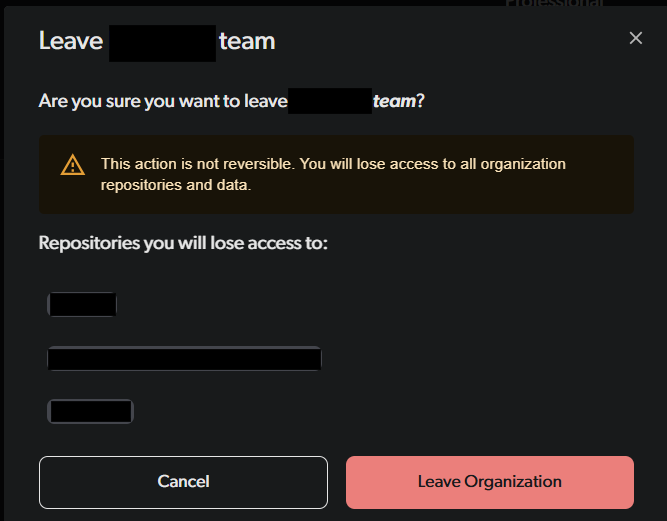 If you own one or more repositories that are associated with the organization, you won't be able to leave the organization. You must either [transfer the repository ownership](#transferring-repository-ownership) to another member of the organization or delete the repositories first.
## Organization deletion
Deleting an organization is not possible. If you no longer need an organization, you can remove all members and repositories from it.
## FAQs
### What happens to my repositories if I'm a member of multiple organizations?
Every repository is created within an organization. If you belong to more than one organization, you choose its `Parent organization` in the create dialog; if you belong to a single organization, that one is used; and if you don't belong to any, a personal organization is created for you automatically. A repository is therefore never left unassigned at creation time. Older repositories that aren't part of any organization can be [attached to one](#attaching-a-repository-to-an-organization) you own.
### How do I transfer organization ownership to another user?
Ownership transfer is currently handled by our support team. If you're an organization owner and want to transfer ownership:
1. Ensure the new owner is already a member of your organization. If not, invite them first as explained above.
2. Email our support team with your request, including the new owner's email address, and our team will complete the transfer.
3. The new owner should select their desired tier, storage capacity, and seats, then add a payment method to avoid subscription breach [system messages](/system-messages).
4. Once the new owner has set up their subscription, cancel your old subscription from **Plan & Billing** to avoid double payment.
### How do I become the owner of an organization I am a member of?
Ask your organization owner to contact our support team and request the ownership transfer to your account. The owner should follow the steps outlined in the question above.
### Why am I receiving system messages about exceeding my user limit?
If you're seeing [system messages](/system-messages) like this:
If you own one or more repositories that are associated with the organization, you won't be able to leave the organization. You must either [transfer the repository ownership](#transferring-repository-ownership) to another member of the organization or delete the repositories first.
## Organization deletion
Deleting an organization is not possible. If you no longer need an organization, you can remove all members and repositories from it.
## FAQs
### What happens to my repositories if I'm a member of multiple organizations?
Every repository is created within an organization. If you belong to more than one organization, you choose its `Parent organization` in the create dialog; if you belong to a single organization, that one is used; and if you don't belong to any, a personal organization is created for you automatically. A repository is therefore never left unassigned at creation time. Older repositories that aren't part of any organization can be [attached to one](#attaching-a-repository-to-an-organization) you own.
### How do I transfer organization ownership to another user?
Ownership transfer is currently handled by our support team. If you're an organization owner and want to transfer ownership:
1. Ensure the new owner is already a member of your organization. If not, invite them first as explained above.
2. Email our support team with your request, including the new owner's email address, and our team will complete the transfer.
3. The new owner should select their desired tier, storage capacity, and seats, then add a payment method to avoid subscription breach [system messages](/system-messages).
4. Once the new owner has set up their subscription, cancel your old subscription from **Plan & Billing** to avoid double payment.
### How do I become the owner of an organization I am a member of?
Ask your organization owner to contact our support team and request the ownership transfer to your account. The owner should follow the steps outlined in the question above.
### Why am I receiving system messages about exceeding my user limit?
If you're seeing [system messages](/system-messages) like this:
 This means your organization has more members than your current plan allows. To resolve this, you have two options:
1. **Upgrade your plan** - Purchase additional user seats to accommodate your current team size.
2. **Remove users from your organization** - See the [removing users](#removing-users) section above for step-by-step instructions.
If you're seeing [system messages](/system-messages) like this:
This means your organization has more members than your current plan allows. To resolve this, you have two options:
1. **Upgrade your plan** - Purchase additional user seats to accommodate your current team size.
2. **Remove users from your organization** - See the [removing users](#removing-users) section above for step-by-step instructions.
If you're seeing [system messages](/system-messages) like this:
 This means you haven't selected a plan yet. To resolve this:
**Select a plan** - See [choosing your plan](/choosing-your-plan) for guidance, or visit our [pricing page](https://www.diversion.dev/pricing) to view available options.
### How do I move repositories out of my organization?
As the organization's owner, you can transfer any repository in your organization — even ones you don't personally own or collaborate on — using the [Transfer Organization](#transferring-a-repository-to-another-organization) action. Send each request to the email of the owner of the destination organization.
### How do I move my repositories from another organization to my own?
Ask the current organization's owner to use the [Transfer Organization](#transferring-a-repository-to-another-organization) action on the repository and submit the request to your email address. Once you accept the request from your dashboard, the repository moves into your organization.
This means you haven't selected a plan yet. To resolve this:
**Select a plan** - See [choosing your plan](/choosing-your-plan) for guidance, or visit our [pricing page](https://www.diversion.dev/pricing) to view available options.
### How do I move repositories out of my organization?
As the organization's owner, you can transfer any repository in your organization — even ones you don't personally own or collaborate on — using the [Transfer Organization](#transferring-a-repository-to-another-organization) action. Send each request to the email of the owner of the destination organization.
### How do I move my repositories from another organization to my own?
Ask the current organization's owner to use the [Transfer Organization](#transferring-a-repository-to-another-organization) action on the repository and submit the request to your email address. Once you accept the request from your dashboard, the repository moves into your organization.