> ## Documentation Index
> Fetch the complete documentation index at: https://docs.diversion.dev/llms.txt
> Use this file to discover all available pages before exploring further.
# Manage project access
> Manage repo collaborators: add, remove, and leave repositories
## Add people to your project
You have a project set up, and want to add your team members? Here's how:
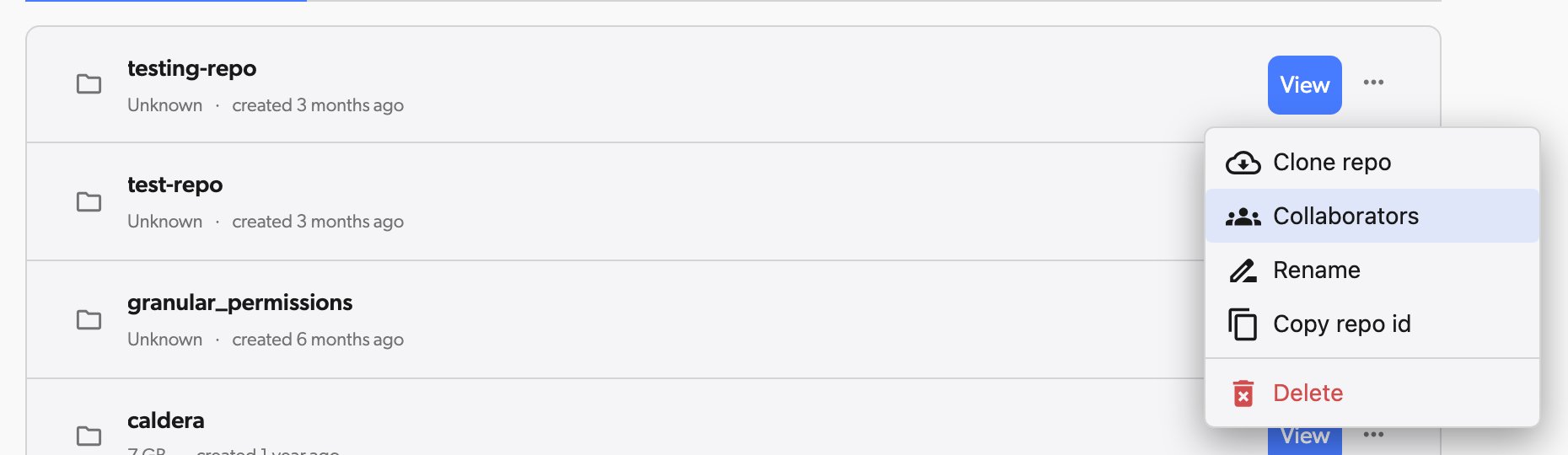
Open the repository's **...** menu - in its row on either the **Local Workspaces** or **Remote Repositories** tab of the dashboard, or from the open repository's actions menu - and select **Collaborators**.
 If you don't have a repo yet, [create one first](/basic/start-using-diversion).
Also choose the access level you want to grant. Admins can invite other members.
If you don't have a repo yet, [create one first](/basic/start-using-diversion).
Also choose the access level you want to grant. Admins can invite other members.
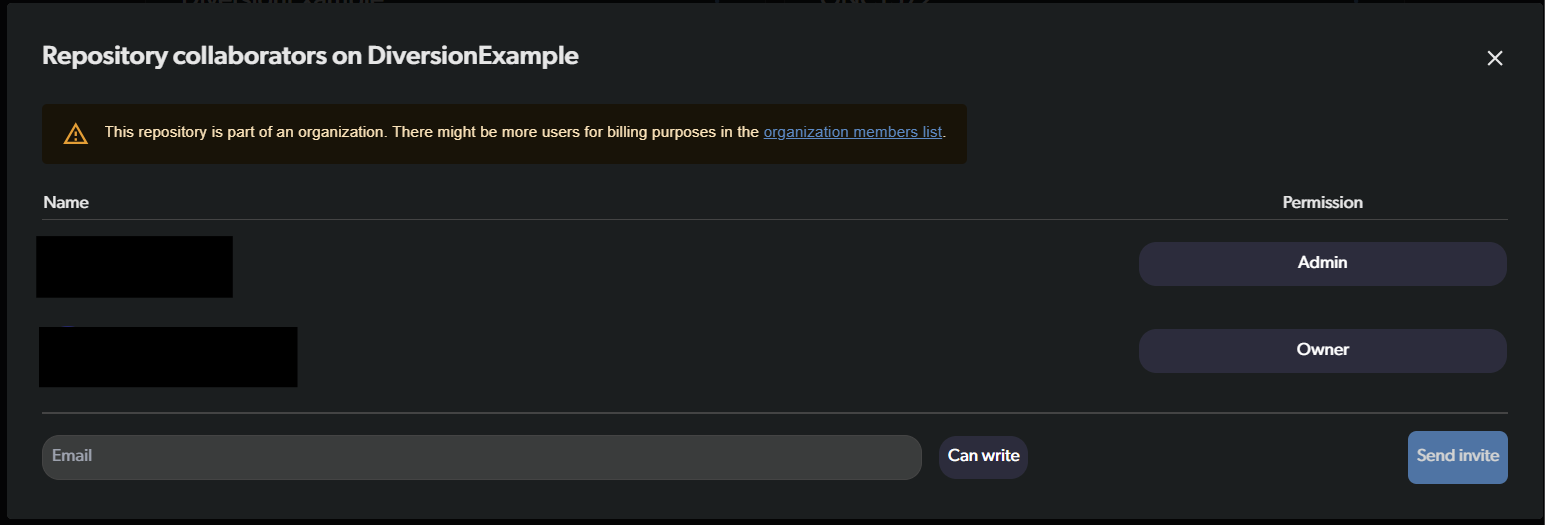 That's it! Your team members will receive invitation emails to join the project. If they don't have Diversion installed yet, they'll be prompted to do so.
They can accept the invitation and start working with you. The repo appears on the **Remote Repositories** tab in the app -- they open its `...` menu and select `Clone repo` to get started. If they need any help, [send them here](/basic/get-existing-project).
## Remove people from your project
Open the repository's **...** menu - in its row on either the **Local Workspaces** or **Remote Repositories** tab of the dashboard, or from the open repository's actions menu - and select **Collaborators**.
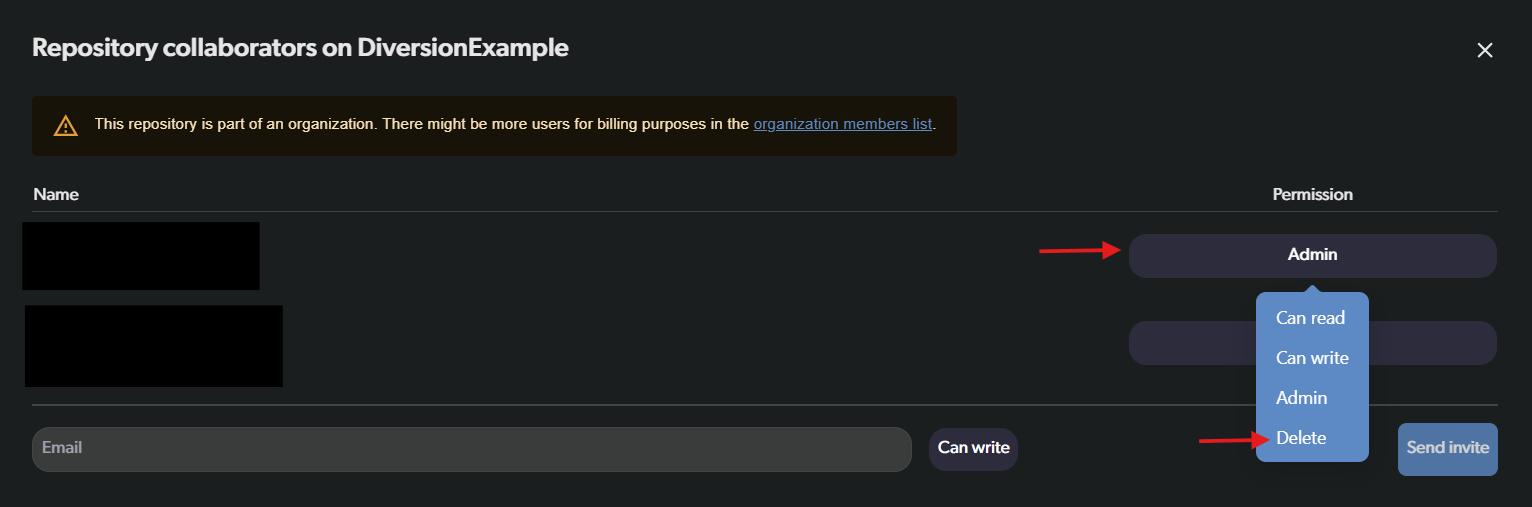
Click on the user's permission level and select **Delete**.
That's it! Your team members will receive invitation emails to join the project. If they don't have Diversion installed yet, they'll be prompted to do so.
They can accept the invitation and start working with you. The repo appears on the **Remote Repositories** tab in the app -- they open its `...` menu and select `Clone repo` to get started. If they need any help, [send them here](/basic/get-existing-project).
## Remove people from your project
Open the repository's **...** menu - in its row on either the **Local Workspaces** or **Remote Repositories** tab of the dashboard, or from the open repository's actions menu - and select **Collaborators**.
Click on the user's permission level and select **Delete**.
 Only repo owners and admins can remove members. The repo owner cannot be removed.
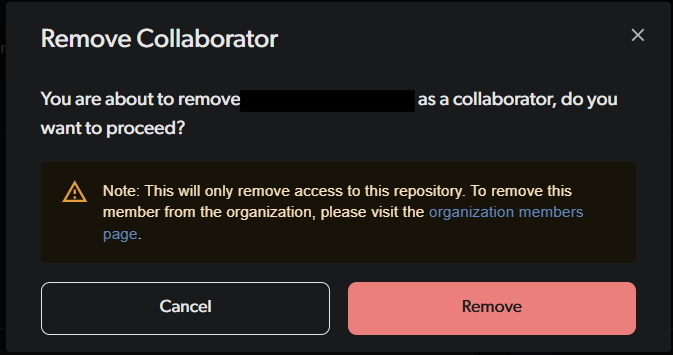
Review and confirm your action.
Only repo owners and admins can remove members. The repo owner cannot be removed.
Review and confirm your action.
 **Good to know:**
* Removing a member from a repo doesn't remove them from the organization (if applicable)
* You can re-invite removed members at any time
* Removed members will immediately lose access to the repo and its contents
* Their local files on disk are not deleted
## Leave a repository
**Good to know:**
* Leaving a repo doesn't remove you from the organization (if applicable)
* You can be re-invited at any time
* You will immediately lose access to the repo and its contents upon leaving
* Your local files on disk are not deleted
* You cannot leave a repo you own
There are two ways to leave a repository:
### Option 1: From the repository's collaborators dialog
Open the repository's **...** menu - in its row on either the **Local Workspaces** or **Remote Repositories** tab of the dashboard, or from the open repository's actions menu - and select **Collaborators**.
Click on your permission level and select **Delete**.
**Good to know:**
* Removing a member from a repo doesn't remove them from the organization (if applicable)
* You can re-invite removed members at any time
* Removed members will immediately lose access to the repo and its contents
* Their local files on disk are not deleted
## Leave a repository
**Good to know:**
* Leaving a repo doesn't remove you from the organization (if applicable)
* You can be re-invited at any time
* You will immediately lose access to the repo and its contents upon leaving
* Your local files on disk are not deleted
* You cannot leave a repo you own
There are two ways to leave a repository:
### Option 1: From the repository's collaborators dialog
Open the repository's **...** menu - in its row on either the **Local Workspaces** or **Remote Repositories** tab of the dashboard, or from the open repository's actions menu - and select **Collaborators**.
Click on your permission level and select **Delete**.
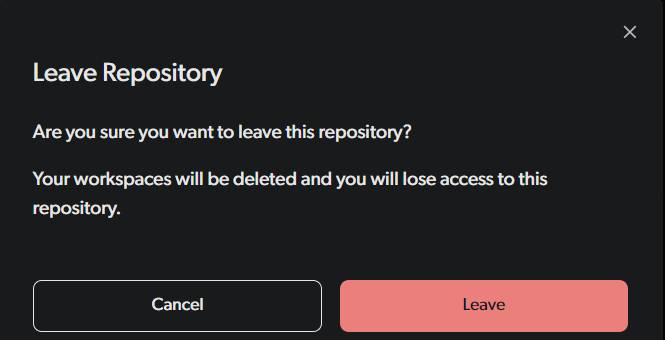 ### Option 2: From the remote repo
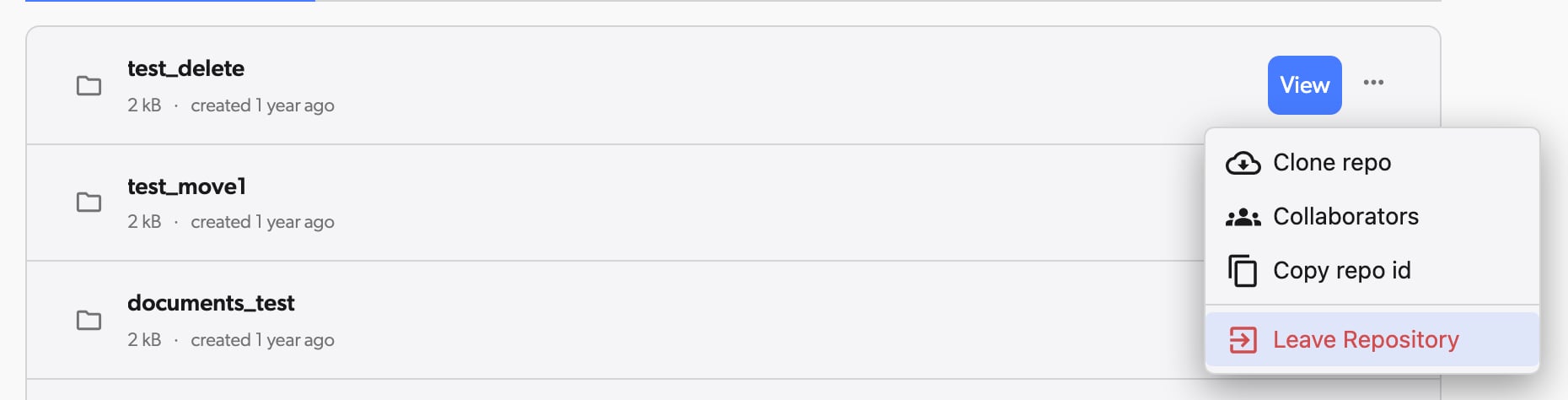 Review and confirm your action.
## Transfer repository ownership
To transfer repository ownership, the repository must be associated with an organization. For detailed instructions, see [transferring repository ownership](/basic/organization-management#transferring-repository-ownership) within the same organization, or [transferring a repository to another organization](/basic/organization-management#transferring-a-repository-to-another-organization) across organizations.
## FAQs
### Why am I receiving system messages about exceeding my user limit when my repository has fewer users?
If you're seeing [system messages](/system-messages) like this:
Review and confirm your action.
## Transfer repository ownership
To transfer repository ownership, the repository must be associated with an organization. For detailed instructions, see [transferring repository ownership](/basic/organization-management#transferring-repository-ownership) within the same organization, or [transferring a repository to another organization](/basic/organization-management#transferring-a-repository-to-another-organization) across organizations.
## FAQs
### Why am I receiving system messages about exceeding my user limit when my repository has fewer users?
If you're seeing [system messages](/system-messages) like this:
 Even after removing excess users from all your repositories, check your organization members. The excess users may still be part of your organization and need to be removed there as well. See [removing users from your organization](/basic/organization-management#removing-users) for detailed instructions.