> ## Documentation Index
> Fetch the complete documentation index at: https://docs.diversion.dev/llms.txt
> Use this file to discover all available pages before exploring further.
# Invoices and billing
> Access your invoices, update payment methods, and manage your subscription
All billing and invoicing in Diversion is managed through our billing portal. From there you can view and download invoices, update your payment method, and adjust your subscription.
Only organization owners can access the billing portal. If you're a team member, ask your organization owner for invoice copies.
## Accessing the billing portal
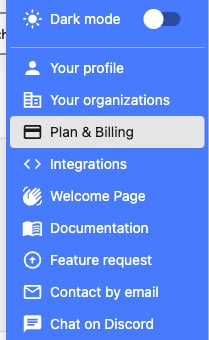
Click on your avatar in the top navigation and select **Plan & Billing**.
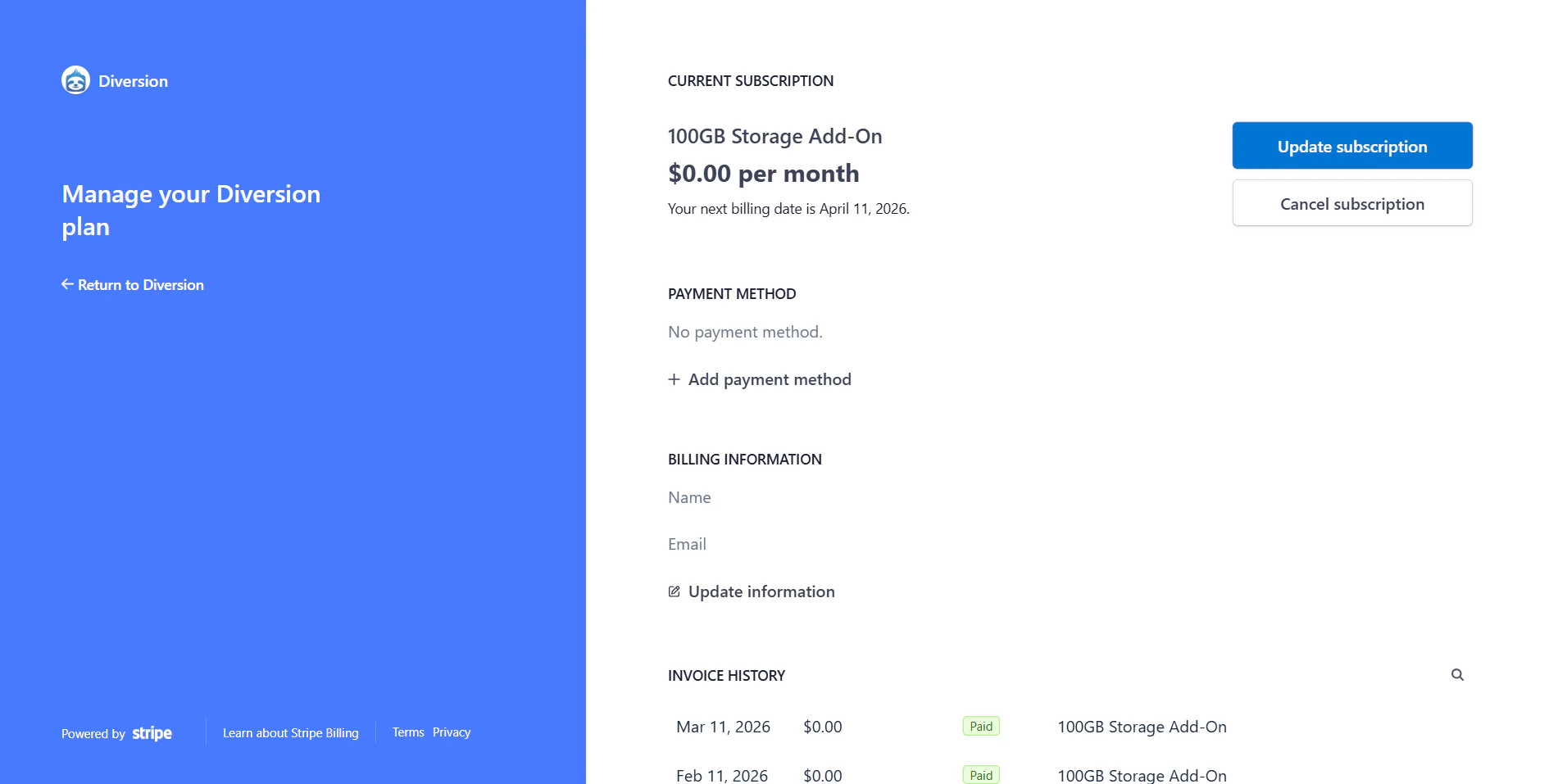
 You'll be redirected to the billing portal where you can:
* View and download past invoices and receipts
* Update your payment method
* View your current subscription details
* Adjust user seats and storage
You'll be redirected to the billing portal where you can:
* View and download past invoices and receipts
* Update your payment method
* View your current subscription details
* Adjust user seats and storage
 ## Downloading an invoice
In the billing portal, locate the invoice you need in the invoice history section. Click on the invoice to view its details, then use the download or print option to save a copy.
## Downloading an invoice
In the billing portal, locate the invoice you need in the invoice history section. Click on the invoice to view its details, then use the download or print option to save a copy.
 ## Managing your payment methods
In the billing portal, find the payment method section and click **Add payment method** to add your credit card or other payment method.
You cannot remove your default payment method while you have an active plan. To change it, add a new payment method and set it as default first, then remove the old one.
## Canceling your subscription
Click on your avatar in the top navigation and select **Plan & Billing** to open the billing portal.
Under **Current subscription**, click **Cancel subscription**.
## Managing your payment methods
In the billing portal, find the payment method section and click **Add payment method** to add your credit card or other payment method.
You cannot remove your default payment method while you have an active plan. To change it, add a new payment method and set it as default first, then remove the old one.
## Canceling your subscription
Click on your avatar in the top navigation and select **Plan & Billing** to open the billing portal.
Under **Current subscription**, click **Cancel subscription**.
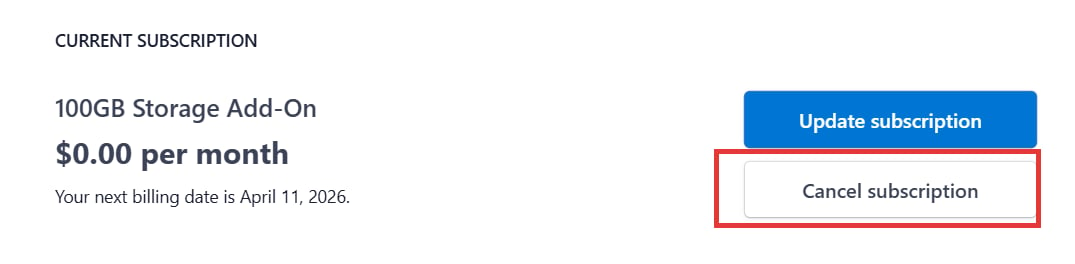 Cancellation takes effect at the end of your current billing period, so you keep access to your plan until then. You can re-subscribe at any time from **Plan & Billing**.
## Need help?
If you have questions about billing, need a refund, or require a custom invoice, [contact our billing team](mailto:billing@diversion.dev).
For information about available plans and pricing, see [choosing your plan](/choosing-your-plan) or visit our [pricing page](https://www.diversion.dev/pricing).
Cancellation takes effect at the end of your current billing period, so you keep access to your plan until then. You can re-subscribe at any time from **Plan & Billing**.
## Need help?
If you have questions about billing, need a refund, or require a custom invoice, [contact our billing team](mailto:billing@diversion.dev).
For information about available plans and pricing, see [choosing your plan](/choosing-your-plan) or visit our [pricing page](https://www.diversion.dev/pricing).