> ## Documentation Index
> Fetch the complete documentation index at: https://docs.diversion.dev/llms.txt
> Use this file to discover all available pages before exploring further.
# Granular Permissions
> Control access to specific paths within your repository
Granular permissions allow you to set fine-grained access control for specific files and folders within a repository. Instead of giving users full repository access, you can restrict what they can read, write, merge, or administrate at the path level.
## When to Use Granular Permissions
Granular permissions are useful when you need to:
* **Protect sensitive paths**: Prevent team members from modifying security-critical code, configuration files, or production assets
* **Restrict by role**: Allow designers to only modify assets while developers work on code
* **Isolate components**: Let teams work on specific parts of the repository without accessing others
## Access Levels
Diversion uses four hierarchical access levels:
| Level | Description |
| --------- | ----------------------------------- |
| **Admin** | Full control |
| **Write** | Can modify files |
| **Merge** | Can participate in merge operations |
| **Read** | Can view files only |
Access levels are hierarchical: Admin includes all privileges of Write, which includes Merge, which includes Read. See [Access Levels](/basic/access-levels) for details on what each level can do.
## Permission Types
Each rule uses one of four permission types that control how access is granted or denied:
| Type | Behavior |
| ------------------------ | -------------------------------------------------------------------------------------------------------------------------------------------------------------------- |
| **Allow (Hierarchical)** | Grants the specified level **and all lower levels**. Example: Allow (Hierarchical) + Write grants Write and Read access. |
| **Allow (Exact)** | Grants **only the exact level** specified. Example: Allow (Exact) + Write grants Write but not Read. |
| **Deny (All Above)** | Stops rule evaluation and denies all access levels (the level field is ignored). Any permissions already granted by higher-priority rules (lower in table) are kept. |
| **Deny (Exact)** | Denies **only the exact level** specified. Example: Deny (Exact) + Write denies Write but allows Read. |
Use **Allow (Hierarchical)** for most cases since it grants natural permission inheritance. Use **Exact** types when you need to grant or deny a specific level without affecting others (e.g., deny Write but keep Read).
## Path Patterns
Path patterns specify which files a rule applies to. Patterns always start with `/` representing the repository root.
| Wildcard | Behavior |
| -------- | --------------------------------------------- |
| `*` | Matches within a single directory only |
| `...` | Matches recursively across all subdirectories |
Here are some common patterns:
| Pattern | Matches |
| ------------------- | --------------------------------------------------- |
| `/path/to/file.txt` | Exact file match |
| `/path/...` | All files under `/path/` recursively |
| `/path/....py` | All `.py` files under `/path/` recursively |
| `/path/*` | All files directly in `/path/` (not subdirectories) |
| `/path/prefix*` | Files in `/path/` starting with "prefix" |
## Rule Priority
Rules are evaluated from the **bottom of the table to the top**. When multiple rules match, the **highest permission wins** - unless a Deny rule stops evaluation.
Rules lower in the table have **higher priority**. Deny rules can override Allow rules above them.
### Example: Multiple Allow Rules
| # | User | Path | Level | Type |
| - | ----- | --------------- | ----- | -------------------- |
| 1 | alice | /src/... | Write | Allow (Hierarchical) |
| 2 | alice | /src/secret/... | Read | Allow (Hierarchical) |
When Alice accesses `/src/secret/config.json`:
* Both rules match
* The highest permission (Write) is granted
* **Result: Alice can Write** to files in `/src/secret/`
### Example: Using Deny to Restrict Access
| # | User | Path | Level | Type |
| - | ----- | --------------- | ----- | -------------------- |
| 1 | alice | /src/... | Write | Allow (Hierarchical) |
| 2 | alice | /src/secret/... | Write | Deny (All Above) |
When Alice tries to access `/src/secret/config.json`:
1. Rule 2 matches first (bottom, highest priority) - stops evaluation and denies all access
2. Rule 1 is never evaluated
3. **Result: Alice has no access** to files in `/src/secret/`
**Deny (All Above)** is a terminal rule. When it matches, evaluation stops immediately - no more rules above it are checked. Any permissions already granted by higher-priority rules (lower in the table) are kept.
You can reorder rules in the UI by dragging them to change their priority.
## Assigning Permissions
Permissions can be assigned to:
* **Individual users** - Apply rules to specific team members
* **Groups** - Apply rules to all members of a group (requires an organization). Prefer groups over individual users - it keeps permissions easier to maintain as your team grows.
Each rule must target either a user or a group, not both. Create separate rules if you need to apply the same pattern to both.
## Setting Up Granular Permissions
Click your **profile avatar** in the top navigation and select **Your profile**.
Select **Permission Rules** under the Repositories section in the sidebar.
Select the repository you want to configure.
Click "Edit Table" to enable editing mode.
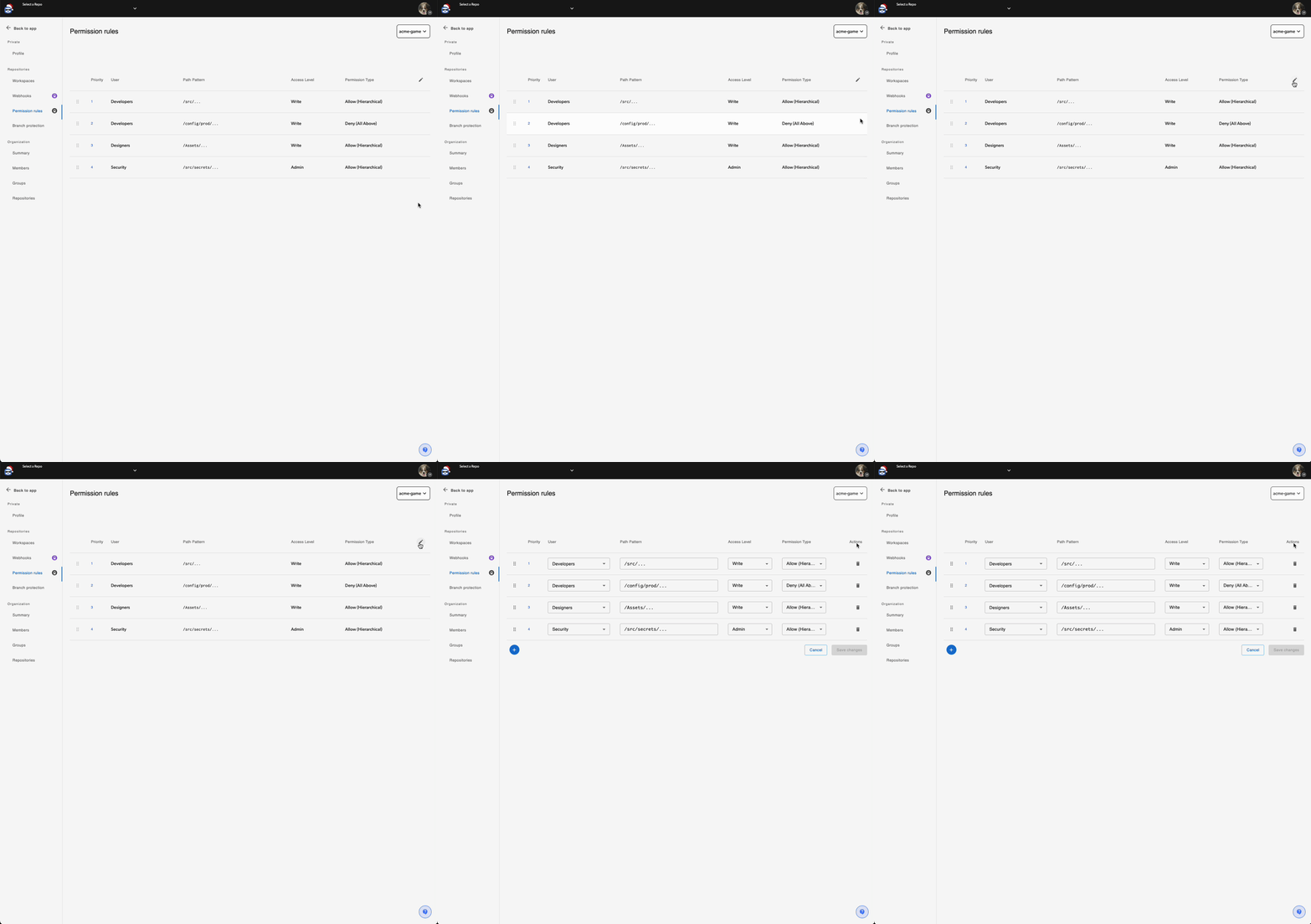 Click "Add Rule" and configure:
* **User or Group**: Who this rule applies to
* **Path Pattern**: Which files are affected
* **Access Level**: Admin, Write, Merge, or Read
* **Permission Type**: How to apply the access level
Click "Add Rule" and configure:
* **User or Group**: Who this rule applies to
* **Path Pattern**: Which files are affected
* **Access Level**: Admin, Write, Merge, or Read
* **Permission Type**: How to apply the access level
 You can reorder rules by dragging them (rules at the bottom have higher priority), edit any field, or delete rules you no longer need.
## Evaluation Logic
When a user tries to access a file:
1. Find all rules matching the file path for the user (including their groups)
2. Evaluate rules from bottom to top (highest priority first)
3. For each rule:
* If **Deny (All Above)** matches the requested level: Stop evaluating (previously granted permissions are kept)
* If **Deny (Exact)** matches exactly: Mark exact level as denied, continue evaluating
* If **Allow (Hierarchical)** or **Allow (Exact)** matches: Mark as granted, continue
4. Final decision: The highest granted permission wins, unless a deny was recorded
**Default behavior:**
* If there are **no granular permission rules** in the repository, users get their repository-level permission.
* Once **any rule exists** for any user, users without matching rules are **denied all access**. Make sure to add rules for all users who need access.
## API Access
You can manage granular permissions programmatically using the [Granular Permissions API](/api-reference/repository-granular-permissions/list-granular-permissions).
You can reorder rules by dragging them (rules at the bottom have higher priority), edit any field, or delete rules you no longer need.
## Evaluation Logic
When a user tries to access a file:
1. Find all rules matching the file path for the user (including their groups)
2. Evaluate rules from bottom to top (highest priority first)
3. For each rule:
* If **Deny (All Above)** matches the requested level: Stop evaluating (previously granted permissions are kept)
* If **Deny (Exact)** matches exactly: Mark exact level as denied, continue evaluating
* If **Allow (Hierarchical)** or **Allow (Exact)** matches: Mark as granted, continue
4. Final decision: The highest granted permission wins, unless a deny was recorded
**Default behavior:**
* If there are **no granular permission rules** in the repository, users get their repository-level permission.
* Once **any rule exists** for any user, users without matching rules are **denied all access**. Make sure to add rules for all users who need access.
## API Access
You can manage granular permissions programmatically using the [Granular Permissions API](/api-reference/repository-granular-permissions/list-granular-permissions).