> ## Documentation Index
> Fetch the complete documentation index at: https://docs.diversion.dev/llms.txt
> Use this file to discover all available pages before exploring further.
# Draft Commits
> Request feedback on your changes before committing them
## What are Draft Commits?
Draft commits let you request feedback on your changes **before** they're committed to your active branch. You can create a review directly from your uncommitted workspace changes.
This keeps your commit history clean while still getting the code review you need.
## Why Use Draft Commits?
Draft commits are ideal when you:
* **Work on a single branch** and want a simpler review workflow
* **Want early feedback** on work-in-progress changes before finalizing them
* **Keep your history clean** by only committing approved changes
* **Experiment with ideas** and want team input before making them permanent
Draft commits are optional. You can still use the regular commit workflow if you prefer to commit first and review later.
## Draft Commits vs Reviews
Here's a quick comparison to help you choose the right workflow:
| | Draft Commits | Reviews |
| ------------------ | ------------------------------------------- | --------------------------------------------- |
| **When to use** | Get feedback before committing | Get feedback on existing commits/branches |
| **Starting point** | Uncommitted workspace changes | Committed changes in a branch |
| **Commit history** | Changes only committed after approval | Changes already in branch history |
| **Workflow** | Edit → Send to review → Approve → Commit | Commit → Create review → Approve → Merge |
| **Best for** | Single-branch workflow, work-in-progress | Multi-branch workflow, feature branches |
| **Commit history** | Only approved changes committed | May include intermediate/experimental commits |
| **Flexibility** | Easy to discard or modify before committing | Requires reverting or amending commits |
Both features create the same review experience with comments, approvals, and notifications. The main difference is **when** you commit your changes - before or after getting feedback.
## Creating a Draft Commit
**Step-by-Step Instructions:**
1. **Make changes in your workspace**
* Edit files as you normally would
* Your changes remain uncommitted in your workspace
2. **Open your repository**
* Open your repository in the Diversion web app
* Your workspace's pending changes appear in the **Files** view
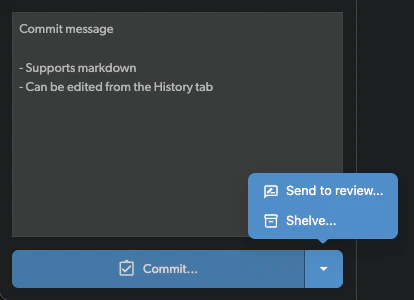
3. **Click the dropdown arrow next to "Commit..."**
* The commit button has a dropdown arrow (▼) on the right side
* Click the arrow to open the dropdown menu
* Select **"Send to review\..."**
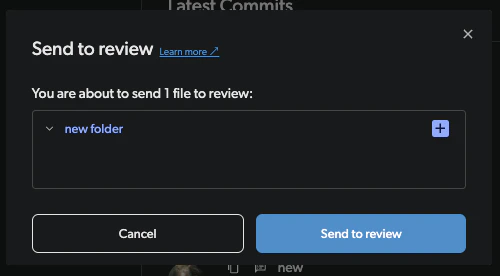
 4. **Confirm the files to send**
* A confirmation dialog shows the files that will be sent to review
* Review the file list and click **"Send to review"** to proceed
4. **Confirm the files to send**
* A confirmation dialog shows the files that will be sent to review
* Review the file list and click **"Send to review"** to proceed
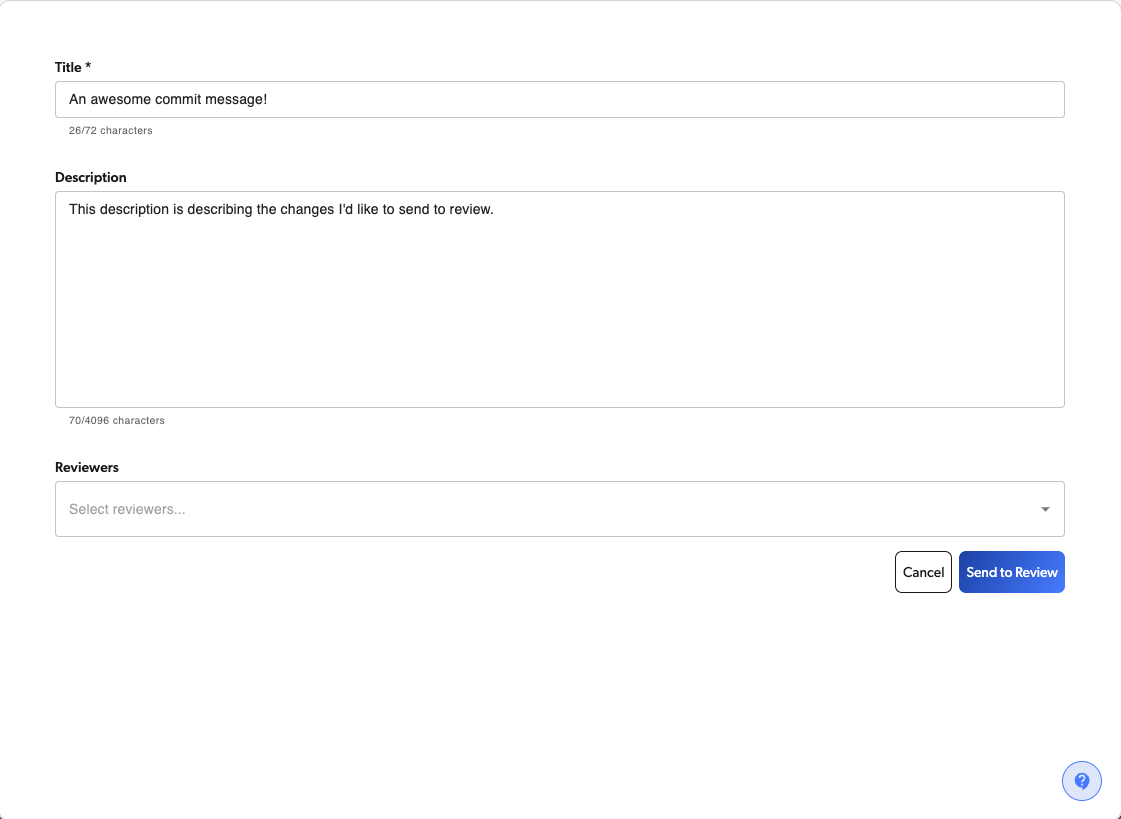
 5. **Fill in the review details**
* **Title** (required): Brief description of your changes
* Example: "Add user authentication endpoints"
* **Description** (optional): Detailed explanation for reviewers
* Explain what you changed and why
* Mention any areas where you need specific feedback
* **Reviewers** (optional): Select teammates who should review your changes
* You can add reviewers now or later
6. **Click "Send to Review"**
* A review is automatically created with your uncommitted changes
* Your workspace is automatically cleared so you can immediately continue working on other changes (the changes are safely stored in the draft)
* Assigned reviewers receive email notifications
5. **Fill in the review details**
* **Title** (required): Brief description of your changes
* Example: "Add user authentication endpoints"
* **Description** (optional): Detailed explanation for reviewers
* Explain what you changed and why
* Mention any areas where you need specific feedback
* **Reviewers** (optional): Select teammates who should review your changes
* You can add reviewers now or later
6. **Click "Send to Review"**
* A review is automatically created with your uncommitted changes
* Your workspace is automatically cleared so you can immediately continue working on other changes (the changes are safely stored in the draft)
* Assigned reviewers receive email notifications
 ## Managing Your Draft Commits
### Viewing Your Drafts
1. **Open the branch selector**
* Open the branch selector (top-left, showing the current branch and commit), then click the **Drafts** tab.
2. **Find your drafts**
* Your draft commits appear under the **Drafts** tab
* Each draft shows its title and source branch
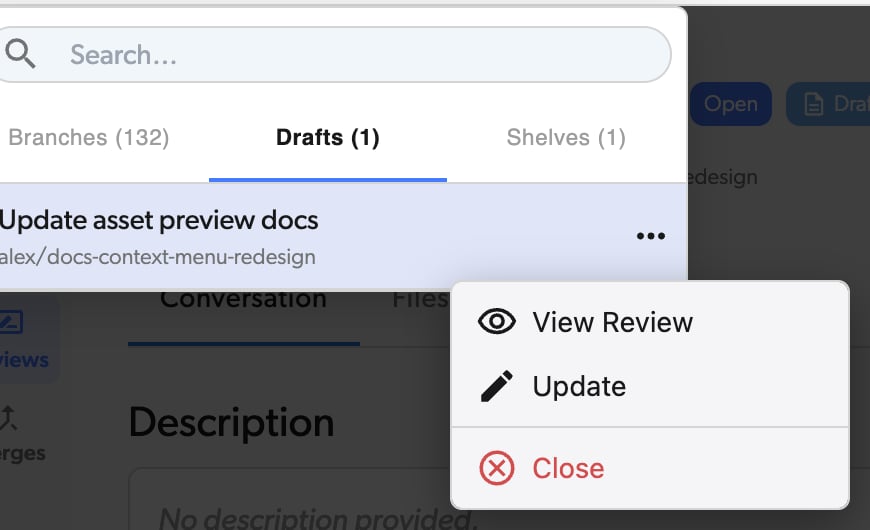
3. **Access draft actions**
* Click the **...** (more options) menu next to a draft to see available actions:
* **View Review**: Open the associated review to see feedback and comments
* **Update**: Switch to the draft to continue working on it
* **Close**: Discard the draft commit
## Managing Your Draft Commits
### Viewing Your Drafts
1. **Open the branch selector**
* Open the branch selector (top-left, showing the current branch and commit), then click the **Drafts** tab.
2. **Find your drafts**
* Your draft commits appear under the **Drafts** tab
* Each draft shows its title and source branch
3. **Access draft actions**
* Click the **...** (more options) menu next to a draft to see available actions:
* **View Review**: Open the associated review to see feedback and comments
* **Update**: Switch to the draft to continue working on it
* **Close**: Discard the draft commit
 You can have multiple draft commits open simultaneously, allowing you to work on different changes and get feedback on each independently.
## Updating a Draft Commit
If you need to make changes to your draft after creating it:
**Step-by-Step Instructions:**
1. **Find your draft**
* Open the branch selector and switch to the **Drafts** tab. Locate your draft in the list.
2. **Click "Update"**
* Click the **...** (more options) menu next to your draft
* Select **"Update"** from the menu
* Confirm by clicking **"Switch to draft"** in the dialog
* This switches your workspace to the draft branch and loads the draft changes
* You can now continue editing
3. **Make additional changes**
* Edit files to address reviewer feedback
4. **Update the draft**
* Commit your changes
* The review updates automatically with your new changes
* Reviewers see the updated diff
## After Review Approval
Once your reviewers have approved your draft:
1. **Review the feedback**
* Read through all comments and approvals
* Make sure all concerns are addressed
2. **Finalize your changes**
* Switch back to the draft if needed to make final adjustments
* Ensure everything is ready to commit
3. **Commit the changes**
* The approved changes can now be committed to your branch
* Your commit history stays clean with only reviewed, approved changes
4. **The draft closes automatically**
* Once merged or committed, the draft status changes to closed
## Closing a Draft Commit
If you decide you don't want to proceed with a draft:
**Step-by-Step Instructions:**
1. **Find your draft**
* Open the branch selector and switch to the **Drafts** tab. Locate your draft in the list.
2. **Click "Close"**
* Click the **...** (more options) menu next to your draft
* Select **"Close"** from the menu
3. **Confirm closing**
* Click **"Close draft"** in the confirmation dialog
* This action cannot be undone
4. **Draft is removed**
* The draft is deleted from your active drafts list
* If you were on the draft branch, you are switched back to the source branch
* Changes are discarded
## Working with Draft Reviews
### Review Process
Draft commits create reviews automatically, so the review process works the same:
* **Reviewers can comment** on specific lines or files
* **Reviewers can approve or request changes**
* **You receive notifications** when reviewers respond
* **Discussion happens in the review** just like regular reviews
For detailed review instructions, see the [Reviews documentation](/basic/reviews).
### Notifications
You'll receive email notifications for:
* When reviewers comment on your draft
* When reviewers approve or request changes
* When the review is closed/merged
You can have multiple draft commits open simultaneously, allowing you to work on different changes and get feedback on each independently.
## Updating a Draft Commit
If you need to make changes to your draft after creating it:
**Step-by-Step Instructions:**
1. **Find your draft**
* Open the branch selector and switch to the **Drafts** tab. Locate your draft in the list.
2. **Click "Update"**
* Click the **...** (more options) menu next to your draft
* Select **"Update"** from the menu
* Confirm by clicking **"Switch to draft"** in the dialog
* This switches your workspace to the draft branch and loads the draft changes
* You can now continue editing
3. **Make additional changes**
* Edit files to address reviewer feedback
4. **Update the draft**
* Commit your changes
* The review updates automatically with your new changes
* Reviewers see the updated diff
## After Review Approval
Once your reviewers have approved your draft:
1. **Review the feedback**
* Read through all comments and approvals
* Make sure all concerns are addressed
2. **Finalize your changes**
* Switch back to the draft if needed to make final adjustments
* Ensure everything is ready to commit
3. **Commit the changes**
* The approved changes can now be committed to your branch
* Your commit history stays clean with only reviewed, approved changes
4. **The draft closes automatically**
* Once merged or committed, the draft status changes to closed
## Closing a Draft Commit
If you decide you don't want to proceed with a draft:
**Step-by-Step Instructions:**
1. **Find your draft**
* Open the branch selector and switch to the **Drafts** tab. Locate your draft in the list.
2. **Click "Close"**
* Click the **...** (more options) menu next to your draft
* Select **"Close"** from the menu
3. **Confirm closing**
* Click **"Close draft"** in the confirmation dialog
* This action cannot be undone
4. **Draft is removed**
* The draft is deleted from your active drafts list
* If you were on the draft branch, you are switched back to the source branch
* Changes are discarded
## Working with Draft Reviews
### Review Process
Draft commits create reviews automatically, so the review process works the same:
* **Reviewers can comment** on specific lines or files
* **Reviewers can approve or request changes**
* **You receive notifications** when reviewers respond
* **Discussion happens in the review** just like regular reviews
For detailed review instructions, see the [Reviews documentation](/basic/reviews).
### Notifications
You'll receive email notifications for:
* When reviewers comment on your draft
* When reviewers approve or request changes
* When the review is closed/merged