> ## Documentation Index
> Fetch the complete documentation index at: https://docs.diversion.dev/llms.txt
> Use this file to discover all available pages before exploring further.
# Selective Sync
> Only sync the files you need
This one is for artists who don't want code, or for developers who aren't artistically inclined.
## What is Selective Sync?
Selective Sync is a feature that allows you to choose which folders you want to sync locally. This will allow you to only have the files you need to work on, saving space on your computer.
## How to use Selective Sync
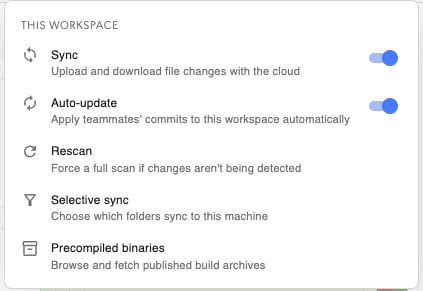
Open the workspace's **... (more options) menu** next to the workspace selector ("THIS WORKSPACE") and choose Selective sync.
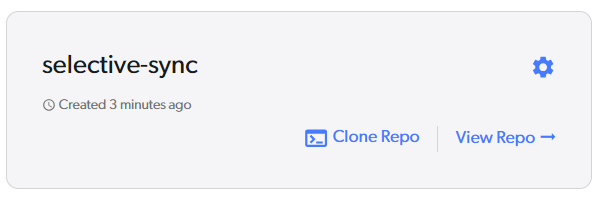
From your local folder, run `dv view`, or click the View Repo button in the UI.
 Click the **... (more options) button** next to the workspace selector to open the "THIS WORKSPACE" menu, then choose **Selective sync** ("Choose which folders sync to this machine").
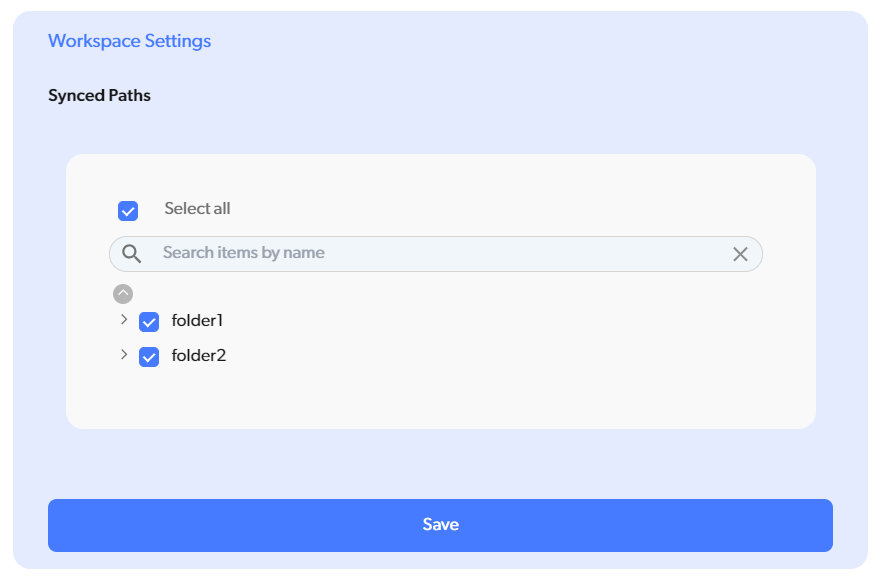 ### Unsyncing a folder
Let's take a look at `folder 1`.
In the UI:
### Unsyncing a folder
Let's take a look at `folder 1`.
In the UI:
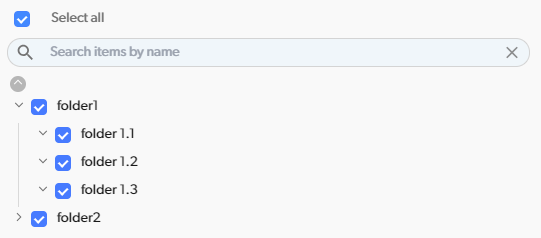 And locally:
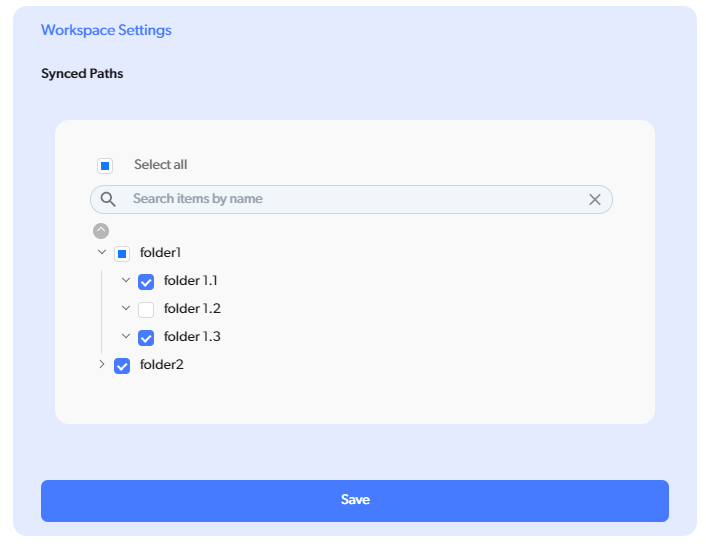
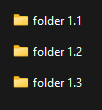 Let's unsync `folder 1.2`. Unselect the folder in the UI and hit Save.
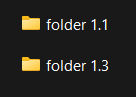
 Locally, the folder disappears automatically.
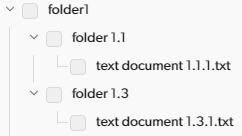
 It's also missing in the UI.
 ### What about my uncommitted changes?
Have no fear! If you have any uncommitted changes, you won't be able to change your selective sync settings. Let's see what that looks like.
Inside `folder 1.1`, let's make changes to `text document 1.1.1.txt` and save.
### What about my uncommitted changes?
Have no fear! If you have any uncommitted changes, you won't be able to change your selective sync settings. Let's see what that looks like.
Inside `folder 1.1`, let's make changes to `text document 1.1.1.txt` and save.
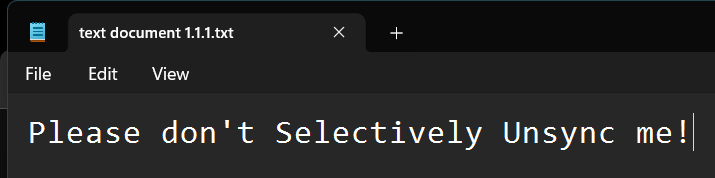 Back in the workspace settings, let's try to unsync `folder 1.1`.
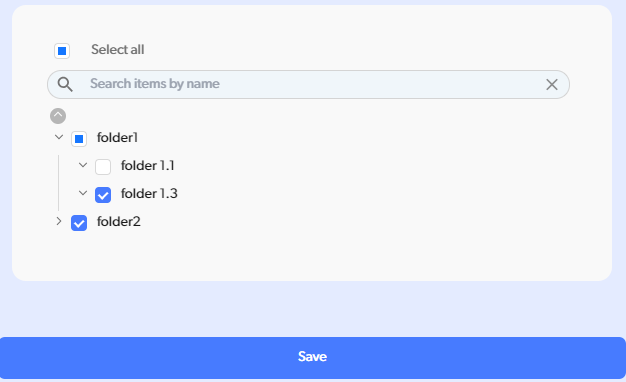 We got an error message! We'll have to commit or discard our changes before unsyncing the folder.
 ## Loose files
Right now, we can only selectively sync folders. This means that files are handled differently, if they're not in a folder.
Let's take a look at `folder 2`.
## Loose files
Right now, we can only selectively sync folders. This means that files are handled differently, if they're not in a folder.
Let's take a look at `folder 2`.
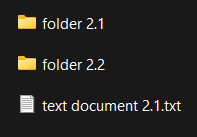 Notice that it has a file directly under it - `text document 2.1.txt`. In this situation, unsyncing `folder 2.1` will also unsync `text document 2.1.txt`! That's despite the file being a sibling of the folder and not a child of it. This is because `folder 2` will be marked as partially synced, so only explicitly synced folders (in this case, `folder 2.2`) will be kept.
This still supports the main use-case of this feature:
1. Artists who don't want to sync code locally can ignore the root `Source` folder, or equivalent.
2. Developers who don't want to sync heavy assets can ignore the root `Content` folder, or equivalent.
## Per workspace
The selective sync feature works on a per-workspace basis. This means that you can have different selective sync settings for different workspaces. This is useful if you have multiple projects in the same repo, or if you're working on different parts of the same project.
Notice that it has a file directly under it - `text document 2.1.txt`. In this situation, unsyncing `folder 2.1` will also unsync `text document 2.1.txt`! That's despite the file being a sibling of the folder and not a child of it. This is because `folder 2` will be marked as partially synced, so only explicitly synced folders (in this case, `folder 2.2`) will be kept.
This still supports the main use-case of this feature:
1. Artists who don't want to sync code locally can ignore the root `Source` folder, or equivalent.
2. Developers who don't want to sync heavy assets can ignore the root `Content` folder, or equivalent.
## Per workspace
The selective sync feature works on a per-workspace basis. This means that you can have different selective sync settings for different workspaces. This is useful if you have multiple projects in the same repo, or if you're working on different parts of the same project.